![logo-mark-primary-color-4.png]](https://support.apicbase.com/hs-fs/hubfs/logo-mark-primary-color-4.png?height=40&name=logo-mark-primary-color-4.png)
1. Open a period
A period always starts from a stock count you have already finished. That count has to be:
- a full count, not a partial count
- a top-level count, not a sub-count that rolls up into another one
- finished
- from the last 180 days
- not already the opening count of another period, and not dated inside a closed period
To open the period:
- Go to Inventory, then Stock Periods, and choose the outlet.
- Select Start First Period if the outlet has no periods yet, or Add Period.
- Under Opening count (required), pick the finished count.
- Optionally type a Period name. Without one, the name is made from the opening count.
- Select Confirm.
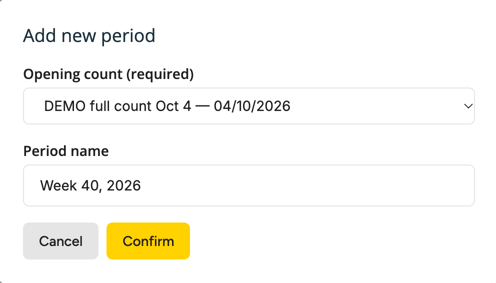
The expected close date comes from the schedule in your library settings. Nothing closes when that date arrives, and Apicbase sends no reminder. A period that is past its expected close date shows an Overdue badge.
An outlet can have several periods open at once, which is how a monthly accounting window and a weekly cycle run side by side. Each open period has its own card under Open periods. Closed periods are listed under Closed periods.
For a window that has already passed, open the menu next to Add Period, choose Add historical period, pick both counts and select Create historical period. The period is created already closed.
2. Follow the period while it runs
The open period's card recalculates every time you open the page. It shows a Stock reconciliation strip, followed by one card per kind of movement: Opening Stock, Goods Received, Returnables (when deliveries carried returnable items), Incoming Orders (central kitchens only), Produced, Transfer, Sales, Shipped to external customers, Waste, Spot counts and Closing Stock.
The strip reads from left to right: Opening plus Inventory Movements gives Theoretical, which is compared with Closing to give the Total variance.
- Theoretical is your opening count plus everything that moved since. It is what you should have in stock if every movement was recorded.
- Total variance is Closing minus Theoretical. A negative variance means you counted less than expected.
- Positive variance and Negative variance appear under it once a closing count is attached. They add up, item by item, what your counts found more of and less of than expected. That includes spot counts inside the period.

Until a closing count is attached, the variance lines stay empty, because there is nothing to compare Theoretical with.
When both counts covered the same items, Positive variance minus Negative variance equals the Total variance. When they did not, a Not reconciled line appears with the cause lines under it: N items only in the opening count, N items only in the closing count and N items in neither count. The usual cause is a closing count that did not cover the same shelves as the opening count.
If Theoretical is below zero, more stock was taken out than your opening count held. The Total variance is then marked as not reliable.
Goods Received shows the stock your deliveries added. When the supplier billed a different amount, that amount follows in brackets, for example (€120.00 billed). A delivery received without updating stock adds nothing and shows a ban icon.
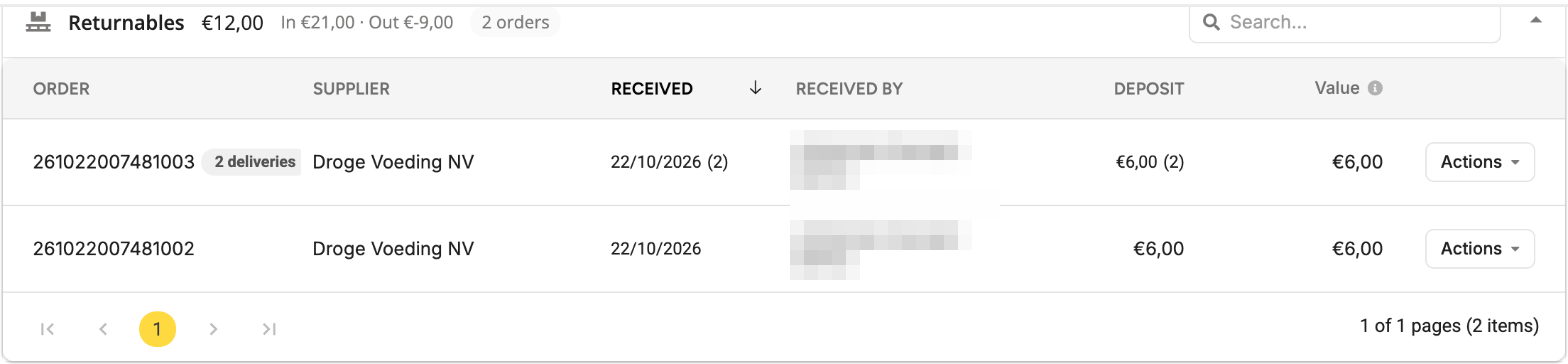
Returnables covers crates, kegs, bottles and other items with a deposit. They come in with a delivery (In) and go back to the supplier with one (Out). The headline is the net stock value they moved, with In and Out under it: for example €12.00 with In €21.00 · Out €-9.00. The counter beside it counts orders, not deliveries. Returnable items set up as stockable also show as a Returnables line under Inventory Movements and count in Theoretical. For other returnable items the card shows the deposit only.
The card has one row per order, newest delivery first, with Order, Supplier, Received, Received by, Deposit and Value:
- Deposit is the deposit the supplier charged, minus what they credited for items going back.
- Value is the stock value the items moved. An item coming in enters stock at its deposit. An item going back leaves stock at its average cost, so the two columns can differ. A crate credited at €5.00 that cost €4.50 on average counts €5.00 under Deposit and €4.50 under Value.
When an order had several deliveries with returnable items, it shows a chip such as 2 deliveries. Hover it to see each delivery's date, deposit and who received it. To correct a delivery, select Edit in the row's Actions menu.
When the period has sales, a CoGS table follows the strip, with your Revenue (excluding VAT) above it:
- Theoretical is the food cost of the items sold: the stock each sale used or, if a sale used no stock, its recipe's food cost. Labour costs on your recipes are not included.
- Actual is theoretical plus waste minus the Total variance. Stock missing at the closing count adds to it, stock found takes it off. It appears once the period has a closing count.
- Difference is actual minus theoretical. The rows show this as CoGS, CoGS % of revenue, Profit and Margin.
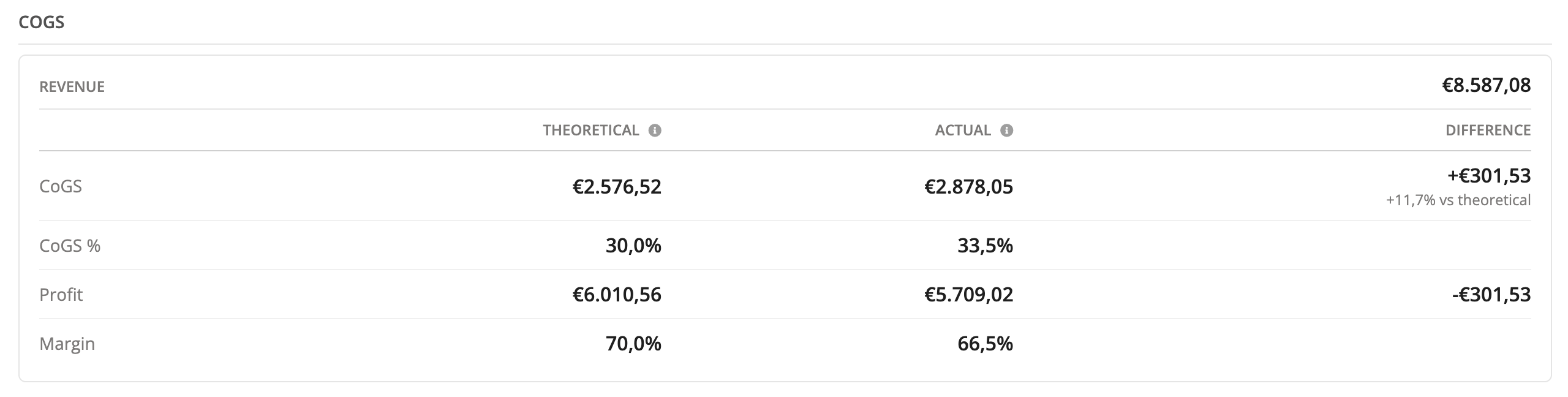
Actual CoGS can be lower than theoretical CoGS. That happens when your closing count found more stock than your movements predicted, so the Total variance is positive. If the stock found is worth more than the period's sales and waste, actual CoGS is even below zero. Look at the Not reconciled lines first: items that only the closing count reached are the usual cause.
3. Close the period
Closing needs a second full count. It has to meet the same requirements as the opening count. It also has to be a different count, dated after the opening count, and it must not make the period run into a closed one.
- Finish the full count you want to close on.
- In the Closing step of the strip, select Assign closing count and pick that count.
- Select Close Stock Period. The button appears once a closing count is assigned.
- Read Close Period Summary. It lists checks on items not counted, negative stock, open events and orders not yet received, then shows Opening Count, Closing Count and Variance.
- Select Close Period.
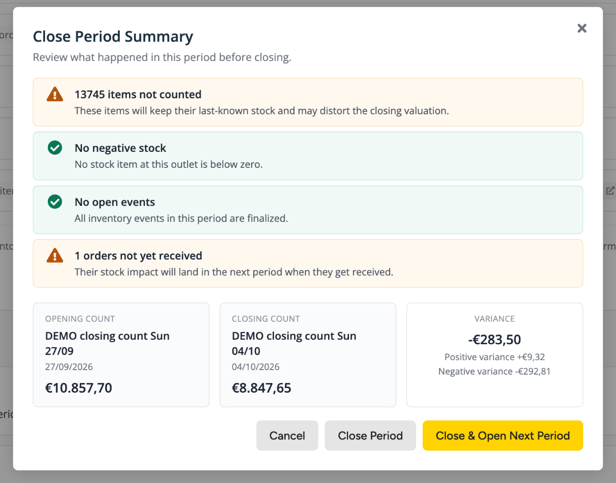
Open events and outstanding orders are there for you to check. They never stop you closing. The summary shows the positive and negative variance, but not the Not reconciled line. Check that line on the period page, where it appears as soon as a closing count is assigned.
You can swap or remove the closing count with Assign a different count or Remove closing count for as long as the period is open.
You can also assign the closing count when you close a full count on the count screen. Assign as closing count of a stock period is then already set to the newest open period that has no closing count yet. Choose Don't assign if the count is not meant to close a period. The period itself stays open until you close it here.
If the outlet has no later period yet and you are not re-closing a reopened period, the summary also offers Close & Open Next Period. It closes the period and opens the new period dialog with your closing count preselected as the opening count. You still confirm the new period there. Close Period alone leaves the outlet with no open period until you use Add Period.
Close periods in order. You cannot close a period while an earlier period on the same outlet is still open or reopened: An earlier open stock period must be closed first.
If the closing count's date is not the planned close date, the summary warns that the period ends on the closing count's date: This period ends on the actual closing count's date, not the planned close date. Events and orders dated outside this range won't be part of the period.
Once the period is closed, its window is frozen. You cannot save a count, waste, transfer, preparation or manual sale dated in or before a closed period, and the date pickers grey out those days. Draft purchase orders are the exception: you can always edit, cancel or empty a cart.
A closed period keeps the figures calculated when it was closed. To recalculate them, reopen the period and close it again.
4. Reopen, re-close or delete
Reopen a closed period when you need to correct it, then close it again when you are done. Select Reopen on the period under Closed periods.
Two rules limit reopening. You can only reopen the most recent closed period of an outlet, so work backwards to reach an older one. Older closed periods show Reopen greyed out: Reopen the most recent closed period first. Periods are reopened newest first. And a period can only be reopened if it ended within the last 180 days.
A reopened period does not show an overdue warning, even when it is past its expected close date.
To delete a period, select Delete on its card. A period that is closed cannot be deleted, and neither can a period that has a closed period after it: A closed period must be reopened before it can be deleted.
You cannot change the date of a count that is the boundary of a closed period: This count is the boundary of a closed stock period. Reopen the period before changing its date.
5. If a message stops you
- Only full counts can open a period. or Only top-level counts can open a period. Use the top-level full count, not a partial count or a sub-count.
- Opening count must be from the last 180 days. Older counts cannot start a period.
- A later closed stock period must be reopened first. Reopening works backwards from the newest.
- The closing count is still being edited. Finish it before closing the period. The count you assigned was reopened for a recount. Close it first.
- Selected date falls in or before a closed stock period. Reopen the period to edit it, or use a date after the last close. You tried to save a count, waste, transfer, preparation or manual sale on a date inside or before a closed period.
- Delivery date falls in a closed stock period. Reopen the period first or pick a different date. This appears when you receive a delivery or edit the date of one.
- Sent date falls in a closed stock period on this outlet. Reopen the period first or pick a different date. This appears when you ship an incoming order on a central kitchen. Editing an order that was already shipped gives This change falls in a closed stock period. Reopen the period first or pick a different date.
- This period is currently being modified by another process. Please try again. Somebody else is working on the same period.
What stock periods do not do
- Closing a period does not open the next one by itself. Close & Open Next Period opens the dialog and you confirm.
- Warnings never block a close, including Not reconciled.
- There is no export and no comparison between periods.
- A Not reconciled line states how many items and what value. It does not list the items.