![logo-mark-primary-color-4.png]](https://support.apicbase.com/hs-fs/hubfs/logo-mark-primary-color-4.png?height=40&name=logo-mark-primary-color-4.png)
1. Turn on stock periods
- Go to Settings, then Library Settings.
- Open the Stock Periods tab. The page heading reads Stock Period Settings.
- In Period Configuration, turn on Enable Stock Periods.
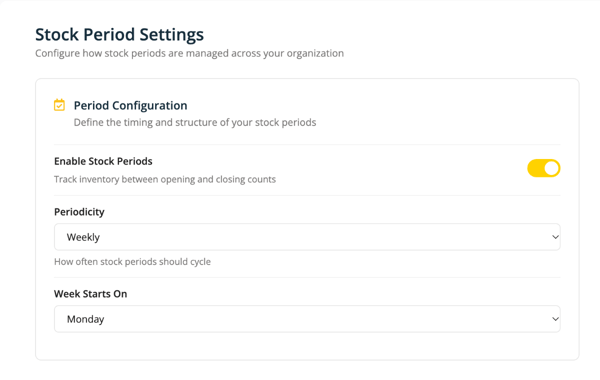
Once the switch is on, Periodicity appears, together with Week Starts On or Month Starts On.
If you see Stock Periods and HQ Overview under Inventory with a padlock, the feature is still switched off for your library. Turn it on as above.
If you open Stock Periods and land back on the inventory dashboard without a message, either Enable Stock Periods is off or your role has neither of the two stock period permissions (see section 3).
2. Set how often periods run
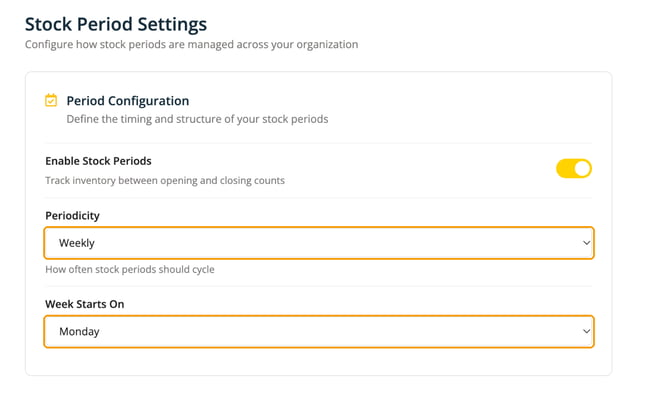
In Period Configuration, choose:
- Periodicity: Weekly or Monthly.
- Week Starts On: for a weekly periodicity, the weekday a new period opens on. Monday by default.
- Month Starts On: for a monthly periodicity, the calendar point a period is based on, for example First day of month or First Monday of month.
These settings work out the expected close date of each new period. They do not open or close anything on their own.
Settings save as you change them. The message Settings saved. confirms it.
3. Give your team permission to work with periods
Open the role you want to change in your user roles and find the group Stock Periods. It holds two checkboxes:
- Manage stock periods: The user can start a stock period, assign its closing count, close it, and delete a stock period that is not closed yet.
- Reopen a stock period: The user can reopen a closed stock period so it can be corrected and closed again.
Both are off by default, so nobody can close or reopen anything until you edit a role. You can grant either one or both.

Reopen a stock period carries its own warning: This permission allows the user to alter stock history. Someone with it can change figures you have already reported on.
A user needs at least one of the two checkboxes to see Stock Periods (and, for library users, HQ Overview) in the menu and to open the pages. Without Manage stock periods a user sees no buttons to start, close or delete a period. Without Reopen a stock period there is no Reopen button. One exception: when you close a full count, you are offered the option to assign it as the closing count of an open period, and this does not require Manage stock periods.
HQ Overview is for library users. Someone who signs in against a single outlet gets Stock Periods in the menu but no HQ Overview, whatever their role allows. If they open its address anyway, they land on their dashboard without a message.
4. Give one outlet a different schedule
A central kitchen often runs on a different rhythm from the outlets it supplies. Edit that outlet, open its Stock Periods tab and turn on Override library defaults. Then set the outlet's own Periodicity, Week Starts On and Month Starts On. With the switch off, the outlet follows the library settings.
Override library defaults changes the schedule only. It does not turn stock periods on or off for that outlet. Stock periods are on or off for the whole library.
What stock periods do not do
- Periods never close themselves, even when they are past their expected close date.
- Closing a period does not open the next one by itself.
- A period covers one outlet. No period spans several outlets.
- Stock periods cannot be on for one outlet and off for another.
- HQ Overview is not available to outlet users.