![logo-mark-primary-color-4.png]](https://support.apicbase.com/hs-fs/hubfs/logo-mark-primary-color-4.png?height=40&name=logo-mark-primary-color-4.png)
Your library needs the new invoice screens switched on. If you do not see them, ask your Customer Success Manager.
The examples follow four invoices (A to D) from one supplier.
1. Before you start
- Apicbase switches invoice reconciliation on for your library.
- Your role needs permissions in the Invoice group: View to open and export invoices, Edit to upload invoices, handle lines and send credit requests, Approve to change an invoice's status and set the margin, Delete to delete invoices. You only see the buttons your role allows.
- Your purchase orders and deliveries are recorded in Apicbase.
2. Getting invoices in
- Go to Procurement > Invoices and select the outlet at the top.
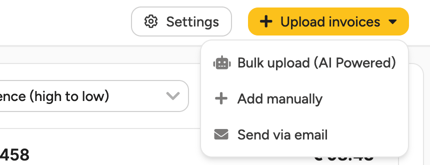
- Select Upload invoices, then Bulk upload (AI Powered) to upload PDF invoices, Add manually to enter one yourself, or Send via email to see the address to forward invoices to.
Apicbase reads the invoice, recognises the supplier and links the purchase orders. A PO number printed on the invoice is the surest way to get the right order, so ask your supplier to include it. One invoice can cover several orders: invoice D lists two PO numbers, and both were linked automatically.
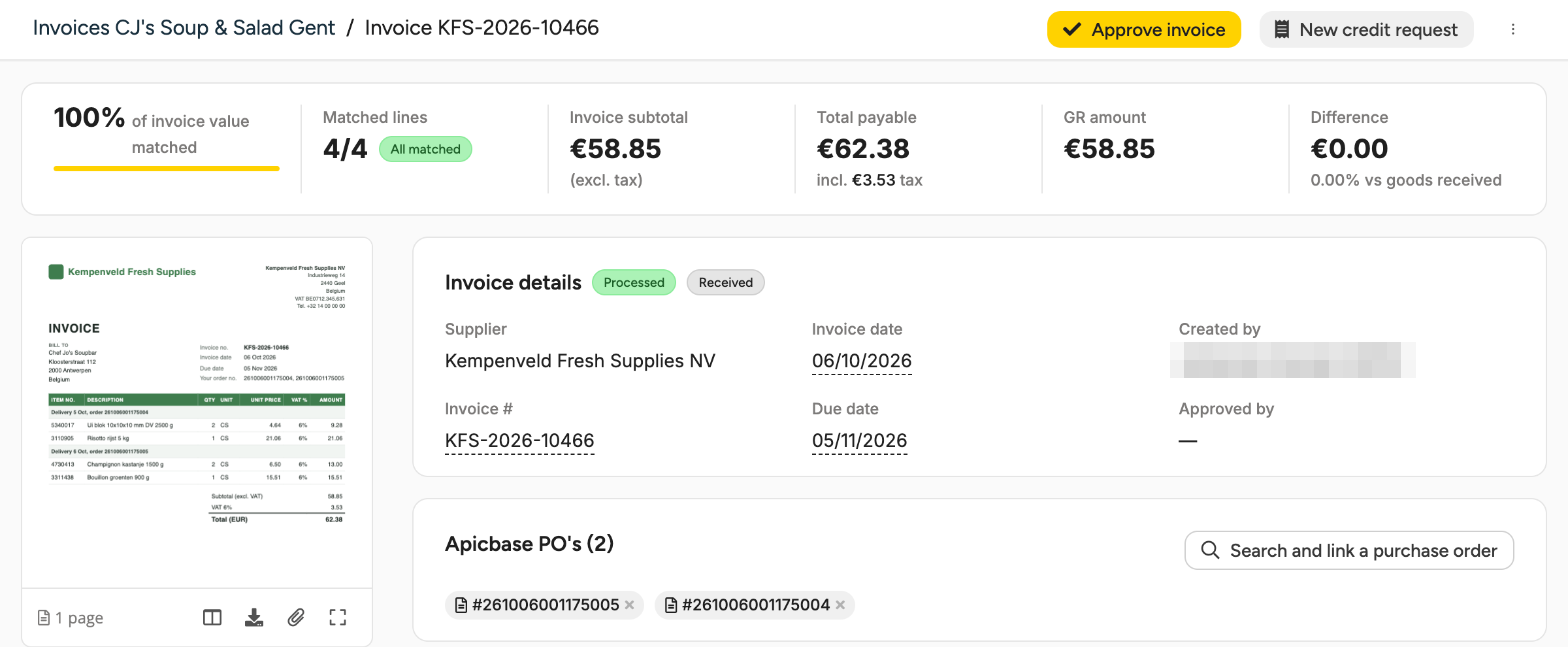
If a purchase order is missing, select Search and link a purchase order on the invoice. The invoice lines are then paired with the order lines automatically. If you unlink an order, its pairings are cleared and lines you accepted or disputed become open again.
While a credit request on the invoice is open, you cannot unlink its purchase orders. You see A credit request is open on this invoice, so its purchase orders cannot be unlinked. and Ask support to withdraw the credit request first. Select View credit request to open it.
3. The invoices list
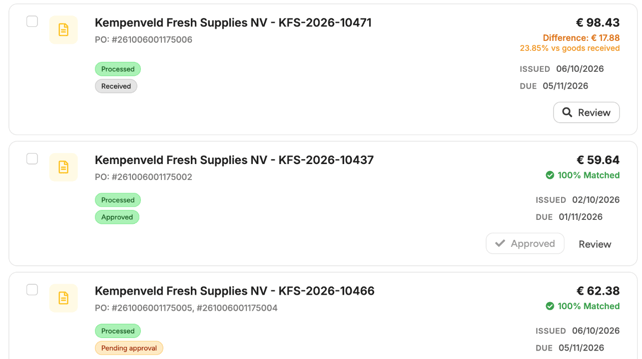
Each invoice shows a status line:
- 100% Matched: the invoice total agrees with what you received.
- Difference: the invoice differs by more than your margin. Invoice C shows Difference: € 17.88.
- PO missing: no purchase order is linked yet.
- Delivery not yet received: nothing has been received on the linked orders yet.
The list compares totals. The line check happens inside the invoice.
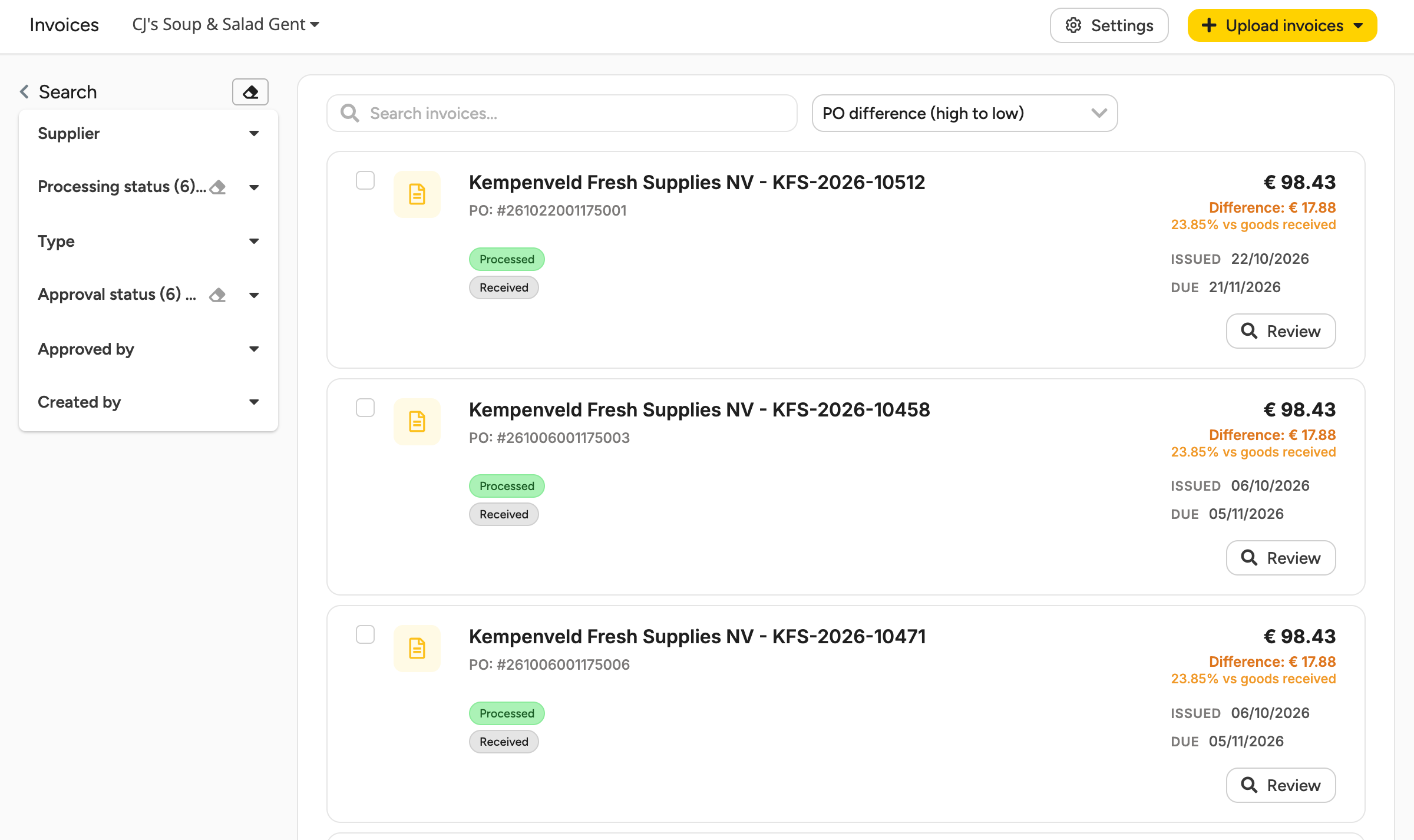
The default sort, PO difference (high to low), puts the biggest differences first. The list hides approved invoices by default. To see them, tick Approved under Approval status.
To download invoice totals, select the invoices and then Export in the bar that appears. You get a CSV file with the totals of each invoice.
4. Reading an invoice
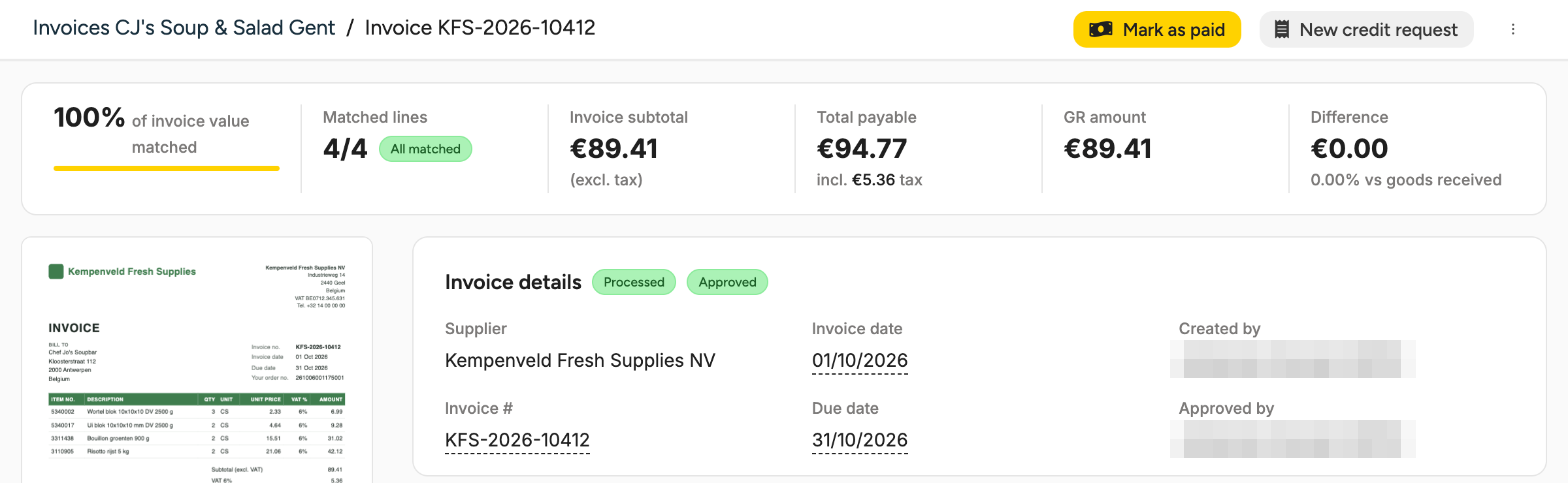
Select Review to open an invoice. The top of the page sums it up:
- of invoice value matched: the share of the invoice value on matched lines.
- Matched lines: matched lines out of all lines.
- Invoice subtotal (excl. tax) and Total payable.
- GR amount: the value of what you received.
- Difference: invoice subtotal minus GR amount.
Under Line item reconciliation, lines are grouped under Mismatched lines and Matched. Each line gets a verdict:
- Matched: quantity and price agree with the delivery and the order, within your margin. A line billed per piece instead of per case also matches when the totals agree.
- Price mismatch: the unit price differs from the order, or the line amount is not quantity times price.
- Quantity mismatch: the quantity differs from what you received.
- No PO line: no purchase order line matches, for example an item you did not order.
- Not comparable: a quantity, price or article is missing.
- Suggested match: Apicbase did not recognise the article and paired the line with an order line by name, shown as Paired by name. Check that it is the same article and select Accept. Until then it counts as a mismatch. If it is another article, select Dispute or Unlink from PO.
Invoice C has three mismatches and a Difference of €17.88.
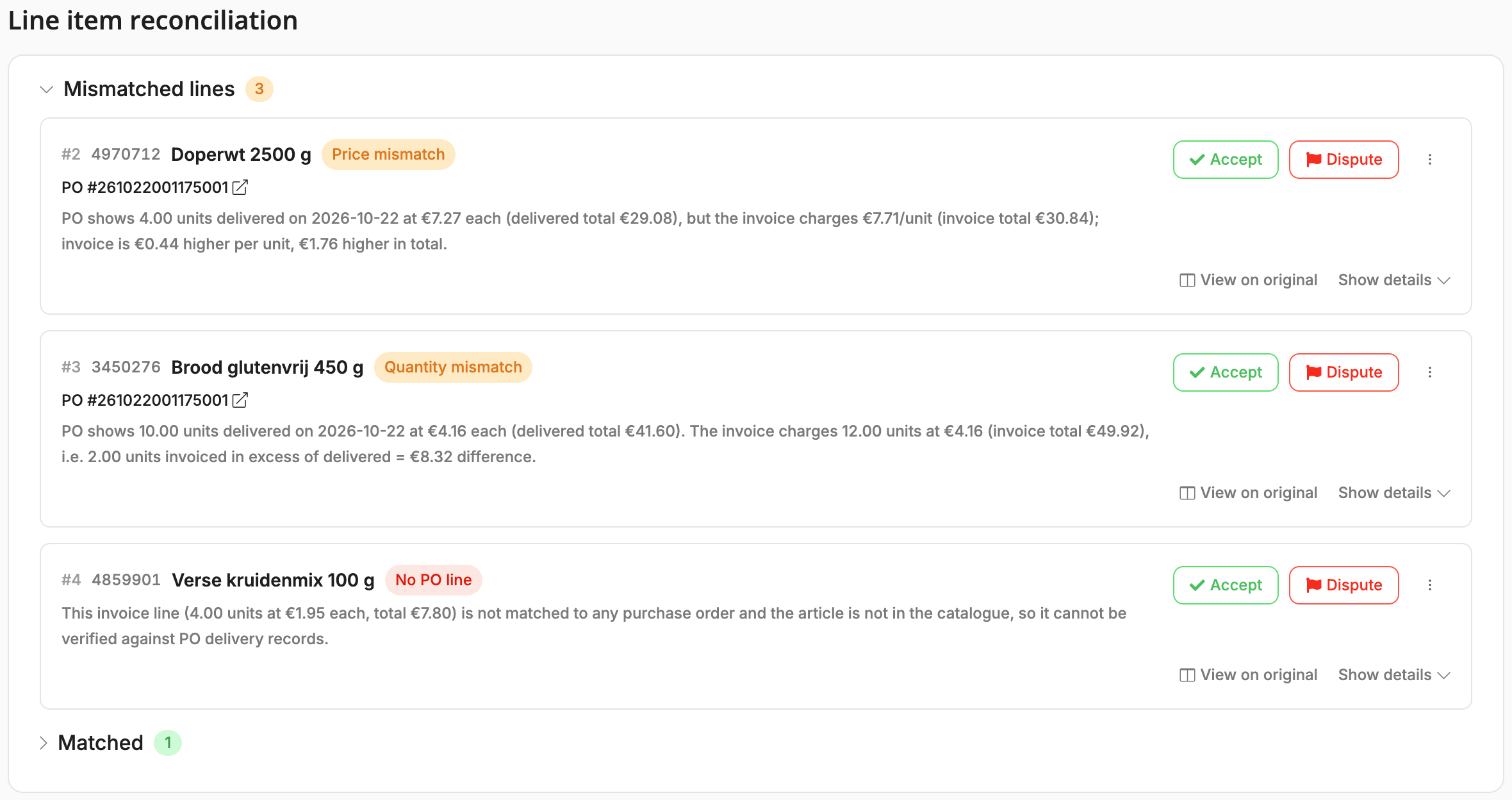
The explanation under a line is written by AI, in your library's default language. Check it against the figures. A matched line only shows an explanation when the AI also found the line correct.
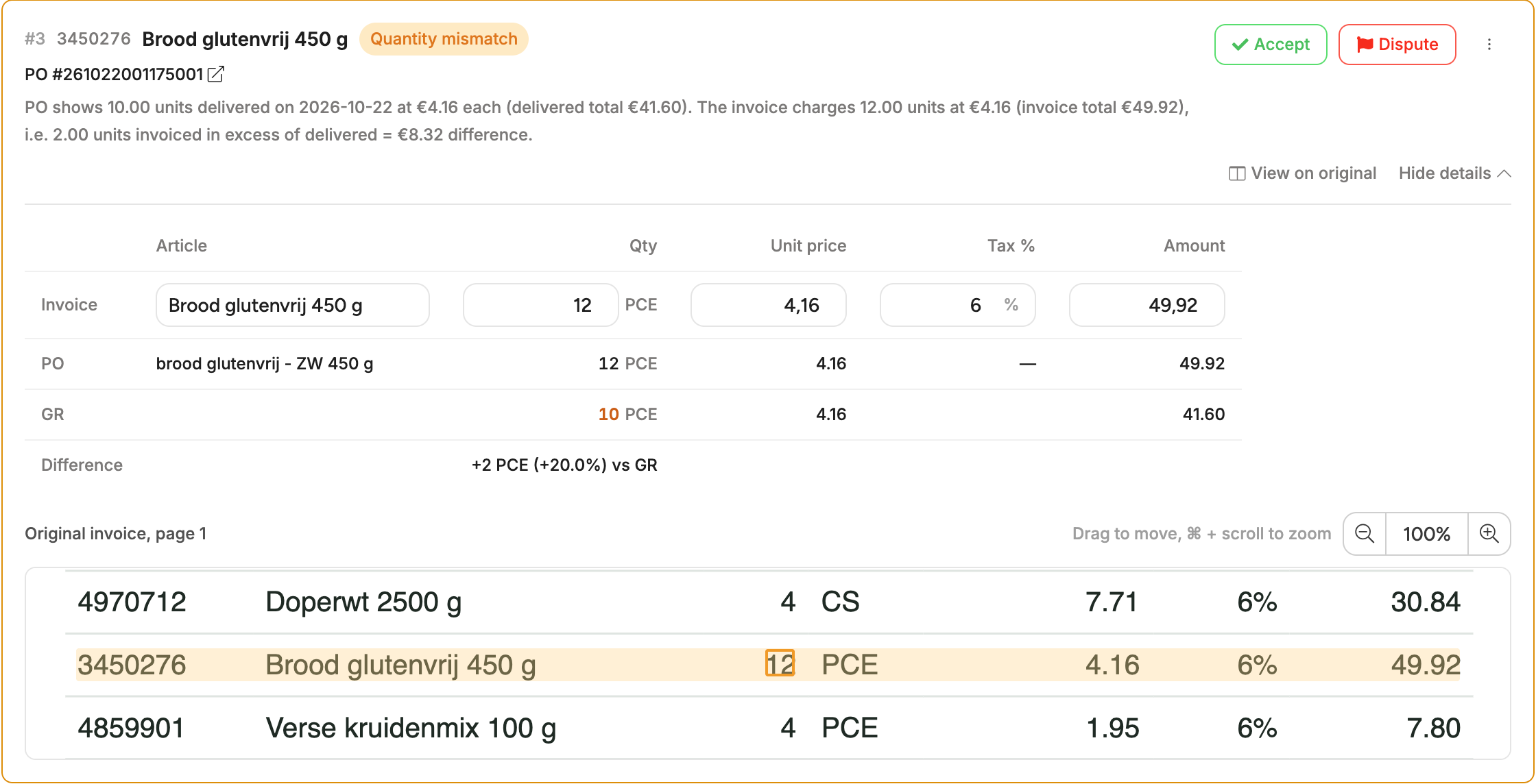
Select Show details to compare the Invoice, PO and GR rows. The bread is invoiced 12 × 4.16 = 49.92, but you received 10: a difference of +2 PCE. For a PDF invoice, a snippet of the original under the table shows the line highlighted. Drag it to move it and use the zoom buttons to read it.
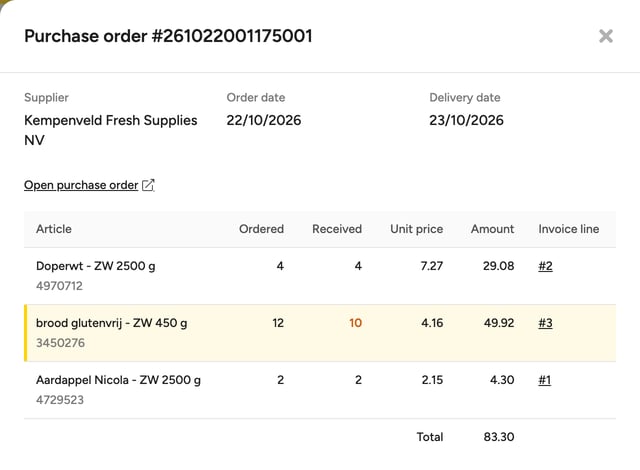
Select a linked order, or PO # on a line, to see the purchase order next to the invoice: what was ordered and received per article, and which invoice lines are paired with it. Open purchase order opens the order in a new tab.
5. Handling mismatches
For each mismatch, choose:
- Accept: keep the line as invoiced. It moves to Matched and counts as matched. The amounts do not change.
- Dispute: mark the line as wrong, so you can claim it from the supplier.
To dispute a line:
- Select Dispute. A text box opens with the AI explanation filled in.
- Write the reason the supplier will read.
- Select Confirm dispute.
Undo reverses an accept or a dispute. A disputed line stays under Mismatched lines, even when its figures match later.
On invoice C, you accept the herb mix that was not on the order. You dispute the peas (7.71 instead of 7.27) and the bread (12 invoiced, 10 delivered). The top bar now shows New credit request (2).
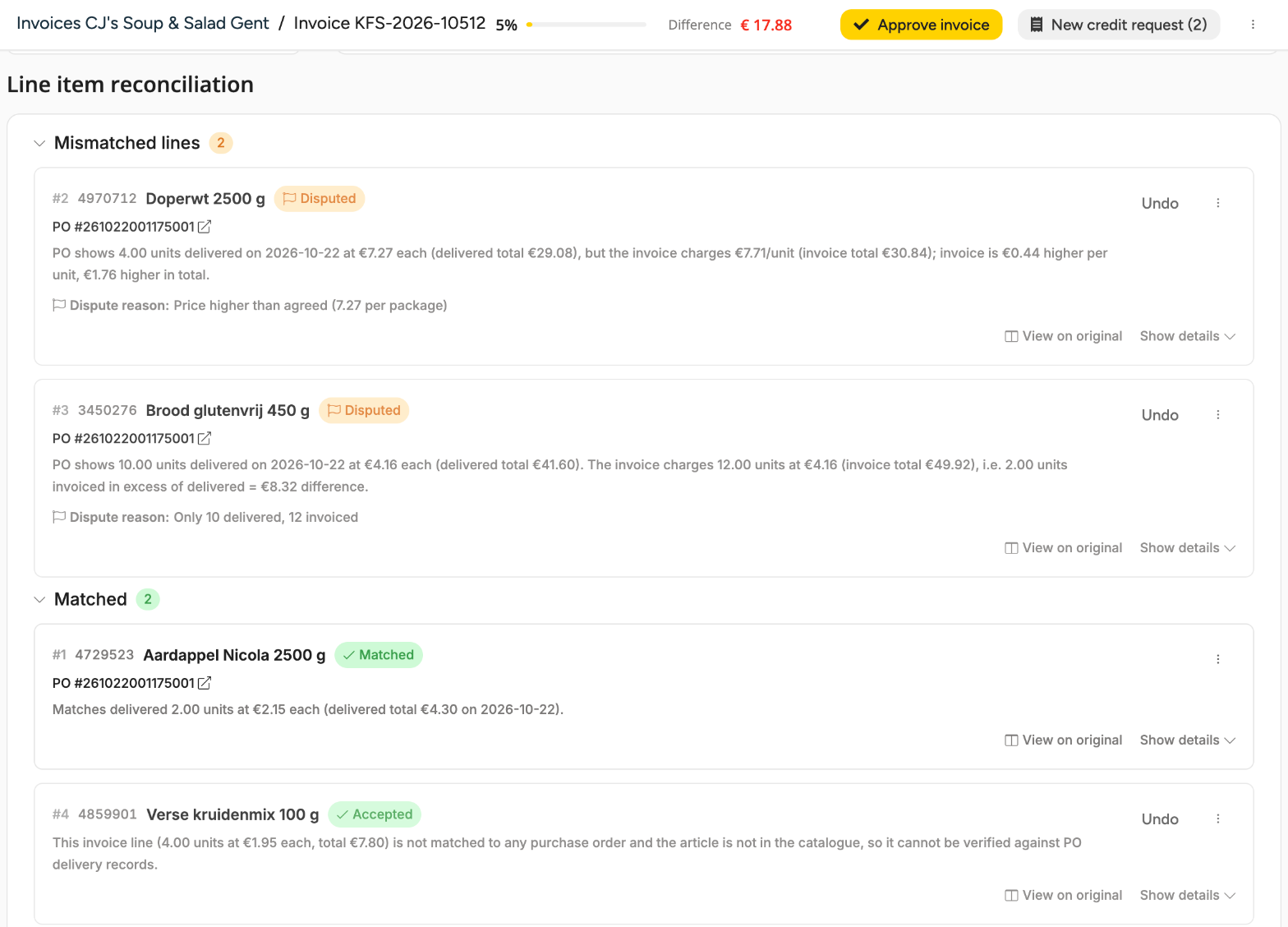
Accepting every line does not approve the invoice.
6. Asking the supplier for a credit
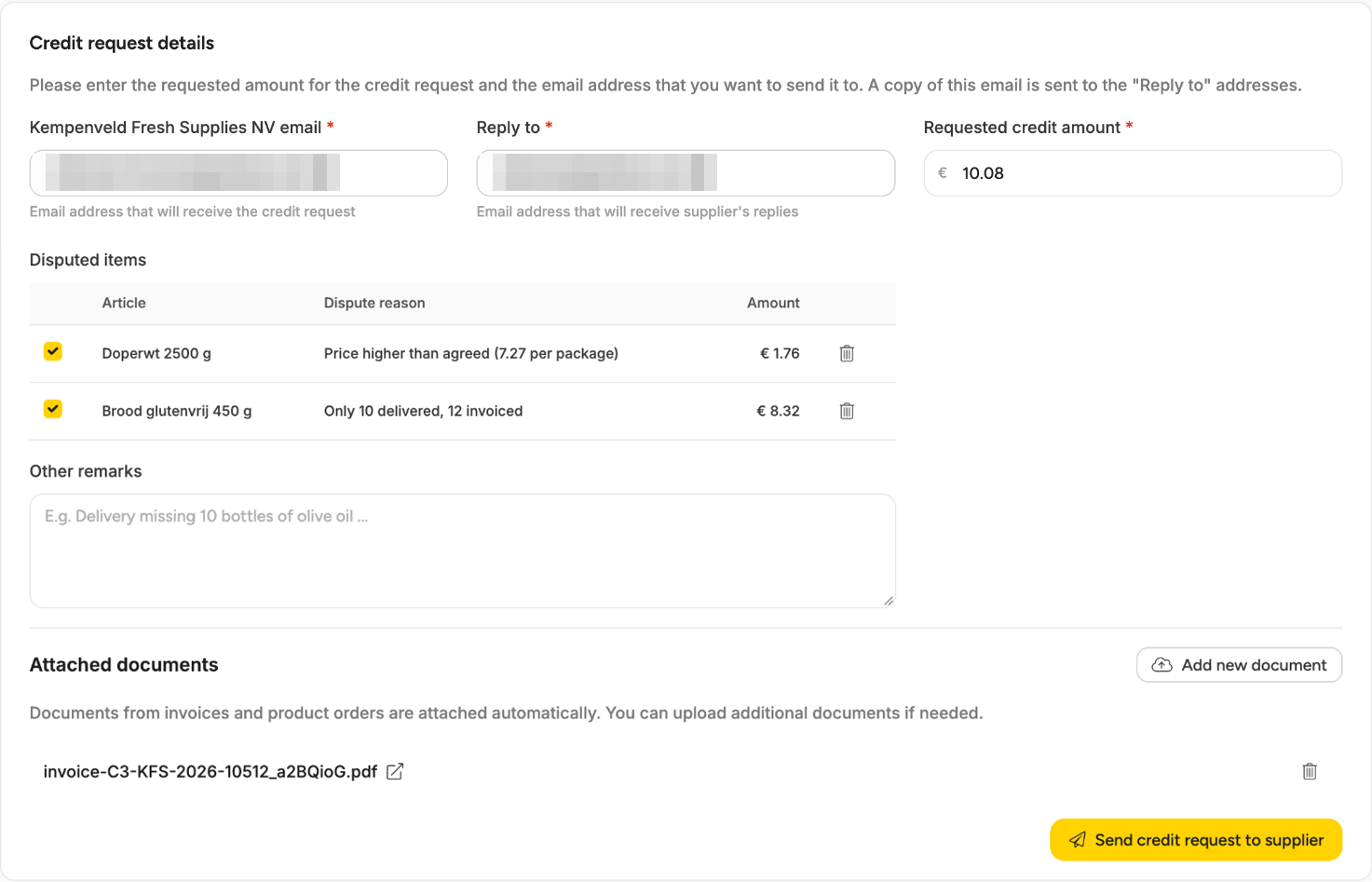
- Select New credit request in the top bar.
- Check Supplier email and Reply to. A copy of the email goes to the Reply to addresses, which hold your own address by default.
- Under Disputed items, untick any line to leave for later. Ticking recalculates the Requested credit amount, so tick first, then adjust the amount.
- Add Other remarks if you want; they are optional. The invoice PDF is attached automatically.
- Select Send credit request to supplier. If the button stays grey, the hint under the amount says why.
Each line claims what was invoiced minus what was received. For invoice C: €1.76 + €8.32 = €10.08.
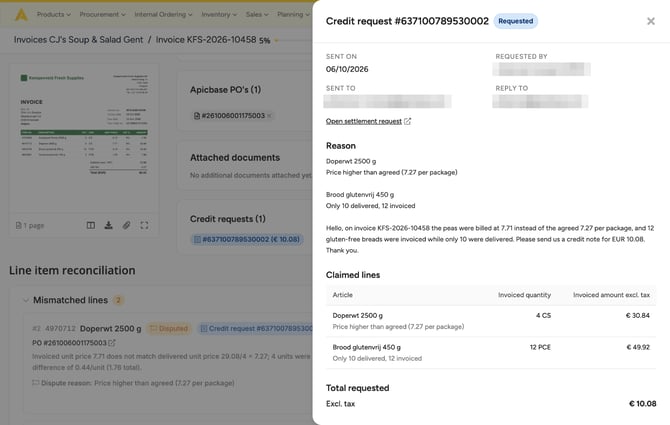
The supplier gets an email with the disputed lines and reasons. Claimed lines show Credit request # with its number and can no longer be undone. The Credit requests box on the invoice lists each request with its amount and status. Select one to see the claimed lines, and Open settlement request to follow it up.
7. Allowing small differences
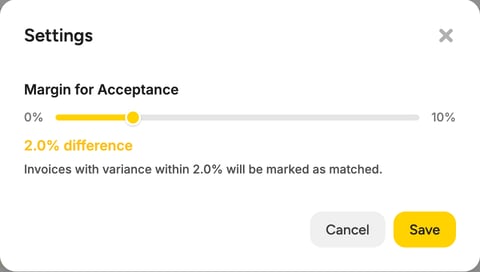
Set a Margin for Acceptance so small differences count as matched.
- On the invoices list, select Settings.
- Move the slider (0% to 10%) and select Save.
The margin applies to the outlet selected on the list. Without one, every difference counts.
On invoice B, the cream is billed at 26.61 against 26.25 received, 1.37% more. At 0% it is a Price mismatch. At 2% it is Matched and invoice B shows 100% Matched.
8. Approving, flagging or rejecting an invoice
The top bar of the invoice shows the next step for its status, and the menu next to it holds the other moves:
- Received or Pending approval: Approve invoice. Menu: Flag, Reject.
- Flagged: Approve invoice. Menu: Reject. Remove flag is on the flag banner.
- Approved: Mark as paid. Menu: Flag, Withdraw approval.
- Rejected: Reopen.
- Paid: no further moves.
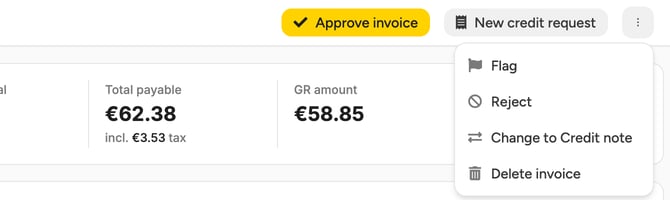
Only Reject asks you to confirm. The supplier is not notified of a flag, an approval or a rejection. Remove flag, Reopen and Withdraw approval put the invoice back to Pending approval.
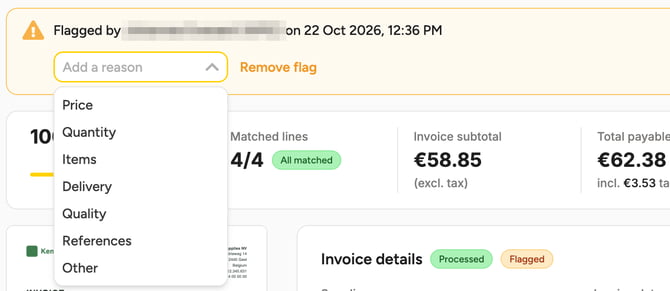
Flag flags the invoice straight away with a suggested reason. A banner shows who flagged it and when, and you can pick another reason there.
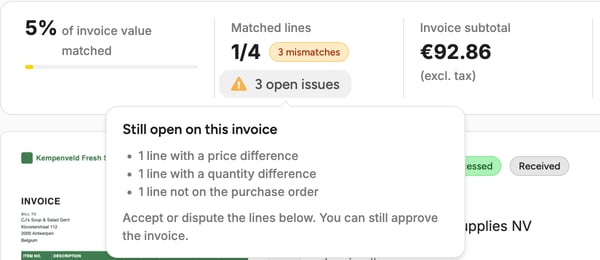
Before you approve, check open issues under Matched lines. It lists what is still open, such as lines with a price or quantity difference or lines that are not on the purchase order. It is a reminder only: you can still approve the invoice.
In the list, Approve shows on a 100% Matched invoice that still waits for approval.
9. Comparing with the original
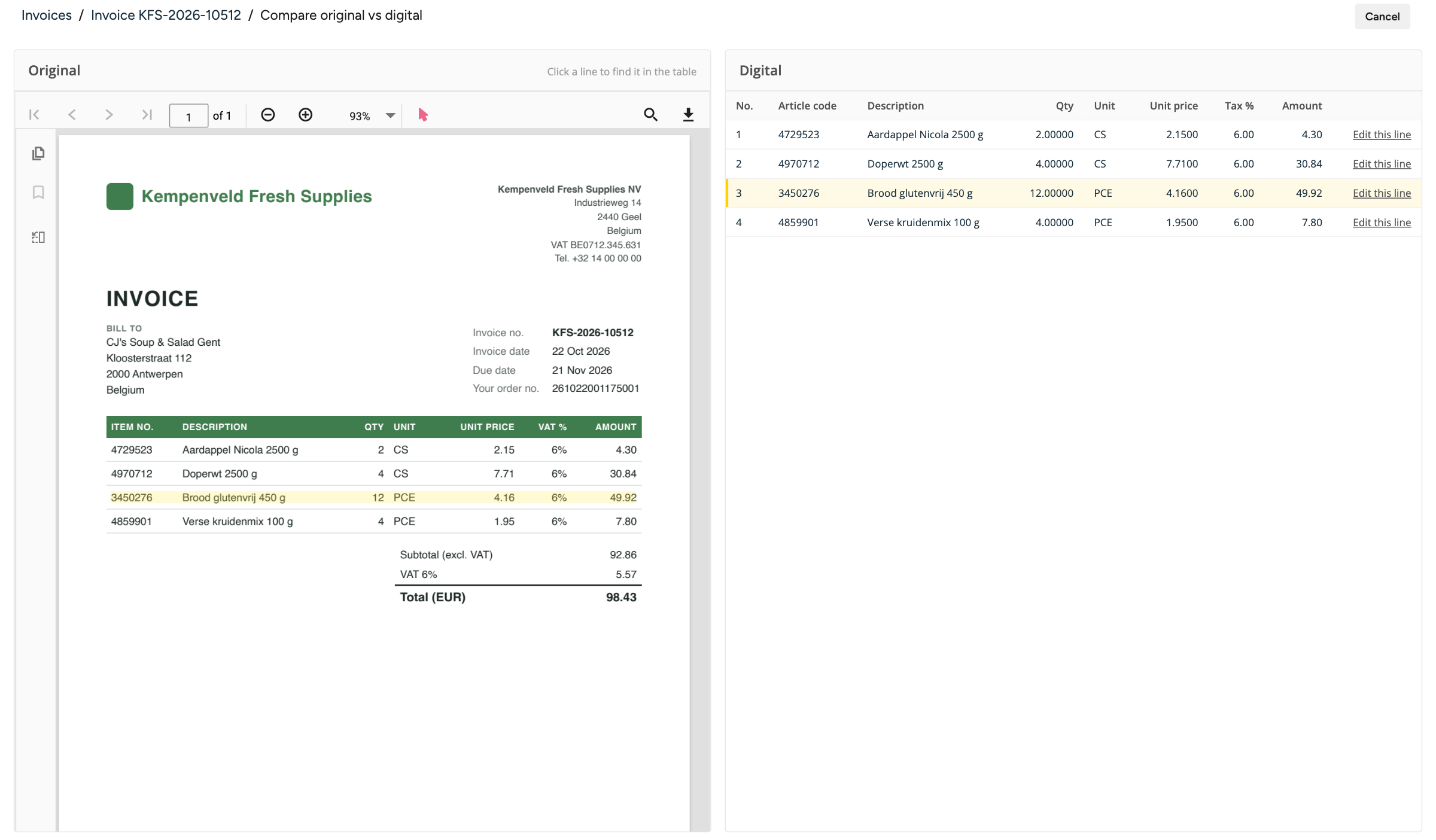
Select View on original on a line to open Compare original vs digital with that line selected: the PDF next to the lines Apicbase read, with the line highlighted on both. Click a line on the PDF to find it in the table. To correct a line, select Edit this line and see "How do I correct an invoice Apicbase has read?".
Frequently asked questions
Why does a line say No PO line? It is not on the linked orders, or the supplier invoiced another article. Accept it if you agree, otherwise Dispute it.
Why does an invoice say PO missing? Apicbase could not find the order. Link it with Search and link a purchase order.
Why is the credit amount lower than the Difference? The Difference covers the whole invoice. The credit request only claims the disputed lines. On invoice C, the €17.88 also includes the accepted herb mix (€7.80).
Why did an invoice disappear from the list? It was approved. Tick Approved under Approval status.