![logo-mark-primary-color-4.png]](https://support.apicbase.com/hs-fs/hubfs/logo-mark-primary-color-4.png?height=40&name=logo-mark-primary-color-4.png)
Your library needs the new invoice screens switched on. If you do not see them, ask your Customer Success Manager.
You need the Edit permission in the Invoice group of your role. Without it, you can open an invoice but you do not see the buttons to change its lines.
Correct a line only when Apicbase read it wrongly. If the supplier invoiced the wrong quantity or price, leave the line as it is and dispute it instead (see Invoice Reconciliation).
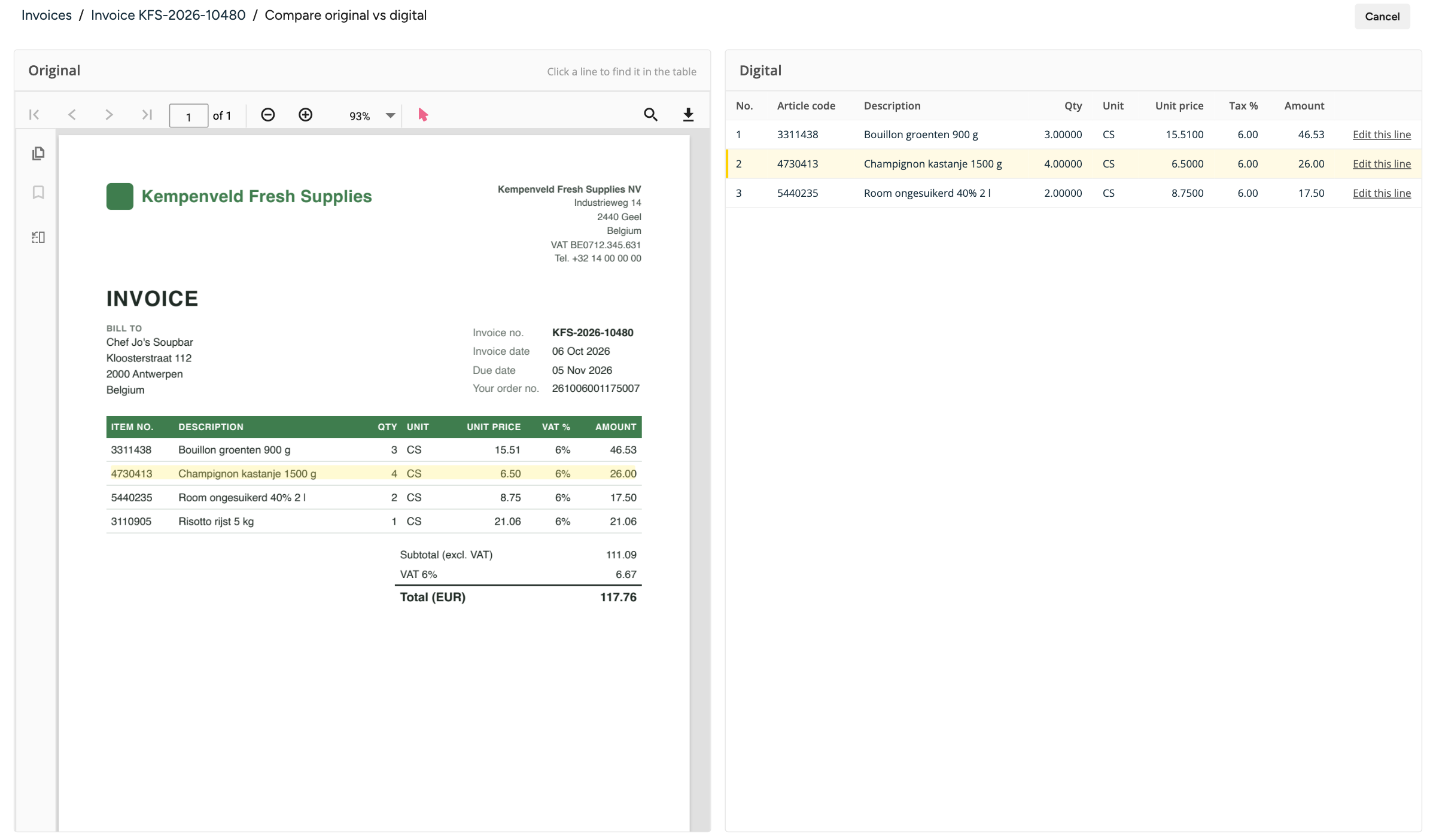
The examples use invoice KFS-2026-10480: three lines, all matched with the order.
1. Correcting a quantity or price
- Go to Procurement > Invoices, select the outlet and select Review on the invoice.
- Under Line item reconciliation, select Show details on the line.
- In the Invoice row, change the Article, Qty, Unit price, Tax % or Amount.
- Select Save, or Cancel to discard the change.
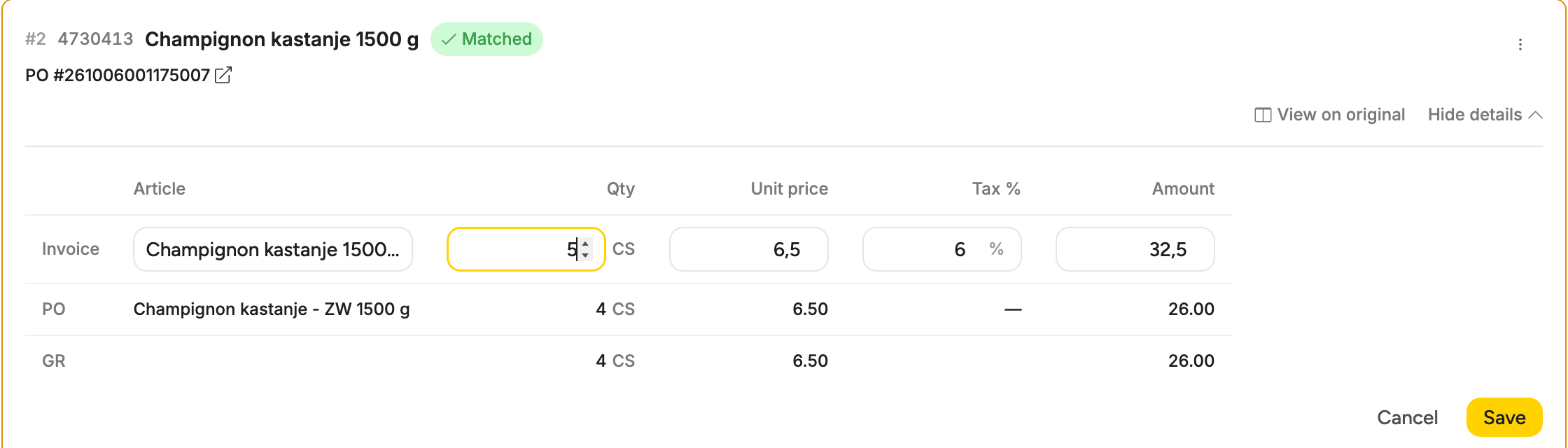
The line gets an Edited label and is checked again against the PO and GR rows. Suppose the invoice says 5 cases of mushrooms and Apicbase read 4. After you correct it to 5, the line shows a Quantity mismatch of +1 CS, because you received 4. The invoice drops to 66% of invoice value matched and 2/3 matched lines, and you can dispute the extra case with the supplier.
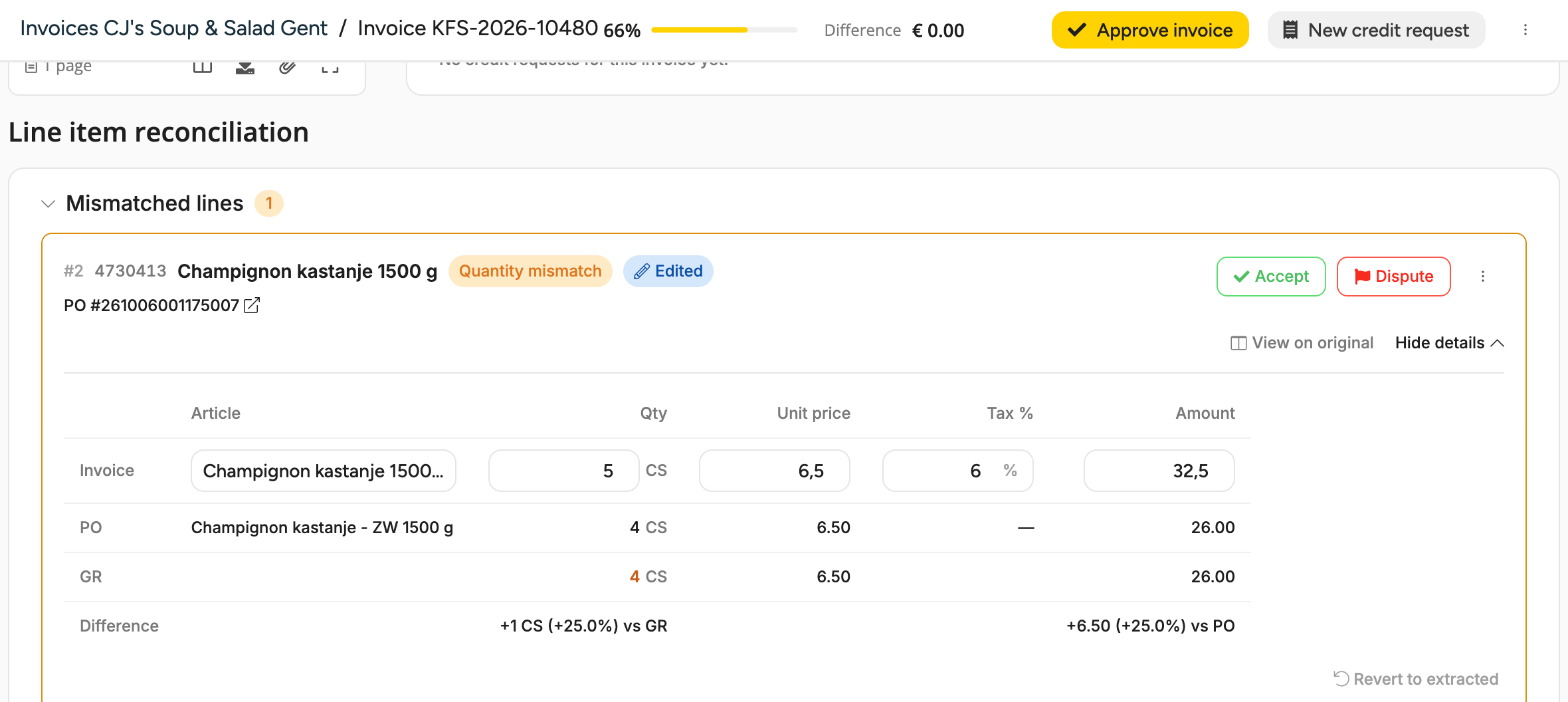
If the amount on the line is not quantity times unit price, the line shows Price mismatch, even when quantity and price agree with the order.
The totals under the lines follow your change, including the VAT on delivery charges or discounts printed on the invoice. The Invoice subtotal and Difference at the top keep the totals read from the invoice.
To undo your changes, select Revert to extracted under the table. The line gets back the values Apicbase read, and the Edited label disappears.
2. Linking a line to the right order line
Each line is paired with an item on a linked purchase order, shown as PO # under the line name. If a line is paired with the wrong item, or with none:
- Select the menu (three dots) on the line.
- Select Unlink from PO. The line becomes No PO line.
- Open the menu again and select Link to PO. A window lists the items of the purchase orders linked to the invoice. Search by article name if the list is long.
- Select Link next to the right item.

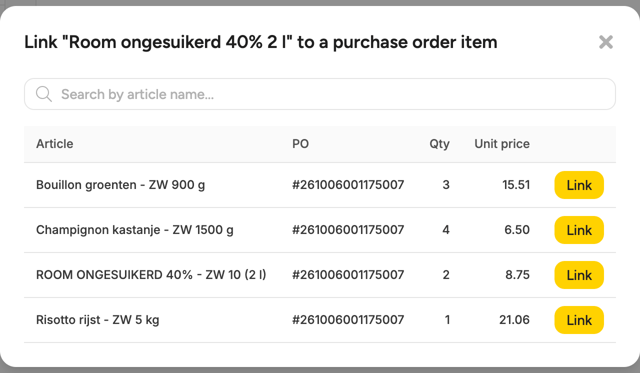
Apicbase checks the line again against the item you chose. The window only lists items from purchase orders that are linked to the invoice. If the order is missing, link it first with Search and link a purchase order: the lines are then paired with it automatically.
3. Deleting a line
If the digital invoice has a line that is not on the invoice:
- Select the menu on the line, then Delete line.
- Select Delete to confirm.
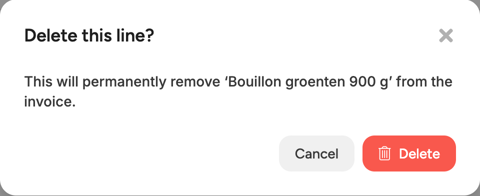
Deleting a line cannot be undone, and you cannot add a line to an invoice that already has lines. The totals under the lines drop by the line's amount. The Invoice subtotal and Difference at the top do not change.
4. Checking against the original
Select View on original on a line to open Compare original vs digital: the PDF on the left, the lines Apicbase read on the right, with that line selected and highlighted on the PDF. Click a line on the PDF to find it in the table. This page is read-only: select Edit this line to go back to the line on the invoice and correct it there.
5. Seeing what changed
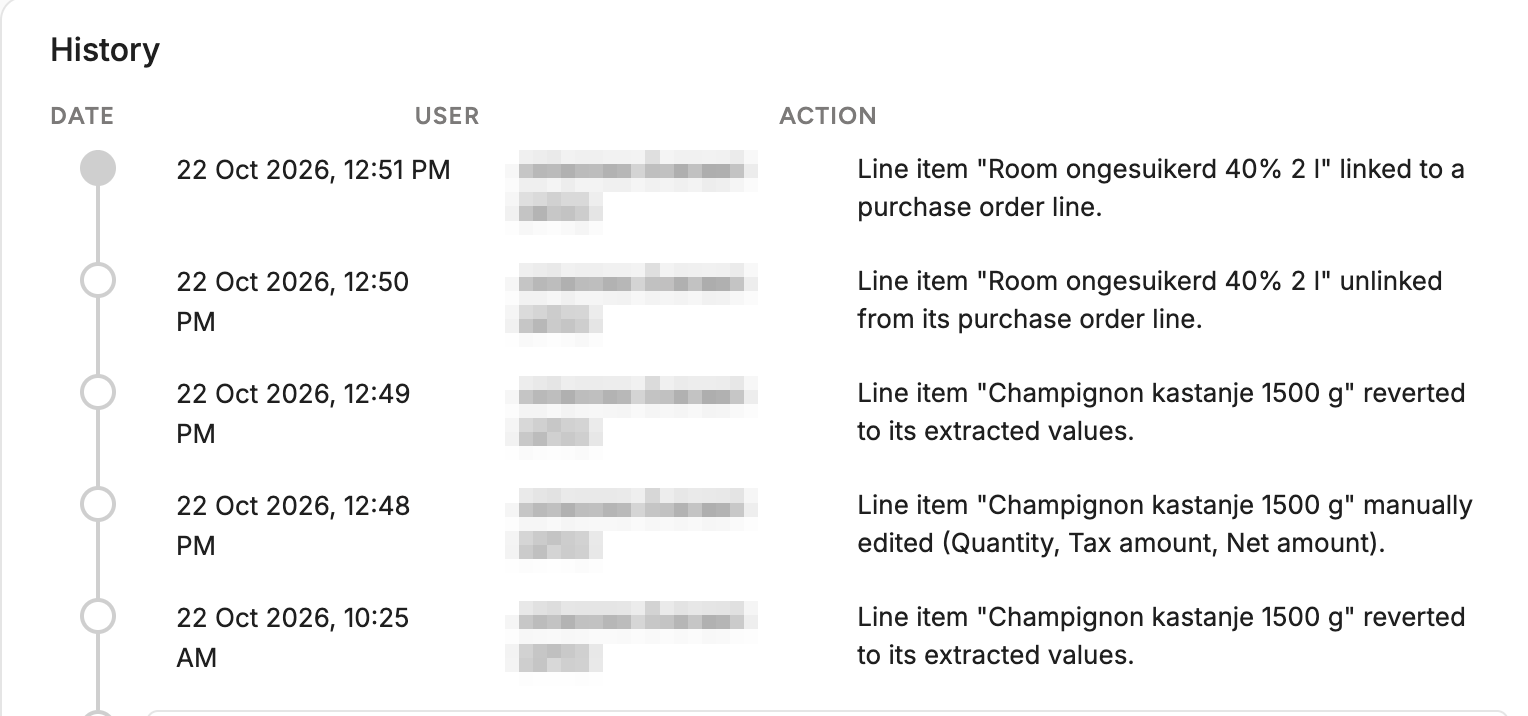
The History panel at the bottom of the invoice lists every line change with the date and the user: edits with the fields you changed, reverts, linking, unlinking and deleting a line. An edit reads, for example, Line item "Champignon kastanje 1500 g" manually edited (Tax amount, Net amount). For a deleted line it shows the gross total before and after.
Limits
- While an invoice is To be processed or In progress, nobody can change its lines. A banner offers to set it to Manual.
- A line included in a credit request can no longer be edited, reverted, linked, unlinked or deleted.
- You cannot add a line to an invoice that already has lines.
- Correcting a line does not approve the invoice.