![logo-mark-primary-color-4.png]](https://support.apicbase.com/hs-fs/hubfs/logo-mark-primary-color-4.png?height=40&name=logo-mark-primary-color-4.png)
💡Want to learn how to create tasks in the Task Module? Read this article to discover how.
1. List- and Calendar view
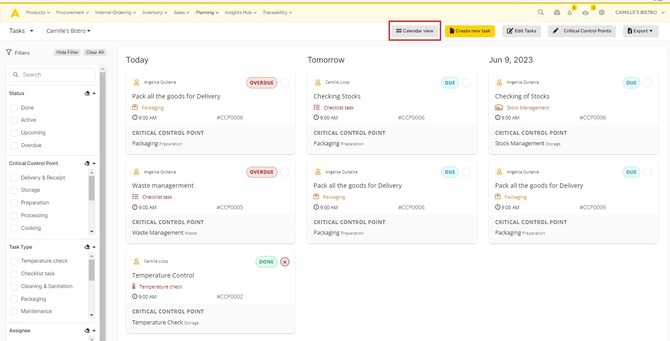
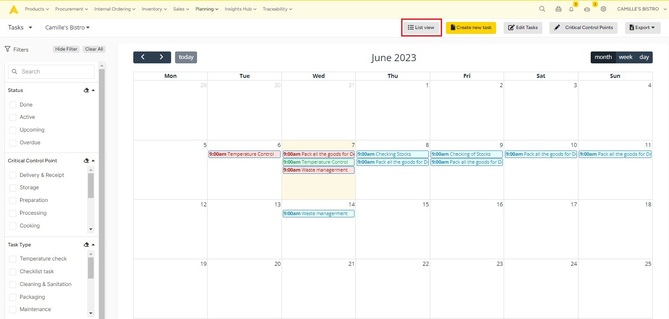
In order for you to have a good overview of your (upcoming) tasks, we've created two types of views: the list- and calendar view. You can easily switch between both views by clicking the buttons "List view" or "Calendar view".
List view:
Calendar view:
2. Executing a task
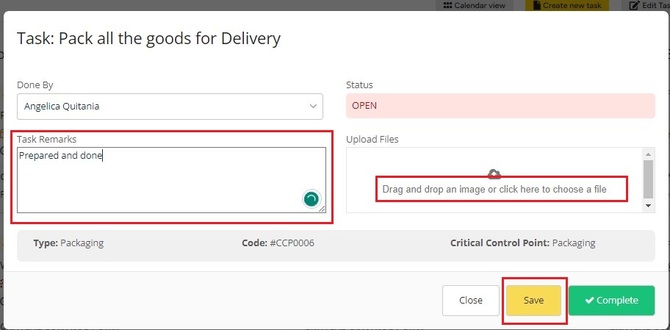
After clicking on a task, a pop-up opens where you can fill in the necessary information about your task, in this case, the measured temperature. You can also add remarks, and images, and select your name. Click on "Save" when you're done. If the task does not apply today, see section 4.
3. Setting a task to "Complete"
Ready with a task? Click on "Complete".
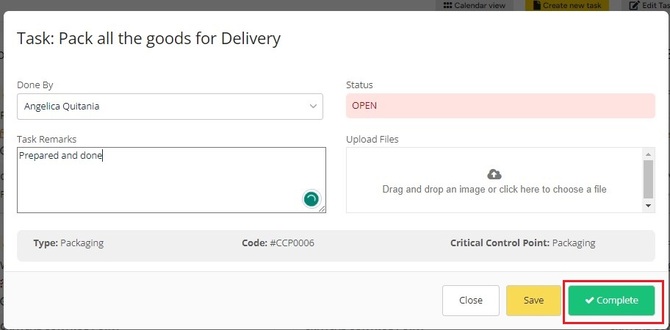
Your task will now have the stamp "Done" in the overview.
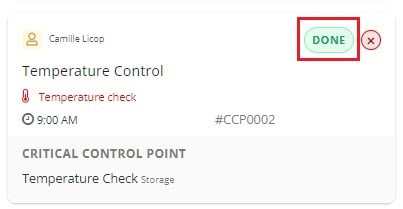
4. Marking a task as not applicable
Some checks do not apply on a given day, for example when a machine is switched off or a dish is not on the menu. Instead of completing such a task, you mark it as not applicable.
- Click the task to open it.
- Type the reason in Task Remarks. Not Applicable stays disabled until you do.
- Click Not Applicable.
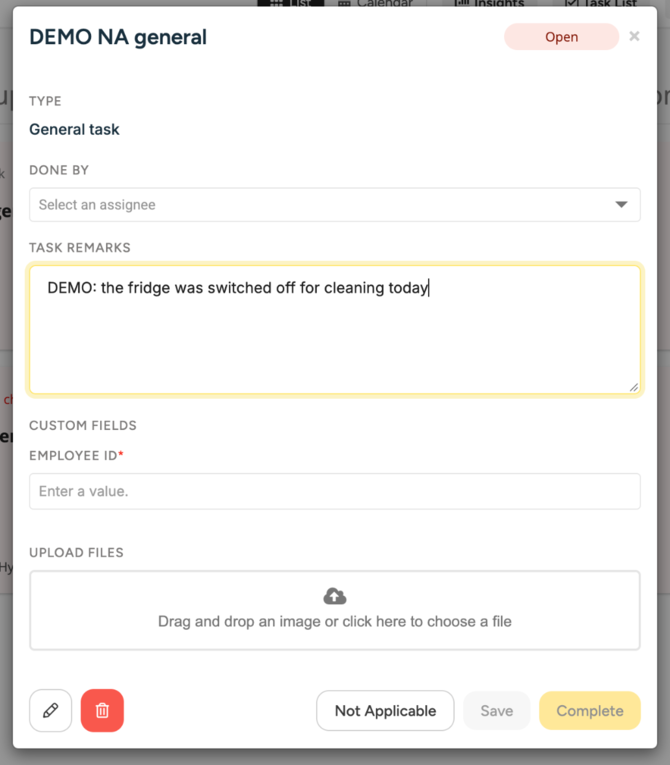
Task window with a reason typed in Task Remarks and the Not Applicable button enabled.
The window closes and the task counts as closed. It moves to the Done tab, where it shows as a grey card with the badge N/A.
To list only these tasks, use the status filter Not applicable.
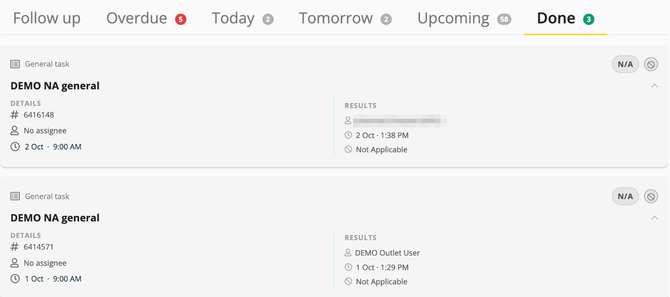
Done tab with grey cards with the N/A badge.
You need the same permission as for completing a task, Perform tasks.
If the task is set to Restrict execution to scheduled day, Not Applicable stays disabled until the day of the task.
❗Caution: a task marked as not applicable cannot go back to Open. A task you have already completed can never be marked as not applicable.
If a task did apply after all, open it from the Done tab, enter the real values and click Complete. This needs the permission Edit completed tasks.
5. Deleting a task
Want to delete a task?
Then click on "Edit tasks" in your task overview.

You will be navigated to a new page, where you can remove tasks.

❗Caution: when you delete a recurring task, all future planned tasks will be deleted. Tasks that have taken place in the past, will never be deleted.