![logo-mark-primary-color-4.png]](https://support.apicbase.com/hs-fs/hubfs/logo-mark-primary-color-4.png?height=40&name=logo-mark-primary-color-4.png)
Switch it on
The check is off by default. It needs the AI module on your Apicbase account, which Apicbase switches on for you. If you do not see the AI Settings tab below, contact Apicbase support. After that, a library admin does the rest.
- Go to Settings > Library Settings.
- Open the AI Settings tab.
- In the row Purchase Order Verification, tick Enable Purchase Order Verification.
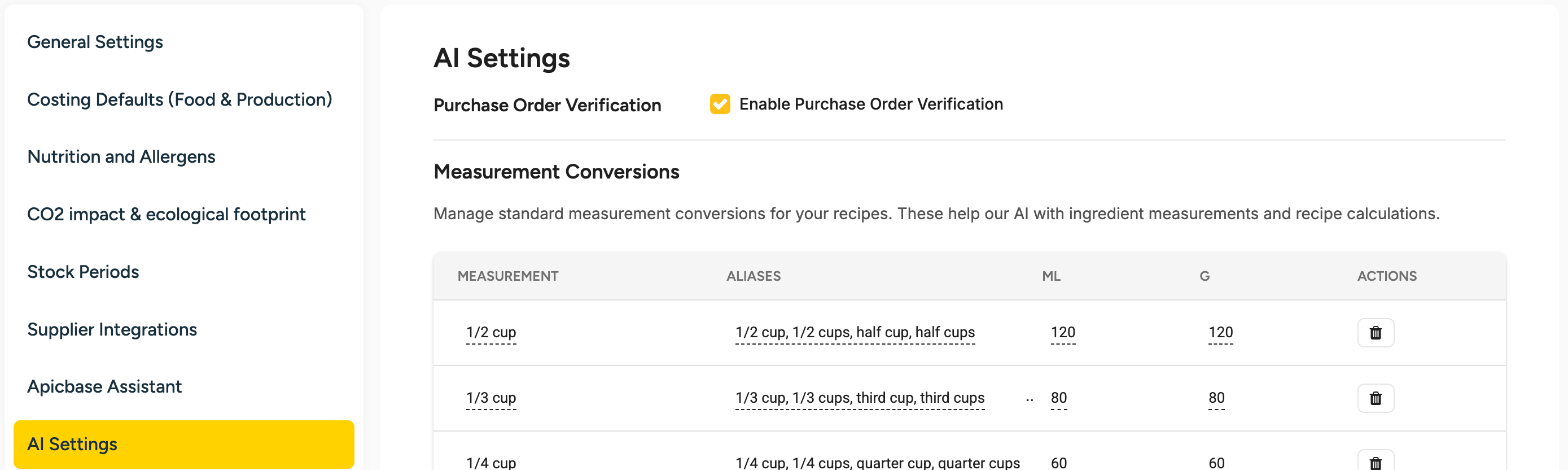
The setting saves as soon as you tick it. There is no Save button. Untick it to switch the check off again. Only library admins can change this setting.
Read the flags
Open the cart on the Create Order page. Every line shows a sparkle icon while Apicbase checks it, with the tooltip Checking with AI.... When the check is done, each line shows a short label: a flag, or Looks good when there is nothing to point out.
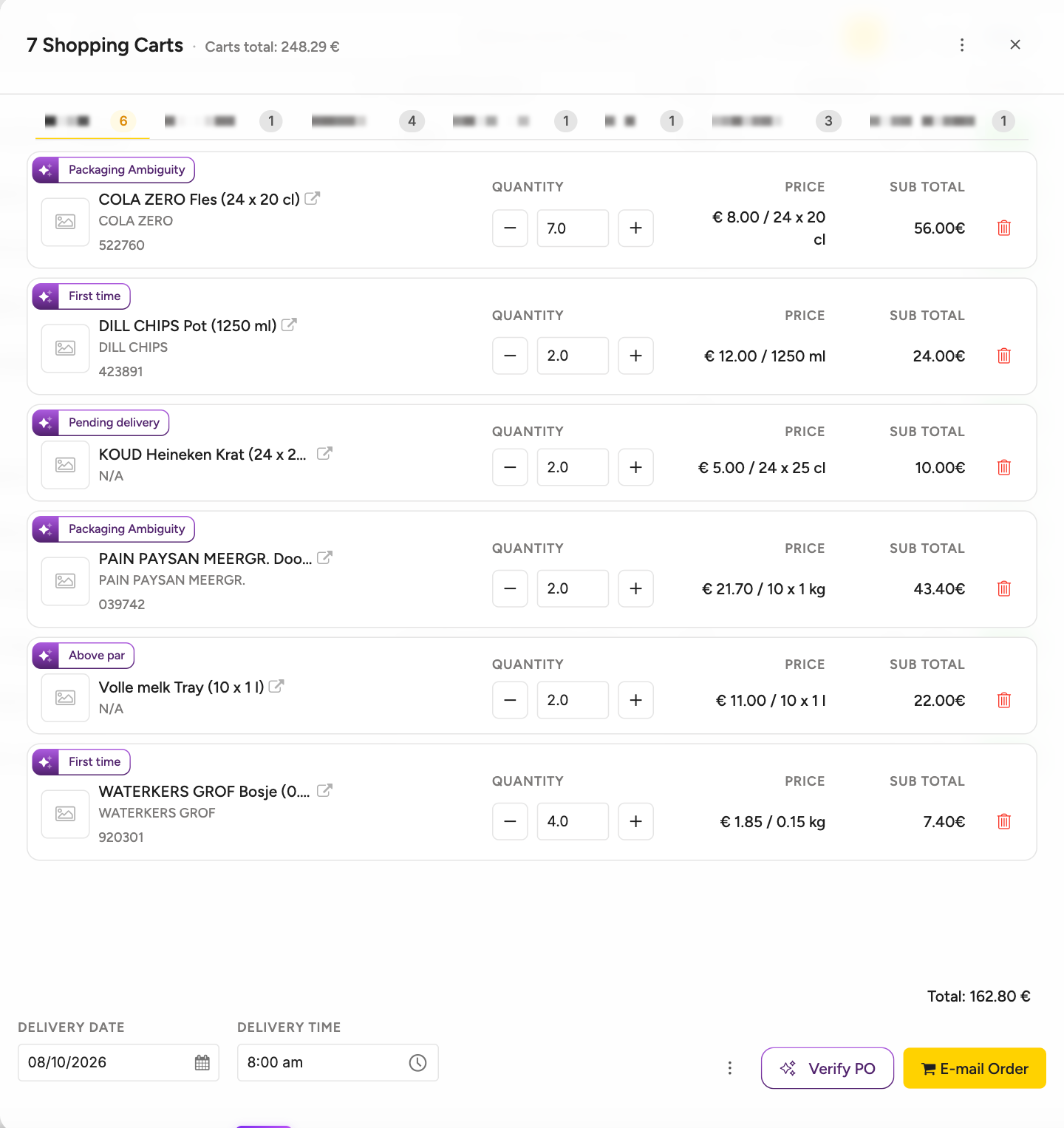
Hover over a label, or tap it on a touch screen, to see three sentences: what Apicbase noticed, the evidence for it and a suggested action. They are written in your Content Language. Labels, buttons and banners follow your Interface Language.
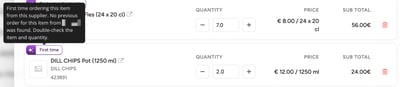
A line can have more than one flag, but it shows one label. First time means you have not ordered this item from this supplier at this outlet before. The first time you order from a supplier at an outlet, every line shows First time, because there is no earlier order to compare with. Pending delivery appears when any earlier order at this outlet for the same item, from any supplier and in any pack size, has not been fully delivered yet. Above par compares what you order, plus what is in stock, with the par level, all in the item's base unit, across all pack sizes of that item in your cart.
Run the check again
If you reopen a cart that has not changed, Apicbase shows the earlier result. To run a new check, select Verify PO in the cart footer. The button is greyed out while a check is running.
Check before you send
Select Send or E-mail Order. In Confirm Purchase Order, the flagged lines move to the top and a badge shows how many items need attention, for example 5 items need attention. Hover over the badge to see their names. Then confirm as usual.
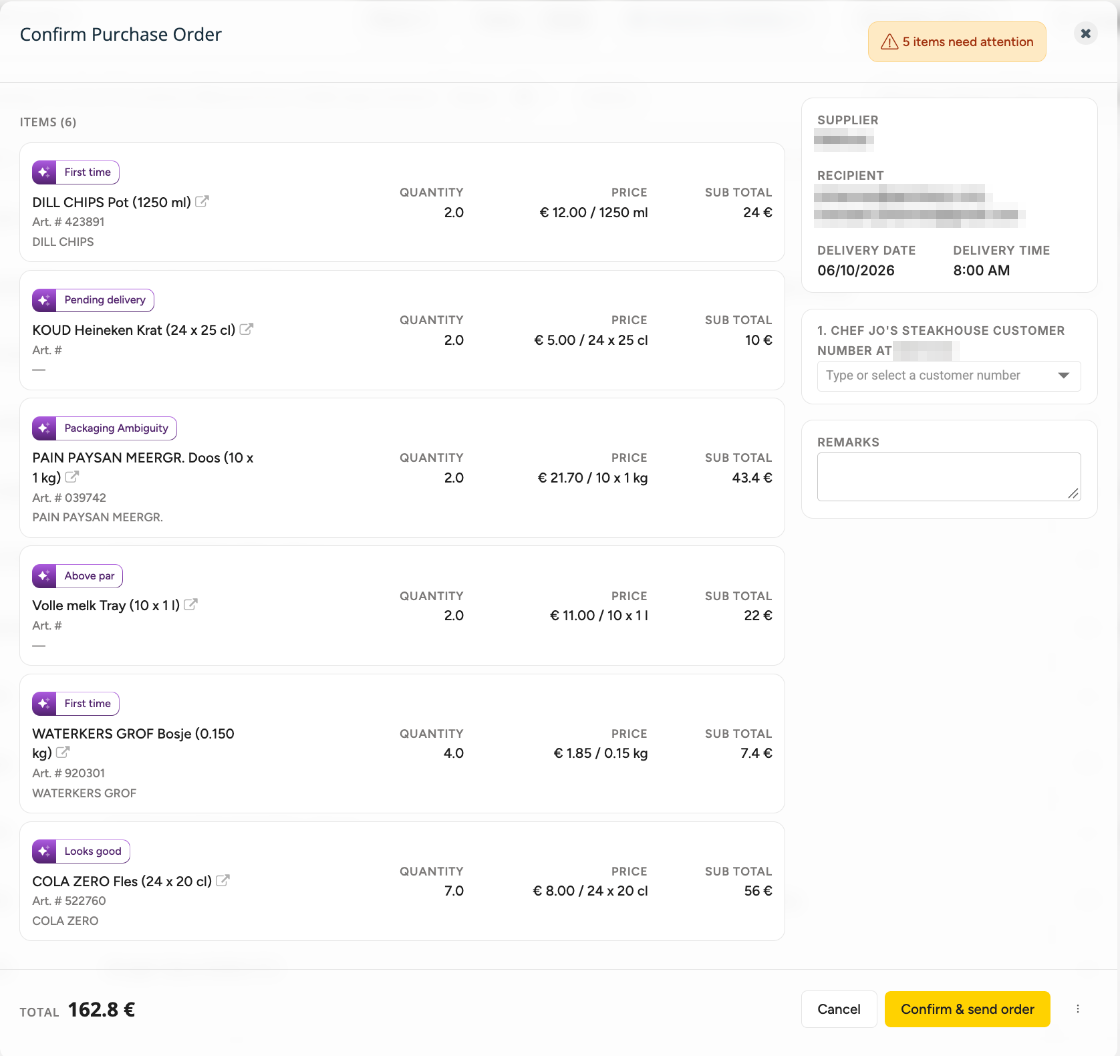
The check never stops you from sending an order. It can take a while, so you can send the order without waiting. It works on the Create Order page of the web app and does not change your cart: the suggested actions are text only.