![logo-mark-primary-color-4.png]](https://support.apicbase.com/hs-fs/hubfs/logo-mark-primary-color-4.png?height=40&name=logo-mark-primary-color-4.png)
What the integration does
Perier's Vleesbedrijf is a family-owned meat processor and wholesaler in the Netherlands. Its products and your prices are updated in Apicbase every night. In the Assortment Manager you decide which of these products each outlet can order. All your outlets share one Perier's assortment and the same prices. To change what is in your assortment, contact your Perier's account manager. Orders you send in Apicbase are picked up electronically for Perier's, and Perier's also receives each order by email. Deliveries are received in Apicbase as usual.
| Information | Available |
|---|---|
| Product name and Perier's article number | Yes |
| Packaging | Yes: one package per product, by weight (kg) or per piece |
| Price | Yes, your price. For products sold by weight, Perier's sends a price per kg and Apicbase calculates the package price |
| Orderable status | Yes |
| Lead time | Yes |
| Brand | No |
| GTIN (barcode) | No |
| Allergens | No |
| Nutritional information | No |
| Product images | No |
Getting connected
- Tell your Perier's account manager that you want to order through Apicbase. Perier's gives you two numbers: the number for your assortment and the customer number for your orders.
- Go to Library Settings, open the Supplier Integrations tab and switch on Perier's Vleesbedrijf. You need the Manage suppliers permission. Then open the supplier's Integration Settings tab, enter the assortment number under Customer number and save. Only users with the Supplier Integration Admin permission see this tab.
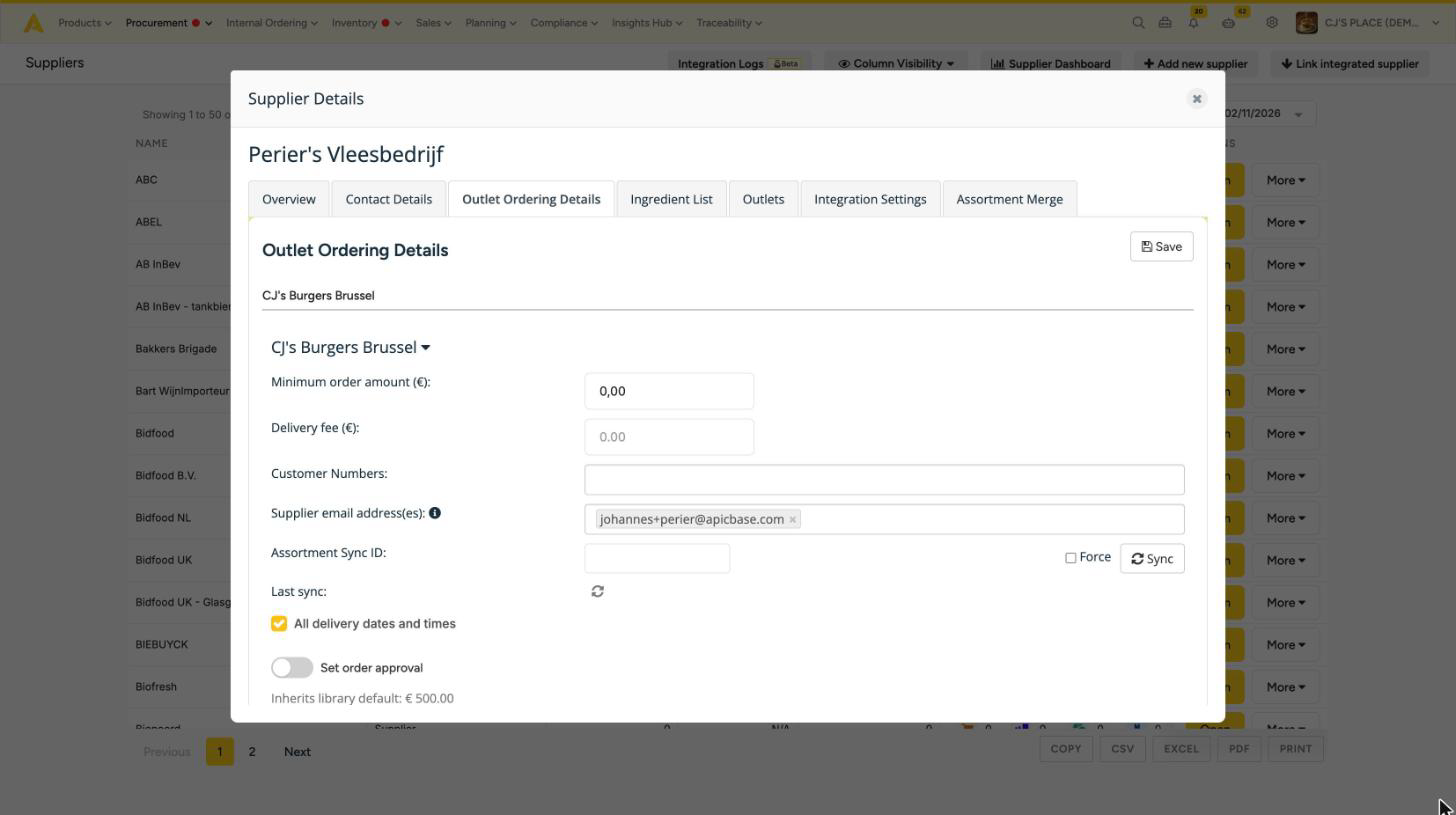
- Open the supplier, link the outlets that order from Perier's on the Outlets tab, and go to the Outlet Ordering Details tab. For each outlet, fill in your Perier's customer number under Customer Numbers, and the address where Perier's receives orders under Supplier email address(es). You can leave Assortment Sync ID empty.
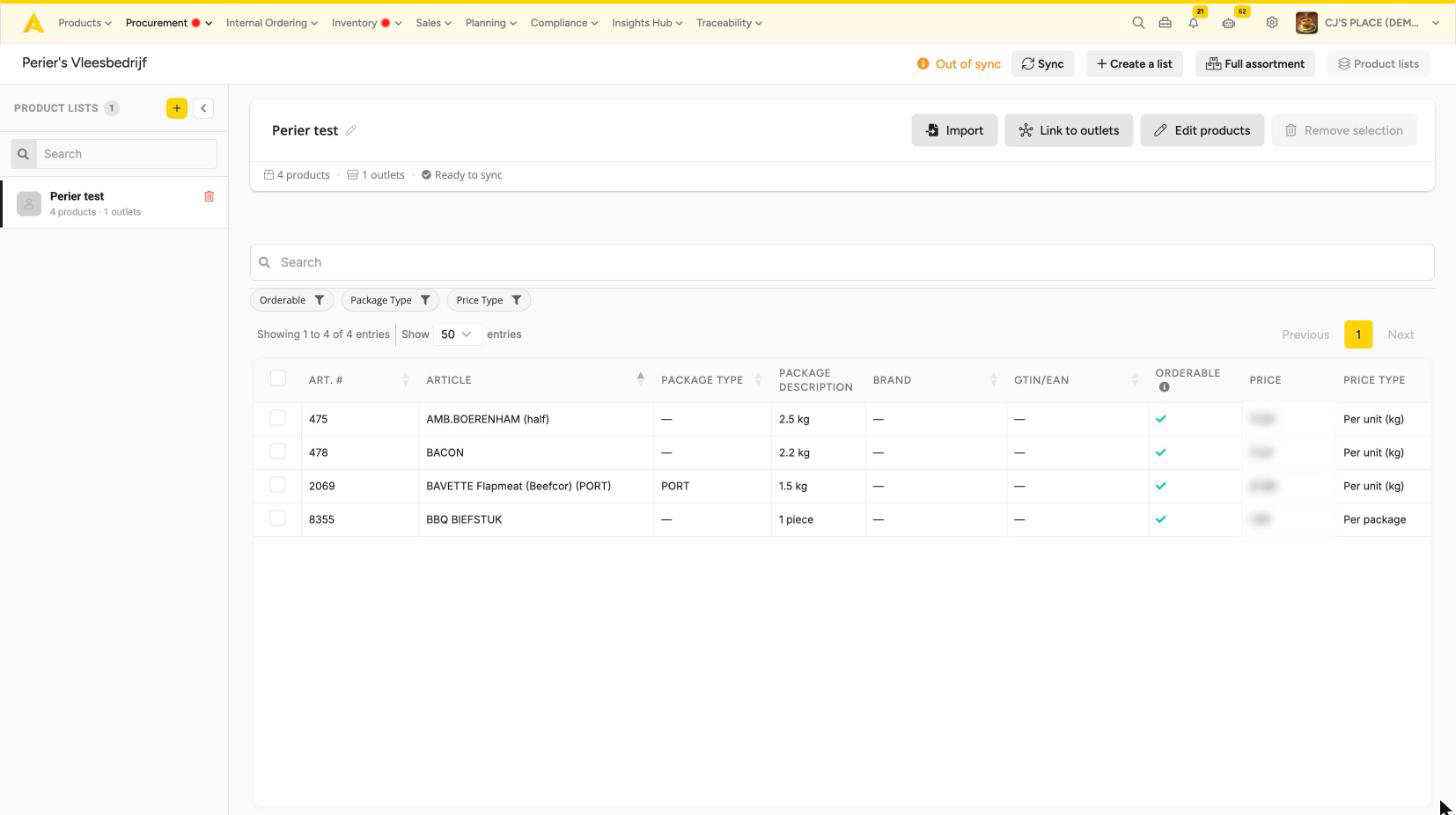
- The next morning, Perier's products are in Procurement > Assortment Manager. Create a product list, add the products you buy, link the list to your outlets and sync. Only products in a synced list can be ordered by the linked outlets. The article The Assortment Manager explains each step.
When Perier's takes a product out of your assortment, it can no longer be ordered, but it stays in Apicbase. Archive it yourself if you no longer need it.
Sending an order
Create and send the purchase order as usual. Pick the outlet's customer number and set a delivery date: Perier's needs one on every order. Perier's receives the order by email straight away. Once it has also been picked up electronically, the order status changes to Opened.
If no supplier email address is filled in on the outlet or the supplier, Apicbase asks for one when you send. It is saved for your next orders.
Every order you send reaches Perier's. Do not send test orders.
When an order does not go out
In these cases nothing is sent and the order stays open, so you can fix it and send it again.
- The order has no customer number, please select one before confirming the order. Add the customer number under Customer Numbers for that outlet and pick it on the order.
- Supplier has invalid email. or an error about sending the email: check the supplier email addresses on the supplier and on the outlet, then send again.
Contact
For your assortment, customer numbers, prices or packaging, contact your Perier's Vleesbedrijf account manager. For anything in Apicbase, contact support@apicbase.com or your Customer Success Manager.