![logo-mark-primary-color-4.png]](https://support.apicbase.com/hs-fs/hubfs/logo-mark-primary-color-4.png?height=40&name=logo-mark-primary-color-4.png)
Table of Contents
1. Before you create a new outlet
2. Create and configure the outlet
4. Prepare suppliers and procurement
5. Add ingredients, recipes and other items
7. Connect the POS and link items
8. Train your staff and start using the outlet
1. Before you create a new outlet
Before you click “Add outlet”, it helps to be clear about:
-
What type of outlet it is
Restaurant, bar, dark kitchen, production/central kitchen, etc.
-
How you want to name it
Use a clear, recognisable name (for example: “Main Street – Restaurant”).
-
Who will be responsible
Decide who is the outlet responsible and who is the procurement responsible.
-
How you will use Apicbase in this outlet
Will you only order and count stock, or also use recipes, production, and sales analytics?
This preparation makes the next steps much easier.
If this is your first outlet in Apicbase, there are a few extra things to consider:
-
Change your outlet name
Your first outlet appears automatically in your Apicbase Library. The name of said outlet will be the same as the library. You can edit the details of the outlet to change its name.
-
Plan your POS and suppliers early
If you will connect a POS or use integrated suppliers, collect the needed info (POS system, supplier accounts, assortments) before you go live.
-
Think about user roles
Decide who will be an admin, who will count stock, who will place orders, etc. You will set this up later when you add users.
2. Create and configure the outlet
-
Add the outlet
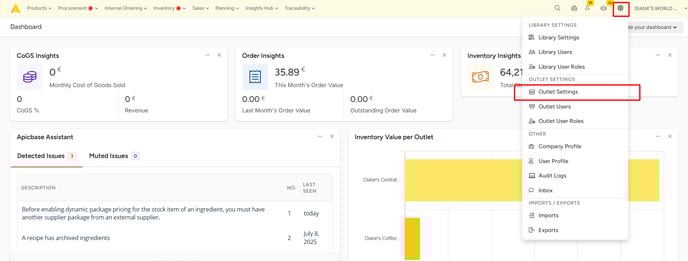
- Click the settings wheel in the top-right corner.
- Go to “Outlets Settings”.
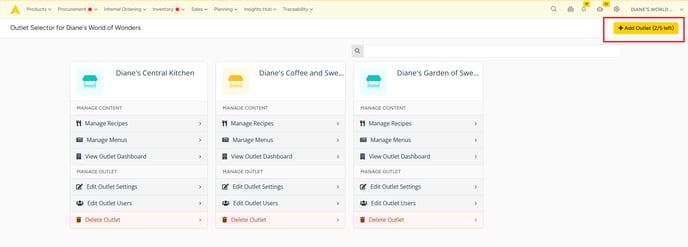
- Click “+ Add outlet”.
-
- If you don’t have any outlets remaining, contact your sales representative or reach out to support.apicbase.com.
-
Open the outlet settings
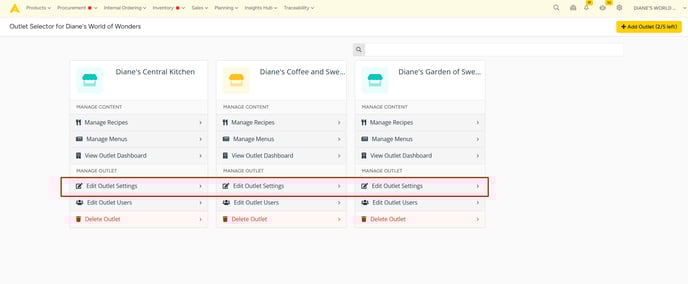
- In the outlet list, find your new outlet.
- Click “Edit outlet settings”.
-
Fill in the General tab
In the General tab:
- Enter the Name of the outlet.
- Add a Logo (optional).
- If this outlet is a central / production kitchen, set it here (this will allow it to supply other outlets). This would only be possible if the Internal Ordering module is active in the library.
-
Fill in the Contact details tab
In the Contact details tab:
- Enter the Delivery address (where orders will be delivered).
- Set the Outlet responsible (person managing the outlet).
- Set the Procurement responsible:
- This user will receive a copy of all orders.
- They get order reminders.
- Suppliers can contact them via Apicbase if needed.
-
Set up integrations (POS)
In the Integrations section of the outlet settings, configure your POS integration.
- Check the POS integration articles in the Help Center to see which systems are supported and how to set them up.
3. Add storage locations
Storage locations are the places where you keep stock (for example Dry Storage, Bar Fridge, Freezer 1).
- Add storage locations as custom fields
- In the outlet settings, use Custom Fields to add the storage locations for this outlet.
- Add storage locations in Inventory
- In the Inventory section, you can also add storage locations using the Excel file, which is handy if you have many locations.
Tip for first outlets:
Start with a small, clear list of storages. Too many locations at once can make counting harder for your team.
4. Prepare suppliers and procurement
-
Set available suppliers (optional but recommended)
In the outlet settings, under Procurement, you can set the available suppliers for this outlet.
- If you choose only a few suppliers here, only those ones will be reachable from the Procurement module, when placing orders.
-
Add or update suppliers
- Add new suppliers if this outlet uses suppliers that are not yet in your library.
- If you need a new integrated supplier, follow the support article for that integration.
- If you already use an integrated supplier and only need the assortment for the new outlet, contact support@apicbase.com.
5. Link ingredients, recipes and menus
To manage stock and costs correctly, the outlet needs the right ingredients and recipes.
- Add ingredients
- Add new ingredients to your library if they don’t exist yet.
- Avoid duplicates: only add ingredients that are not already in your library.
- Add recipes and menus
- Add new recipes or menus to your library if needed.
- Recipes and menus that already exist can be linked in bulk to the new outlet.
- Check stockable recipes
- Identify recipes that are produced in batches (for example sauces, dough, prepped items).
- Set these up as stockable recipes so they can be produced and counted correctly.
- Link non-recipe items
- Ingredients used in linked recipes are automatically linked to the outlet.
- For items that are not in recipes (cleaning products, non-food items, etc.), link them in bulk to the outlet so they also appear in ordering and inventory.
6. Add users for the outlet
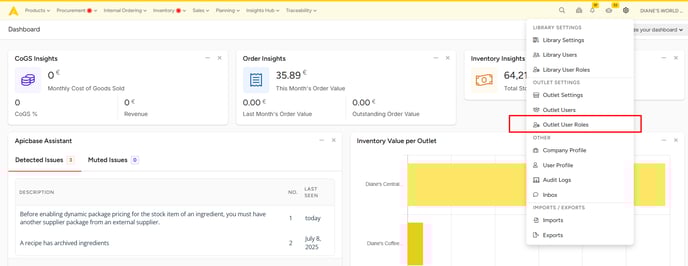
- Create outlet/library users
- Add new outlet/library users for the people who will work with Apicbase in this outlet (chefs, managers, stock controllers, etc.).

- Assign the right roles
- Give each user the correct permissions for their job:
- placing and receiving orders
- counting stock
- registering waste
- creating recipes
- managing settings (for admins)
- Give each user the correct permissions for their job:
7. Connect the POS and link items
- Connect the POS
- Make sure your POS integration is configured for this outlet (see the POS integration articles for details).
- Link POS items to Apicbase items
- Link each POS item (button on the cash register) to the correct Apicbase item (usually a recipe).
- This ensures that sales data flows into Apicbase and your stock and cost calculations are correct.
8. Train your staff and start using the outlet
Now that everything is configured, it’s time to get your team comfortable with Apicbase.
- Train staff on ordering and receiving
- Show them how to create orders in Apicbase.
- Show how to receive orders and confirm deliveries.
- Pro tip: Encourage them to register orders every day, and definitely before the next stock count.
- Train staff on waste, create and count
- Waste: how to register items that are thrown away.
- Create: how to register production of stockable recipes.
- Count: how to perform stock counts by storage.
- Important: You cannot count stock in Apicbase when a stock count is already active.
- Do the first full stock count
- Help the team do the first complete stock count for this outlet.
- This is easiest once they already know how to:
- register orders
- register waste
- use create and count correctly
After this first full count, your new outlet is ready to run daily operations in Apicbase.