![logo-mark-primary-color-4.png]](https://support.apicbase.com/hs-fs/hubfs/logo-mark-primary-color-4.png?height=40&name=logo-mark-primary-color-4.png)
Table of Content
1. Micros Simphony via STS 2 API
Following the instructions in the PoS Integrations article, you should navigate to the Integrations Tab in your outlet settings.
Apicbase has different integrations with ORACLE Micros Simphony depending on the version of the PoS. Here you will find the different possible ways to integrate, from newest to oldest.
1. Micros Simphony via STS 2 API
To use the STS 2 API integration, your Simphony account should meet the following requirements:
1. STS 2 add-on: Check if your account has the STS 2 add-on.
2. 'Reporting & Analytics' version of 20.1 or higher: Version should be Simphony 19.2 or higher (this is the minimum version for Reporting & Analytics 20.1). Version 20.1 or higher was released June 2021.
3. BI API module: Only available when using R&A 20.1 or higher (as well as Simphony 19.2 & higher).
If you want to upgrade any of these elements, you'll need to contact your Oracle Sales Executive.
To begin, look for Oracle MICROS Simphony (STS 2 API) in the list of PoS suppliers (1). Fill in all the connection details for the BI API (2) and the STS 2 API (3). Don't forget the API URL links at the bottom of the page! (2'-3').
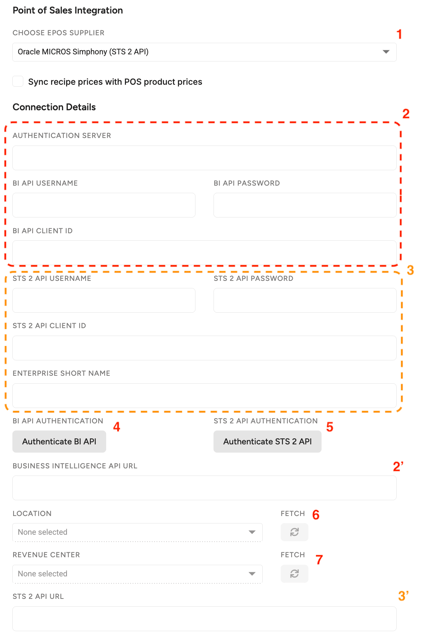 If you don't yet have an API Account in Oracle, you can create one in the Reporting & Analysis (R&A) portal. You can follow Oracle's API documentation here.
For the Authentication Server, you should get the rest_server from your API account activation email or API account details screen. Here are some indications from the Oracle's API documentation:
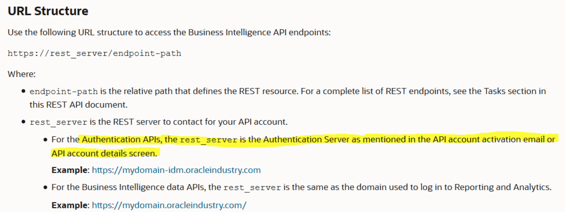
If you struggle to find any of the required information from Micros, please get in touch with their IT department or with your Oracle Sales Executive.
Once all information has been filled in, you can Authenticate the BI API (4) and the STS 2 API (5). You can then Fetch and Select your Location (6) and, if necessary, a specific Revenue Center (7). Don't forget to click Save afterwards!
If an error occurs, first ensure that you are using the right credentials. If the issue persists, contact your Apicbase CSM or the support team.
Once your Micros Simphony is connected to your outlet, you can move on to the next steps, as explained in the PoS Integrations article.
2. Micros Simphony via API
If you miss the STS 2 add-on but meet the other requirements, you can use the regular API integration.
To begin, look for Oracle MICROS Simphony in the list of PoS suppliers (1). Fill in all the connection details for the BI API (2). Don't forget the API URL links at the bottom of the page! (2').
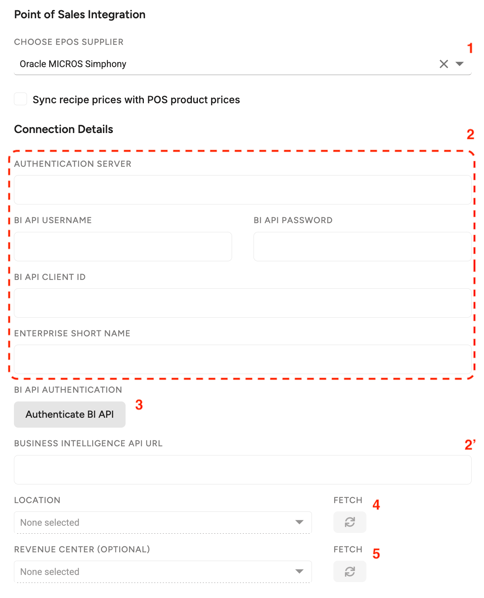
If you don't yet have an API Account in Oracle, you can create one in the Reporting & Analysis (R&A) portal. You can follow Oracle's API documentation here. For the Authentication Server, follow the indications in the previous section about this.
If you struggle to find any of the required information from Micros, please get in touch with their IT department or with your Oracle Sales Executive.
Once all information has been filled in, you can Authenticate the BI API (3) You can then Fetch and Select your Location (4) and, if necessary, a specific Revenue Center (5). Don't forget to click Save afterwards!
If an error occurs, first ensure that you are using the right credentials. If the issue persists, contact your Apicbase CSM or the support team.
Once your Micros Simphony is connected to your outlet, you can move on to the next steps, as explained in the PoS Integrations article.
3. Micros Simphony via Email
This integration is required if your Simphony account doesn't meet the necessary requirements to connect to Apicbase via API as stated previously. The email integration with Micros works slightly different from our other POS integrations. Micros sends Apicbase your sales data via email every night and we automatically load this information into your Apicbase library, whereafter update your stock and sales data will be updated.
To begin, look for Oracle MICROS Simphony (File Export) in the list of PoS suppliers (1).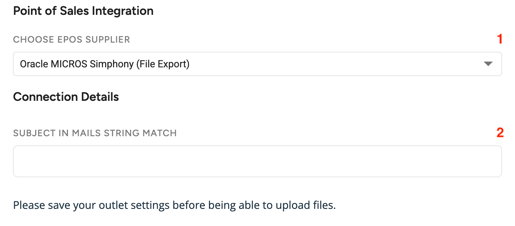 Fill out the 'Subject in mails string match' (2). You can add a subject like "Apicbase Sales Items to BI [my company]". Make sure you don't forget this subject, since you will need to copy it later. Don't forget to click Save afterwards!
Now go to your Micros Simphony account and go to Configuration > Report Mail (3).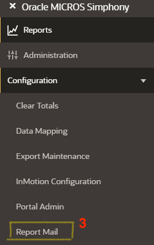
There, add a new report. In the different tabs, fill in the following information:
-
Content tab: Leave the Location empty and don't change anything else.
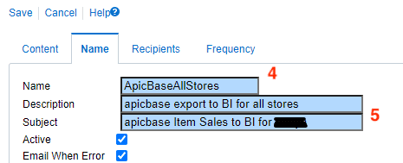
- Name tab: Fill in a name (e.g. ApicbaseAllStores) (4). Add a description. Add the subject (5), this should be exactly the same subject you added to Apicbase in step 2.
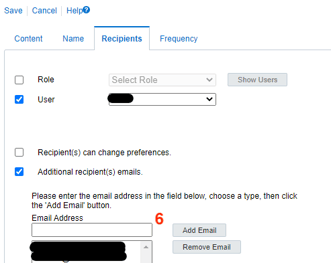
- Recipients tab: add the email data@apicbase.com as a recipient.
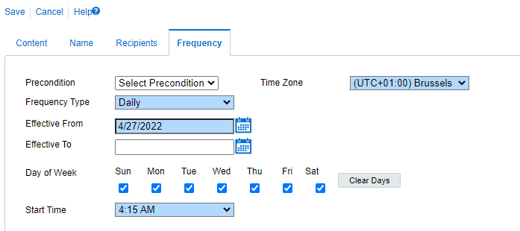
- Frequency tab: Leave precondition as is (select precondition should show) and choose the rest of the settings as shown below. Change desired time zone and time if needed. It is important that the Start Time is after the start of day in Simphony.
Please note that, because we only receive your sales data once a day, it's not possible to manually do an update of your sales data during the day. The update will take place at a certain time in the morning after closing.
Once your Micros Simphony is connected to your outlet, you can move on to the next steps, as explained in the PoS Integrations article.