![logo-mark-primary-color-4.png]](https://support.apicbase.com/hs-fs/hubfs/logo-mark-primary-color-4.png?height=40&name=logo-mark-primary-color-4.png)
What the integration does
- Assortment. Jimmy Loves Food sends the articles and prices agreed with you. They appear in your library as ingredients with packages and are updated every night. An article Jimmy Loves Food no longer offers you stays in your library but can no longer be ordered.
- Orders. Orders you send to Jimmy Loves Food reach them electronically. When the supplier has an email address in Apicbase, Jimmy Loves Food also receives the order by email.
Allergens and nutritional values do not come with the articles. Order confirmations, delivery notes and invoices do not come into Apicbase, so you receive your deliveries manually.
Getting connected
Ask your Jimmy Loves Food account manager to connect your account to Apicbase. They give you two numbers for each location: your relation number and a GS1 code. Your customer number in Apicbase is the two joined by a hyphen, for example 1048-2219.
A library admin then switches on Jimmy Loves Food under Library Settings > Supplier Integrations. Add the customer numbers as described below. Your articles appear after the next nightly update.
Setting it up
Before your first order, open the supplier, go to the Outlet Ordering Details tab and check that every outlet that orders from Jimmy Loves Food has its customer number under Customer Numbers. Every order needs one.
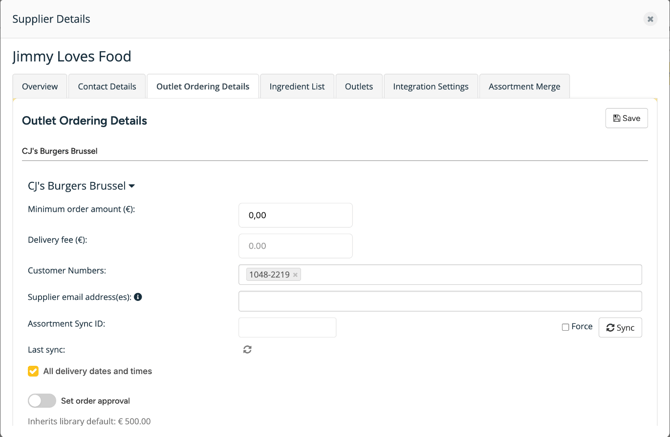
Delivery days and order cut-off
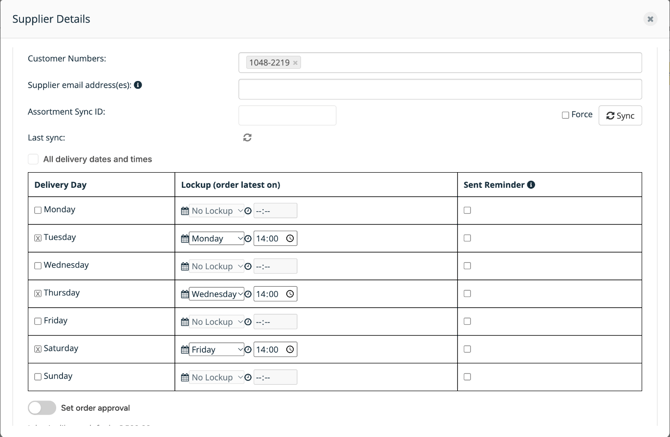
Jimmy Loves Food does not send its delivery days to Apicbase. To have the shopping cart offer only the days Jimmy Loves Food delivers, set them yourself on the same tab:
- Select the outlets and untick All delivery dates and times.
- Tick each Delivery Day agreed with Jimmy Loves Food.
- For each day, set Lockup (order latest on): the latest day and time to order for that delivery.
- Select Save.
You need the Manage procurement permission to save these settings.
Sending an order
Create and send the purchase order as usual. Pick the outlet's customer number and set a delivery date: Jimmy Loves Food needs one on every order. Once sent, the order shows as ordered and you receive the usual confirmation email.
Make sure Mock orders on the supplier's Integration Settings tab is not ticked. With Mock orders ticked, your order shows as ordered, but it is not sent electronically to Jimmy Loves Food.
When an order does not go out
In each of these cases nothing is sent, so you can fix it and send the order again.
- The order has no customer number, please select one before confirming the order. Add the customer number under Customer Numbers for that outlet and pick it on the order.
- Customer number not found in supplier outlet settings. or Supplier is not linked to the purchase order's outlet: link the outlet on the Outlets tab and add its number on Outlet Ordering Details.
- The article number is empty. or The quantity ordered must be greater than 0. Fix or remove that line.
- The quantity ordered must be a multiple of followed by a number: order in multiples of that number.
- An unexpected error occurred while sending the order to the supplier's server, please try again later. Try again later. If it keeps happening, contact Apicbase support with the order number.
Contact
For your account, customer numbers, articles, prices or delivery days, contact Jimmy Loves Food. For anything in Apicbase, contact support@apicbase.com or your Customer Success Manager.