![logo-mark-primary-color-4.png]](https://support.apicbase.com/hs-fs/hubfs/logo-mark-primary-color-4.png?height=40&name=logo-mark-primary-color-4.png)
What is on it
The dashboard has two pages. Use the dots or arrows at the top to move between them, or hover over a dot to see the page name.
- The Main dashboard has a tile for each area of Apicbase, such as Products, Procurement, Inventory and Sales. Select a tile to see its actions. The quick dock at the bottom gives you the actions you use most, like creating an order or starting a stock count.
- The Widget dashboard shows your Tasks & HACCP, Production Plan and Apicbase Assistant widgets.
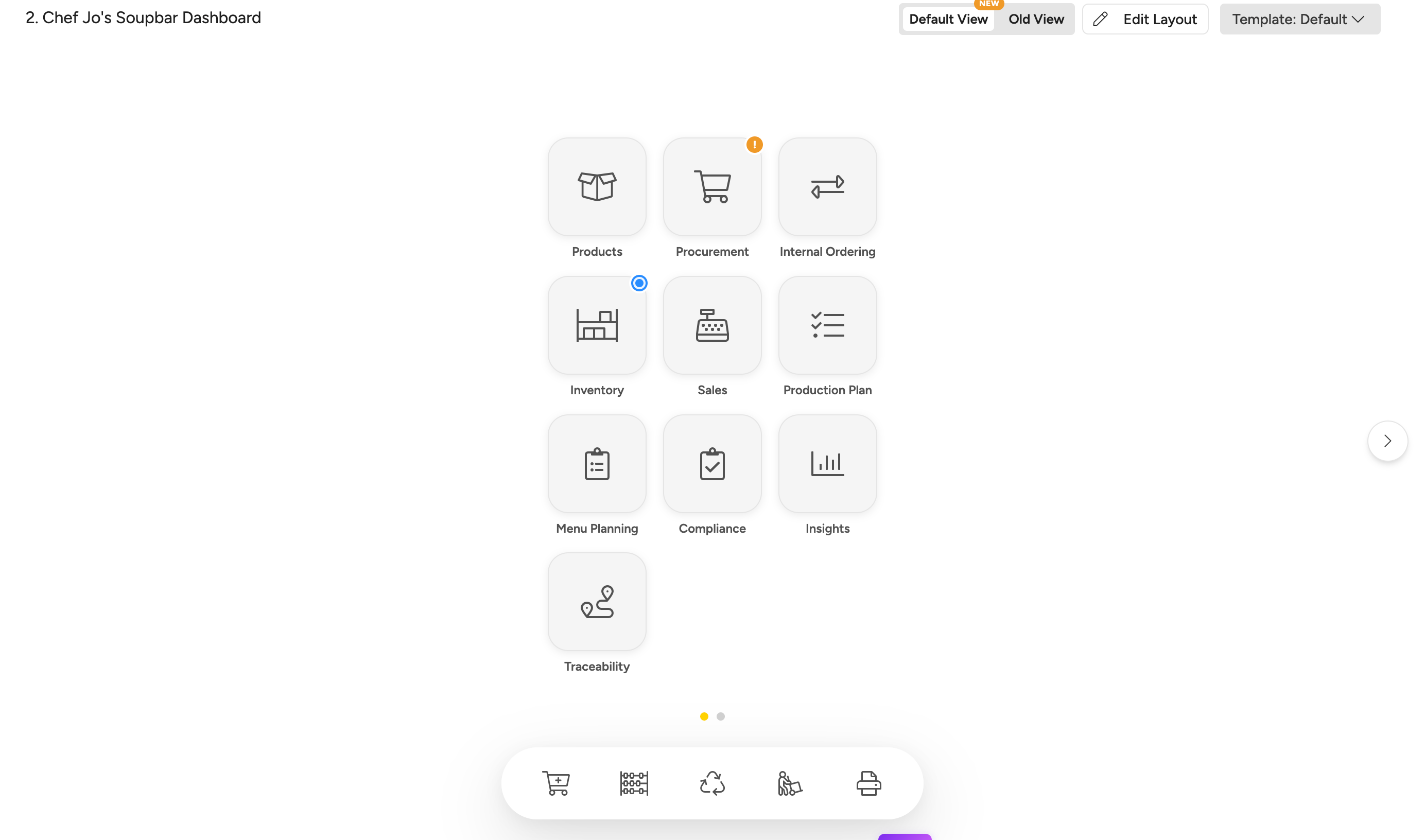
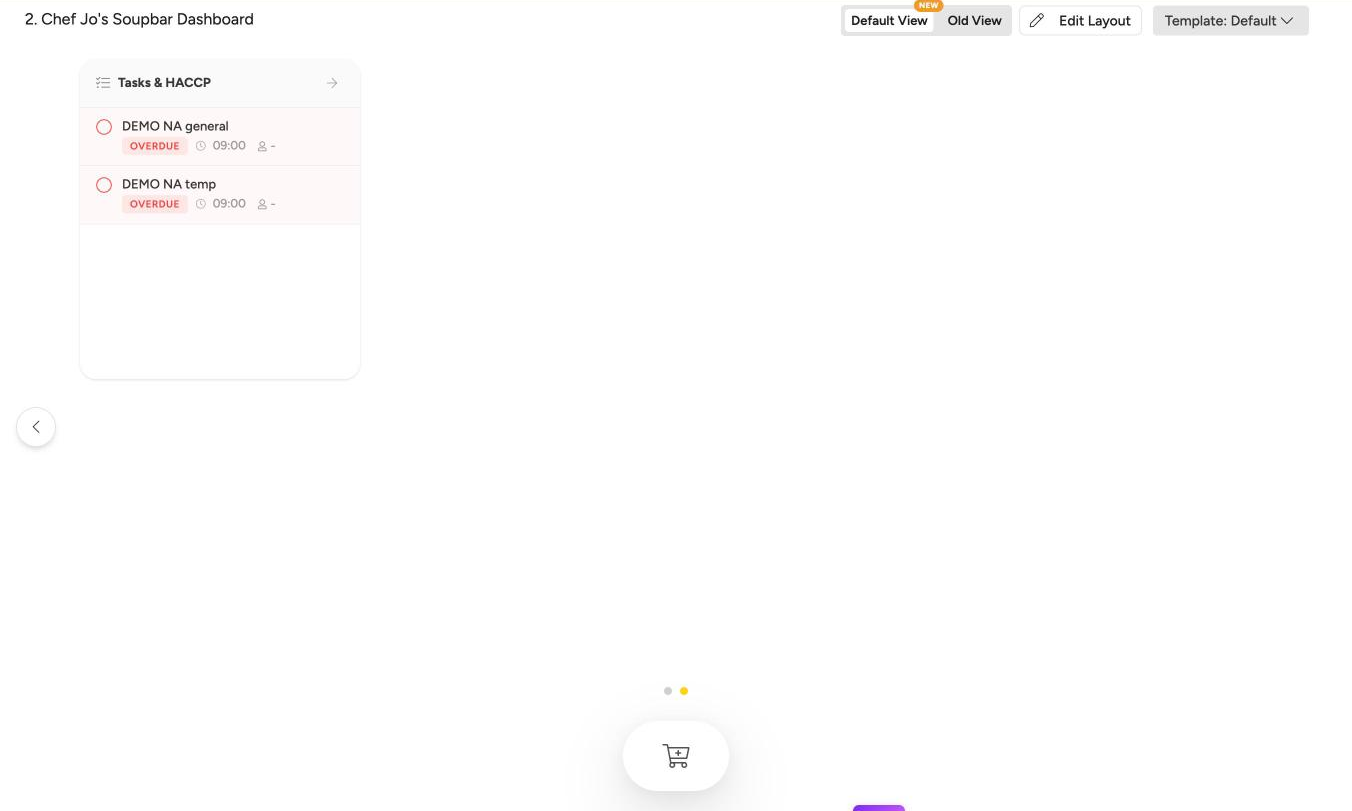
You only see the tiles, actions and widgets your role gives you access to. Some tiles show a badge when something needs attention: Procurement warns you about overdue orders, and Inventory shows when a stock count is in progress. Reload the page to refresh the badges.
Switch to the old view
Prefer the old dashboard? Select the view switcher in the header and choose Old View. Choose Default View to come back. Apicbase remembers your choice in the browser you use.

Arrange your dashboard
Select Edit Layout in the header to arrange your widgets and the quick dock. Your arrangement is saved for you, in this outlet and in the browser you are using. It does not follow you to another browser or device, and it is not available on a phone.
Use a template
A template is a shared layout that a colleague has set up for the outlet. Everyone starts on Default. To use a template, open the Template: selector in the header and choose one. The dashboard reloads with that layout. Choose Default to go back to your own arrangement.
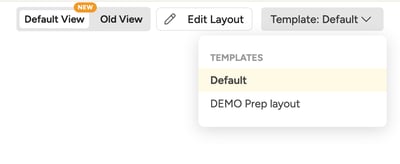
A template can be made for specific roles, so you only see the ones meant for you. While you are on a template, only users who may edit templates can move its widgets. If you have the Create/Edit outlet dashboard template permission, you can also make your own with Create a template in the same menu.
A widget is missing
A widget only shows if your role gives you access to what it displays. Tasks & HACCP needs the Tasks module and a task permission. Production Plan needs the Production module and a production plan permission. Apicbase Assistant needs the View permission under Apicbase Assistant. Ask your administrator to check your role.