![logo-mark-primary-color-4.png]](https://support.apicbase.com/hs-fs/hubfs/logo-mark-primary-color-4.png?height=40&name=logo-mark-primary-color-4.png)
Open safety walks from the menu under Compliance > Safety Walks.
Who can do what
What a person can do depends on their role. You set it in the role editor (open a role under Library User Roles or Outlet User Roles), in the group Compliance - Safety Walks:
- Conduct safety walks: start and run walks, and see the walks you conducted yourself.
- View all safety walks: see every walk in the library, whoever conducted it. With this ability alone, walks open read-only.
- Manage walk templates: create, edit and delete walk templates. Only library users can manage templates.

Set up job titles and walk templates
Head office prepares two things in Compliance Settings. Open it from the Compliance menu, or with the Settings cog on the Safety Walks page.
Job titles. On the Job Titles tab, select Add job title. A job title is your own label for what someone does, such as Head Chef or Outlet Manager. It is not a permission. You give people their job titles on the user screens under Users. Compliance documents use the same job titles.
Walk templates. A template describes one kind of visit. On the Safety Walks tab, select Add template and fill in four parts:
- Details: a name, a purpose that shows on the card the walker picks from, and guidance for the walker.
- Settings: whether the walk is on site, off site or the walker decides, and whether general observations or a photo are required before finishing.
- Questions: write the questions and choose an answer type: Yes / no, Open text, Rating 1 to 5 or Date. Tick Required if a question must be answered before the walk can be finished.
- Responsible positions: the job titles that must be named on every walk. Tick Required if the walk cannot be finished without that person, and Receives the report to email them the finished report.
Select Save template.
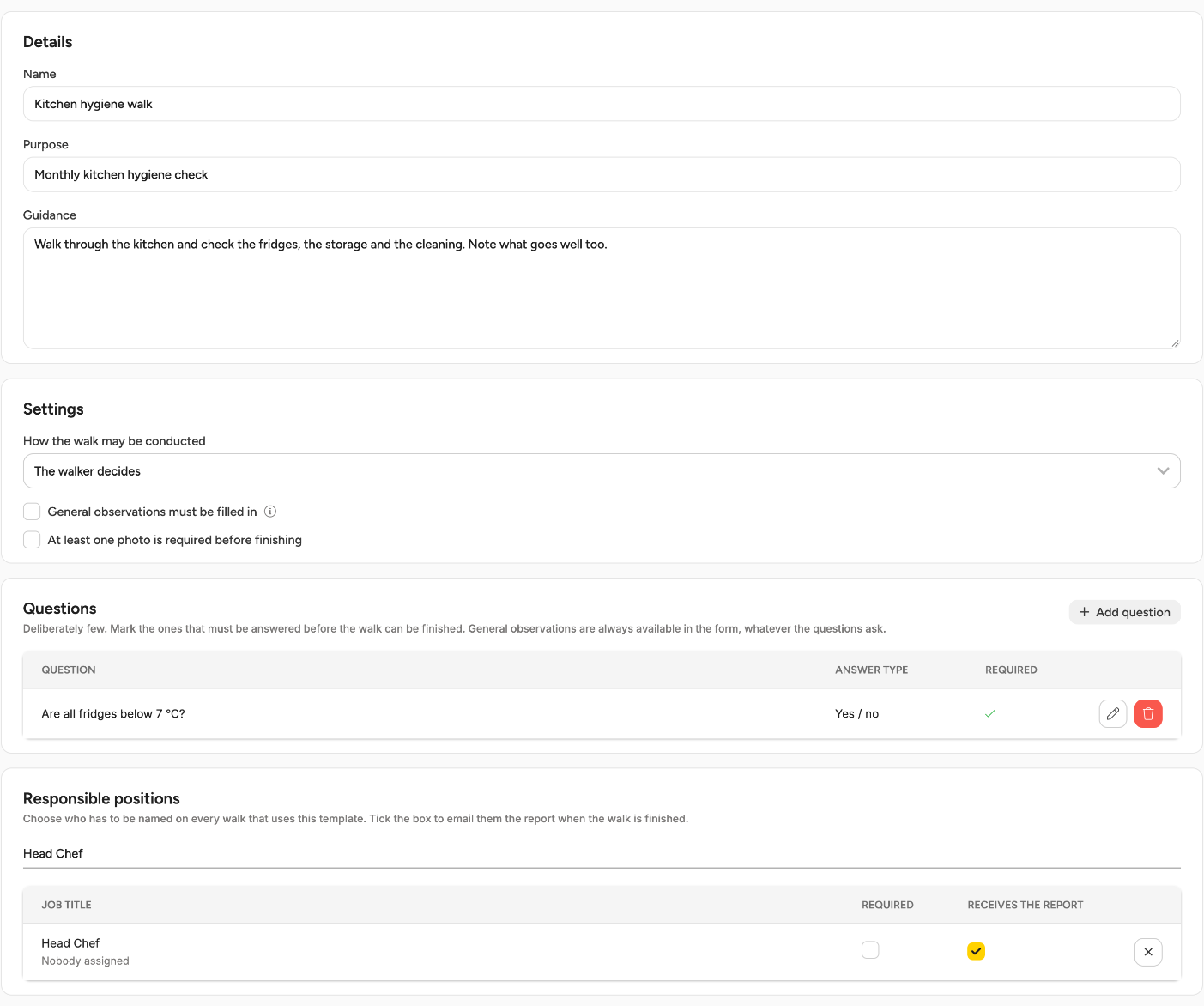
A walk takes its own copy of the questions when the template is picked. Editing a template later does not change walks in progress or walks already finished.
Conduct a safety walk
- Open Compliance > Safety Walks and select New safety walk.
- Outlet: pick the outlet. Outlet users skip this step. From here on the walk is saved as a draft with the status In progress.
- Template: pick the template and read its guidance. If the template lets you choose, select On site or Off site.
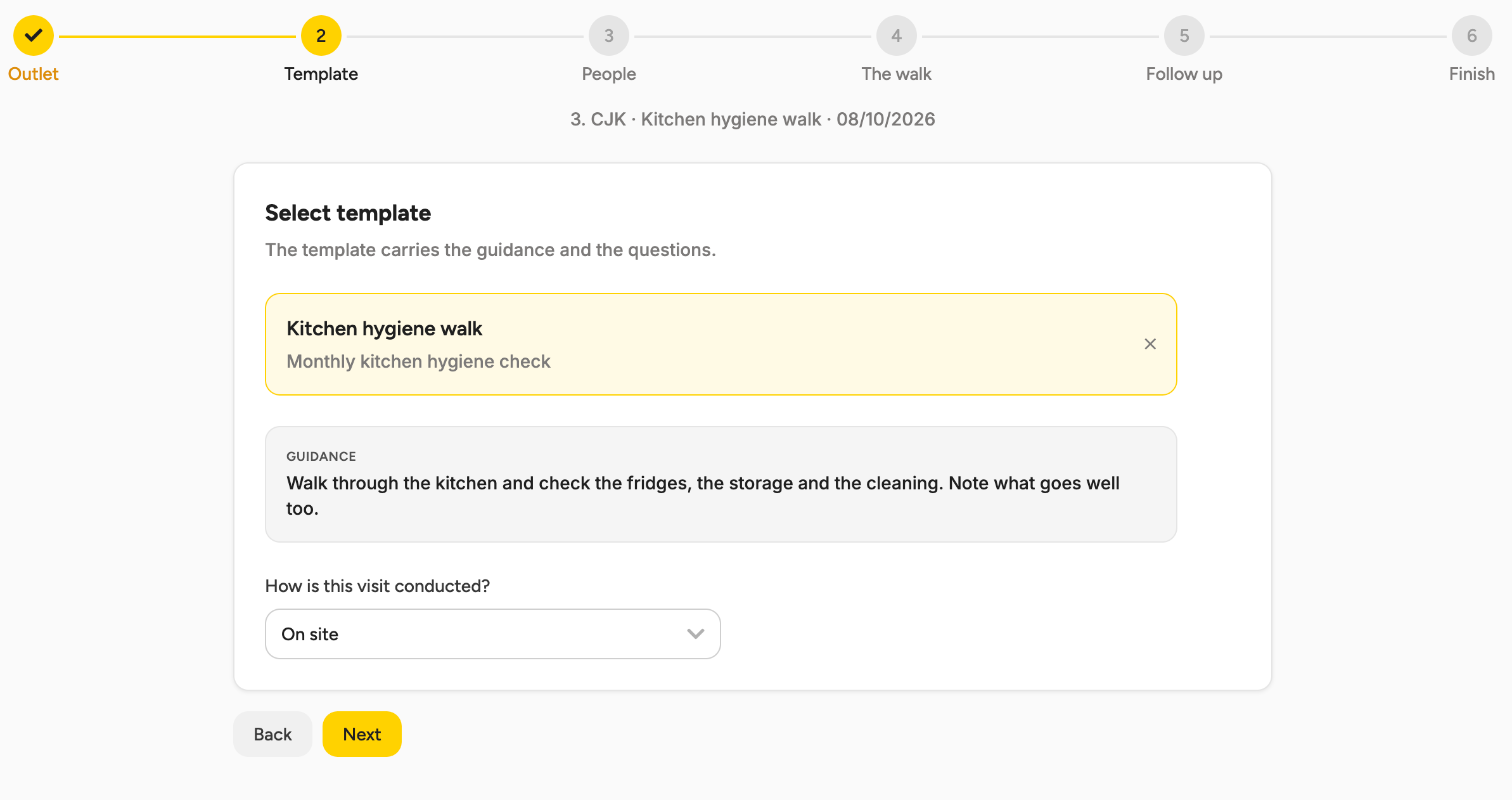
- People: name the person for each job title the template asks for. If the person is not in the list, select Not found the user in the list? Fill in manually and type their name. Add their email if their position receives the report.
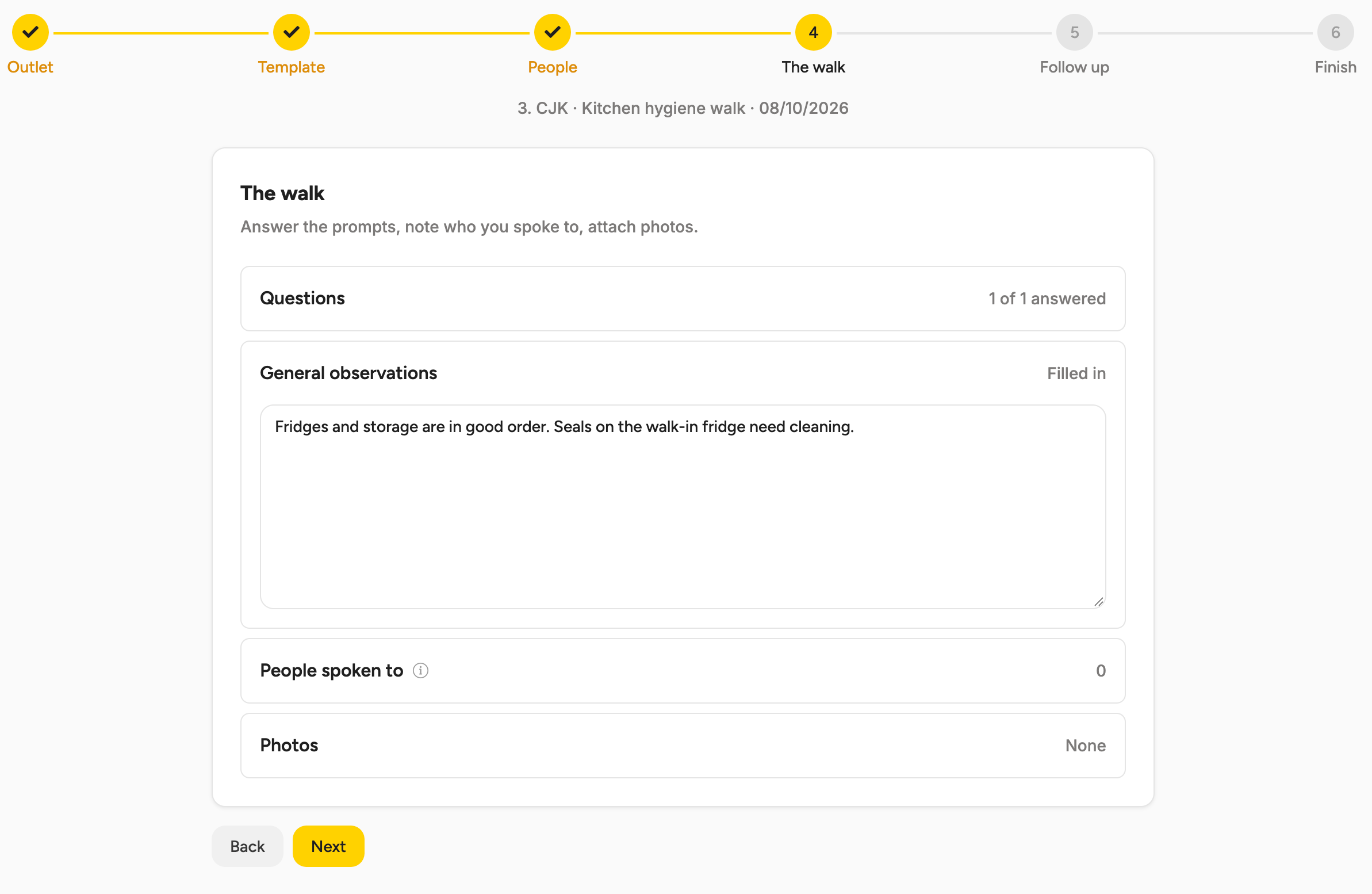
- The walk: answer the questions, write your General observations, add the People spoken to and attach Photos.
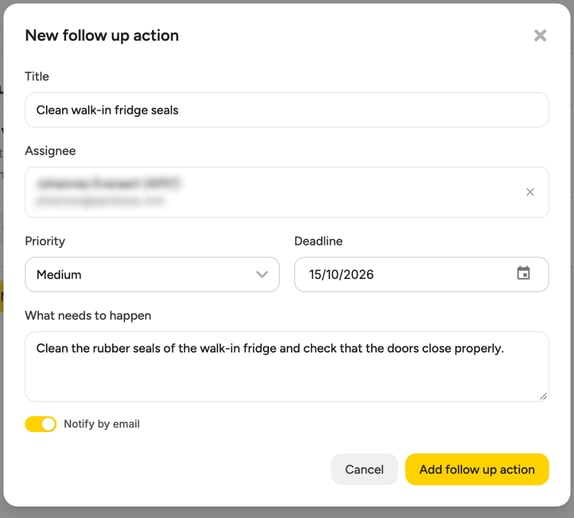
- Follow up: select Add follow up action for anything that needs doing. Enter a Title, an Assignee (an Apicbase user, or a name you type in), a Deadline and What needs to happen. Notify by email is on by default.
- Finish: check the walk and select Finish walk. If something is missing, Apicbase tells you what, by name.
Every step saves as you go, and you can go back to a step you completed. Discard draft deletes the draft.
Changing the template of a walk in progress clears your answers and the people you named. Changing the outlet clears the people. Apicbase asks before it does either.
A finished walk cannot be edited or deleted. After finishing, you can only add a dated note.
After you finish
The walk shows Finished. Everyone named on a position with Receives the report gets the report by email. Each follow up action goes to its assignee. The person who conducted the walk can add a dated note with Add note, and Print opens a printable version.
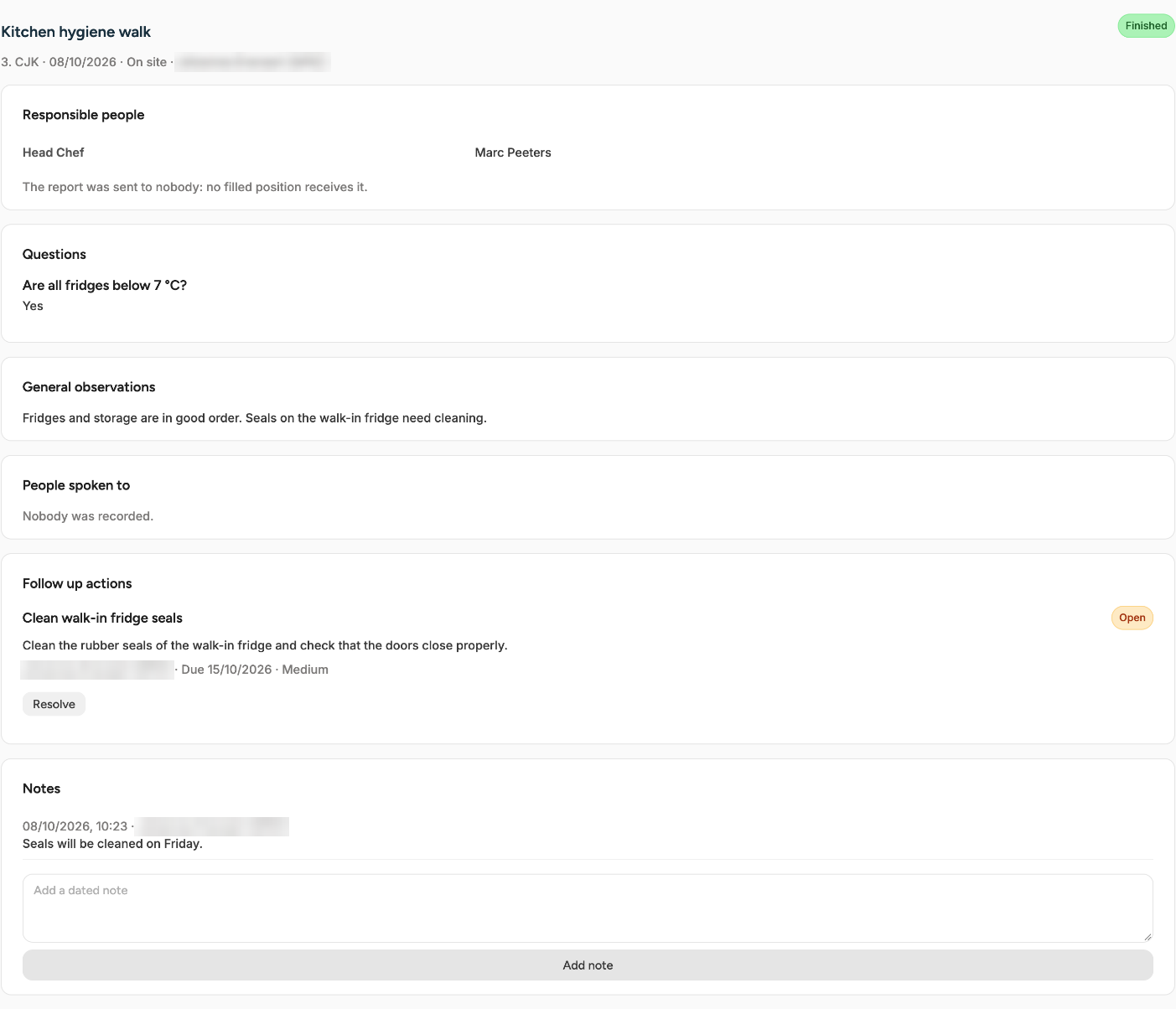
The Safety Walks page lists the walks you can see, as Cards or as a Table. Filter by outlet, by Status, by Follow up (Open, Overdue or Resolved), or switch on Only mine.
Follow up actions
A follow up action is Open until someone resolves it, and Overdue once its deadline has passed.
If the assignee is an Apicbase user, they get a notification in Apicbase and a card on the Follow up tab of the Tasks page of the walk's outlet, and an email when Notify by email is on. To resolve the action, they select the card, write a Resolution note, add attachments if they want and select Mark as resolved.
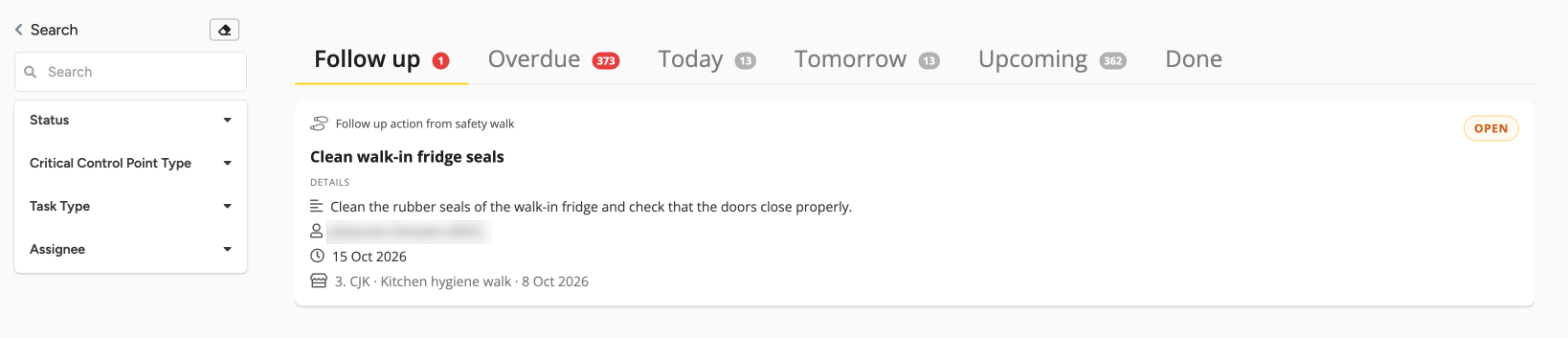
If the assignee is someone you typed in, they have no Apicbase login. With Notify by email on, they get an email with the action. With it off, nobody tells them, so let them know yourself. The person who conducted the walk can resolve any action on the walk record with Resolve, for example for someone without a login.
Good to know
- Nobody is reminded before a deadline or told when an action becomes overdue.
- Being assigned a follow up action does not let you open the walk it came from.
- You cannot reassign an action or change its deadline.