![logo-mark-primary-color-4.png]](https://support.apicbase.com/hs-fs/hubfs/logo-mark-primary-color-4.png?height=40&name=logo-mark-primary-color-4.png)
Menu Publishing is a module that Apicbase switches on per library. Ask your Customer Success Manager to switch it on. Once it is on, your library's users find it under Products > Menu Publishing. There is no role permission to set. If the page shows No company found for library ID, your library still has to be set up for menu publishing: contact your Customer Success Manager.
Create a menu page
- Go to Products and select Menu Publishing. The Digital Menu Publishing screen lists your menu pages.
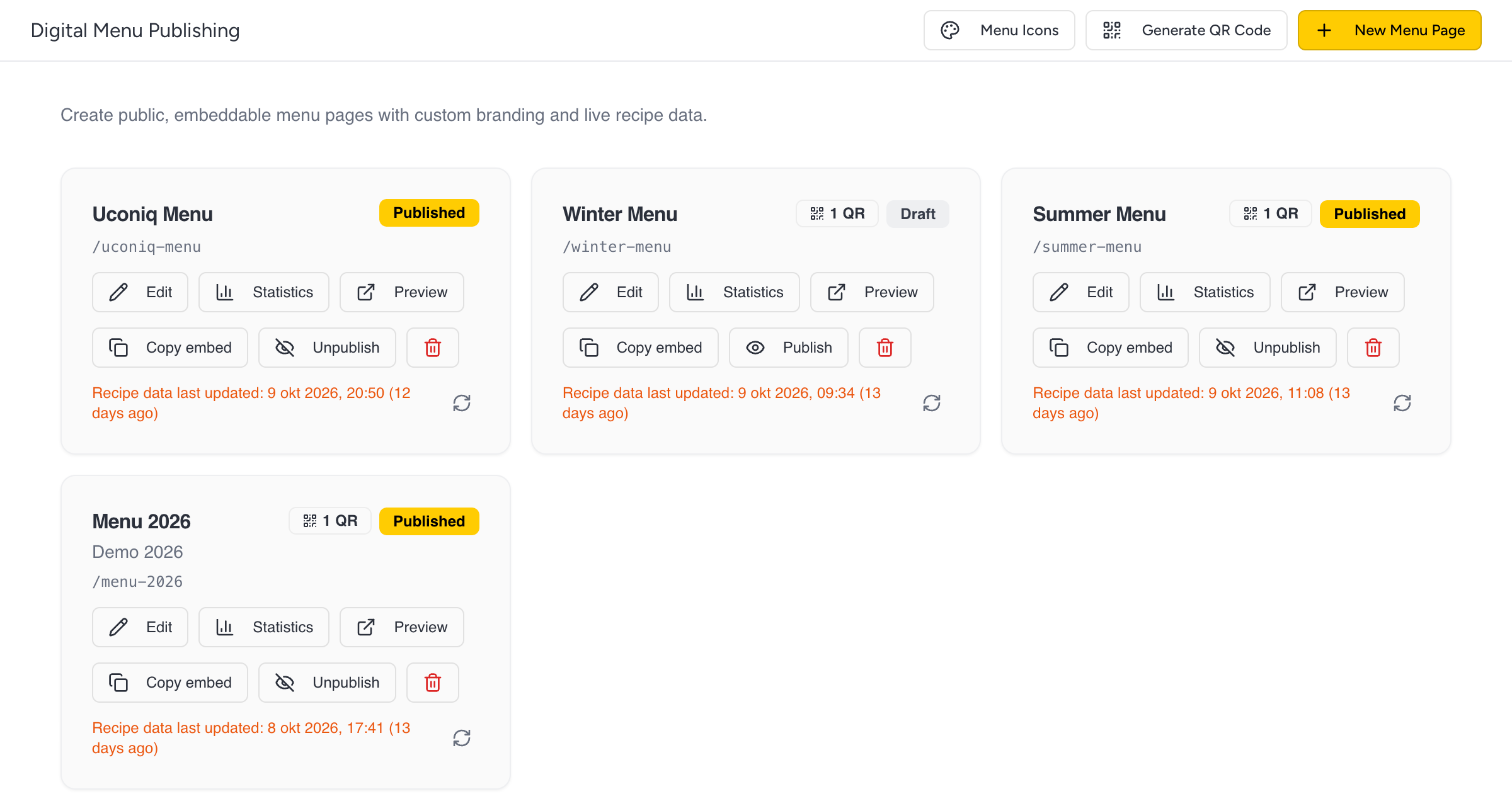
- Select + New Menu Page.
- Fill in a Page name and a URL slug (for example summer-menu). The slug becomes the last part of the page's address.
- Select Create page, then Edit on the new card.
- On the Content tab, fill in the Page title and the Description / subtitle that visitors see.
- Under Where the dishes come from, choose Menu plans or Menus (menu engineering). Then select your plans under Menu plans (Apicbase), or your menus under Menus (Apicbase), which has a Sync from Apicbase link next to it. When you select several, visitors can switch between them on the page. For a menu, its own price is shown above its dishes.
- Under Outlet (for pricing), choose an outlet to show its outlet prices, or keep No outlet (use default price) to show the default retail price.
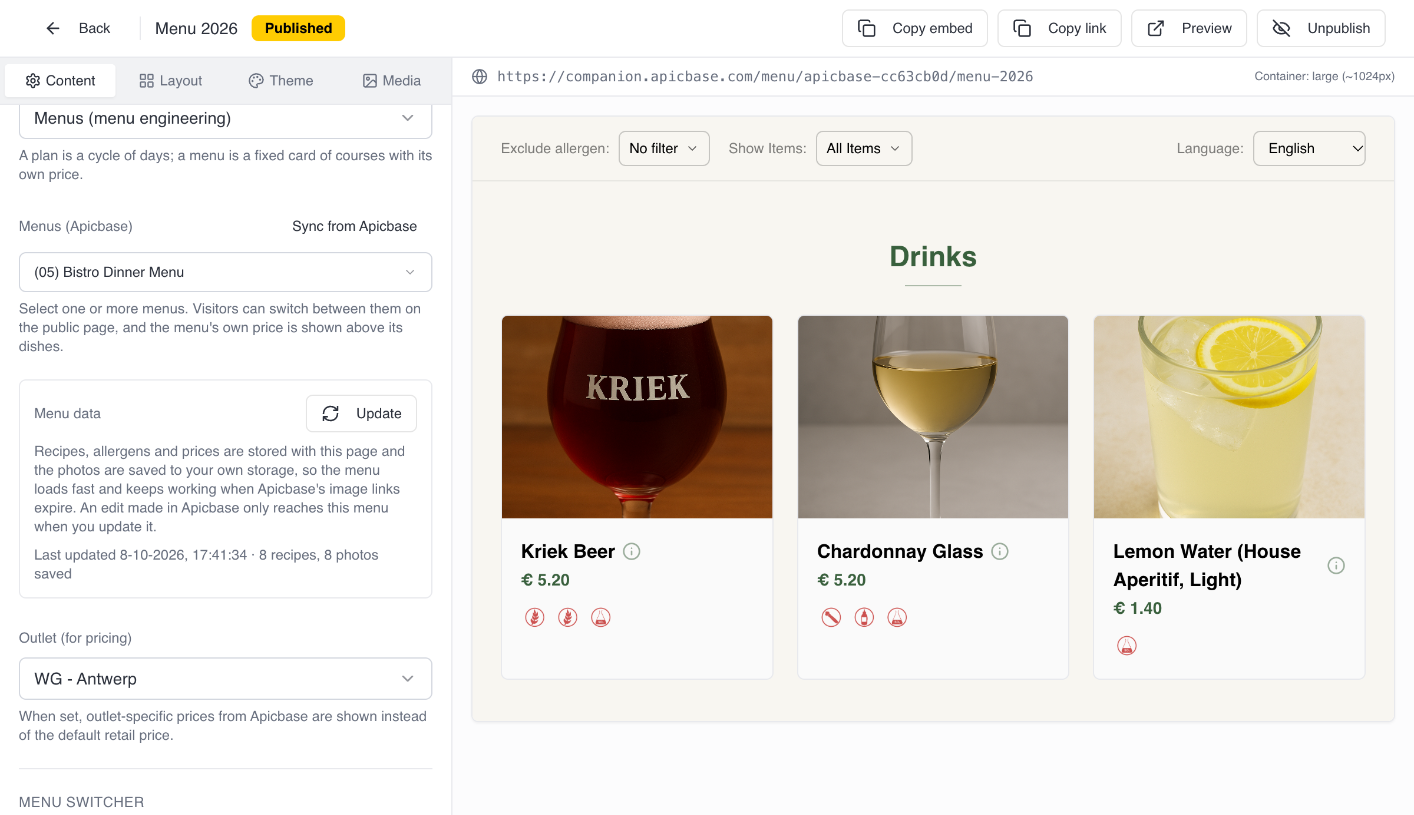
On the same tab you can let visitors switch to your other menu pages with a dropdown, turn on a language selector for visitors, and add footer text.
The editor has no Save button. The preview on the right shows the page as visitors will see it.
Keep the menu up to date
The page keeps its own copy of your recipes, allergens and prices, and stores the photos itself, so it loads fast. That copy does not follow Apicbase by itself.
A change you make in Apicbase (a price, an allergen, a new dish) only reaches the menu page when you select Update in the Menu data box on the Content tab.
Each card shows when its recipe data was last updated. If the Menu data box says some photos could not be saved, select Update again.
Design the page
- Layout: how courses are shown (for example all on one page, as cards), how many dishes per row, which parts of the header appear, and what each dish shows: prices, descriptions, photos, allergens, dietary icons and nutritional information. You can also show an outlet selector to visitors.
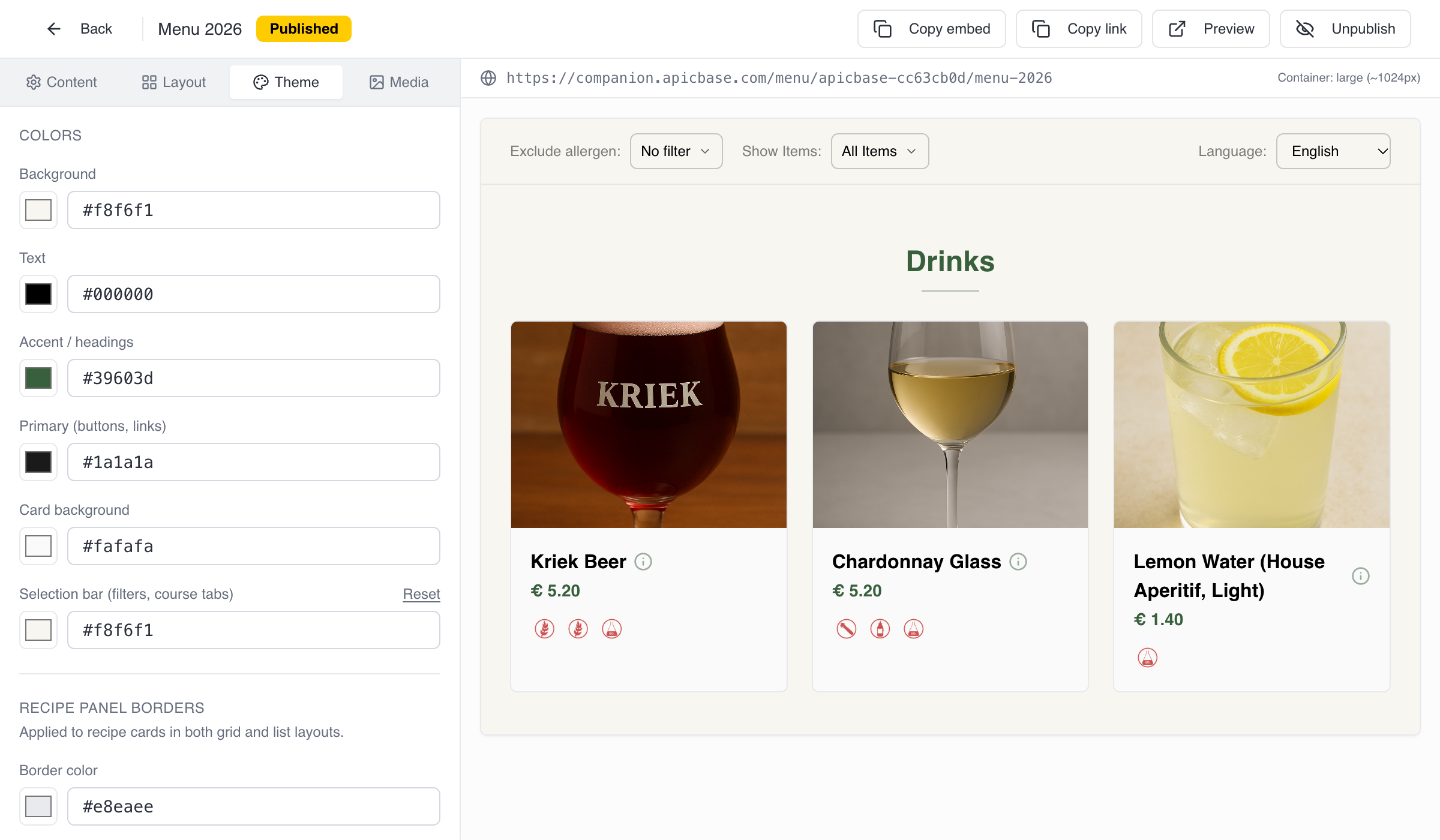
- Theme: colours, borders and the heading and body fonts.
- Media: your logo, a banner image, a placeholder photo for dishes without one, and dietary icons for this page only.
The dietary and allergen icons for all your pages are set once, under Menu Icons on the main screen. Pick an allergen Icon set (Gray, Orange or Red), upload your own pictograms where you want them, and select Save. A page that sets its own icon on its Media tab keeps it.
Publish and share
A new page is a draft. Visitors who open its address see that the page is not available.
- Select Preview to open the page in a new tab as visitors will see it.
- Select Publish. The status changes from Draft to Published.
- Share it. Copy embed copies a code that you paste into your own website to show the menu there. Copy link in the editor copies the page's address.
Select Unpublish to take the page offline again.
Changing the URL slug of a published page breaks the links you have already shared. QR codes keep working.
QR codes for your tables
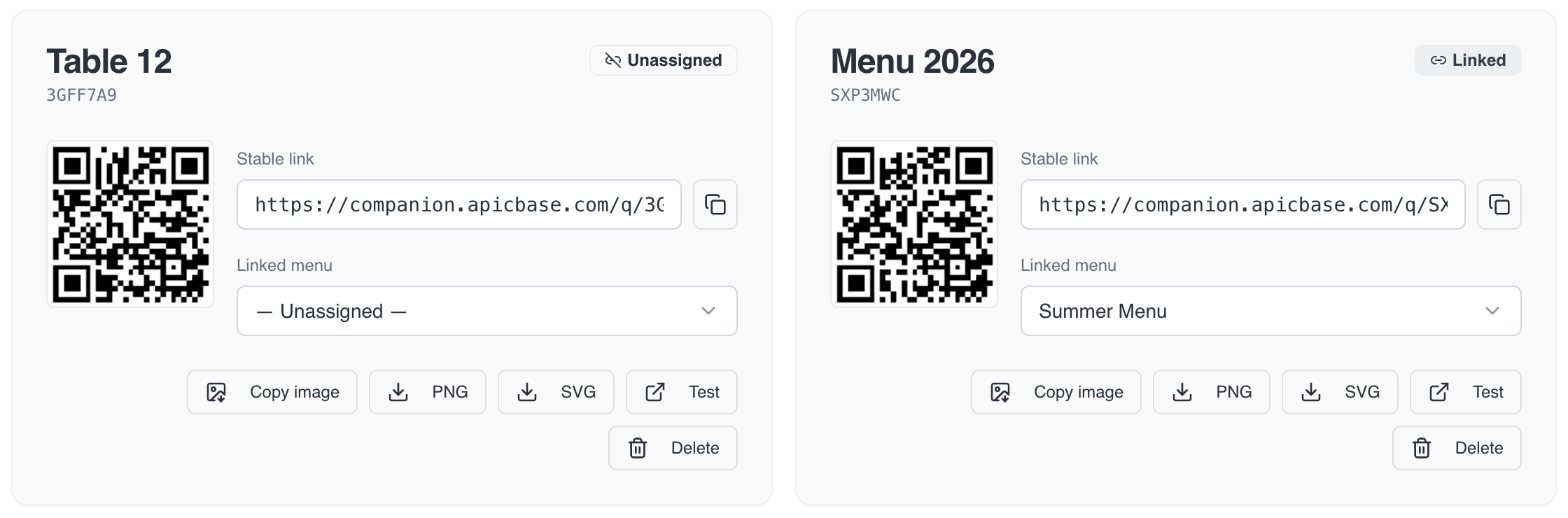
The link behind a QR code never changes, so you print it once. You can point it to a different menu page at any time without reprinting.
- On the main screen, select Generate QR Code.
- Select + New QR Code, fill in a Label (for example Table 12), choose the Linked menu and select + Create.
- Download the code as PNG or SVG, or select Copy image. Select Test to try it.
To point a code to another page, choose that page under Linked menu on the code's card. When the linked page is still a draft, the card shows a warning: publish the page so guests can reach it.
See how often your menu is viewed
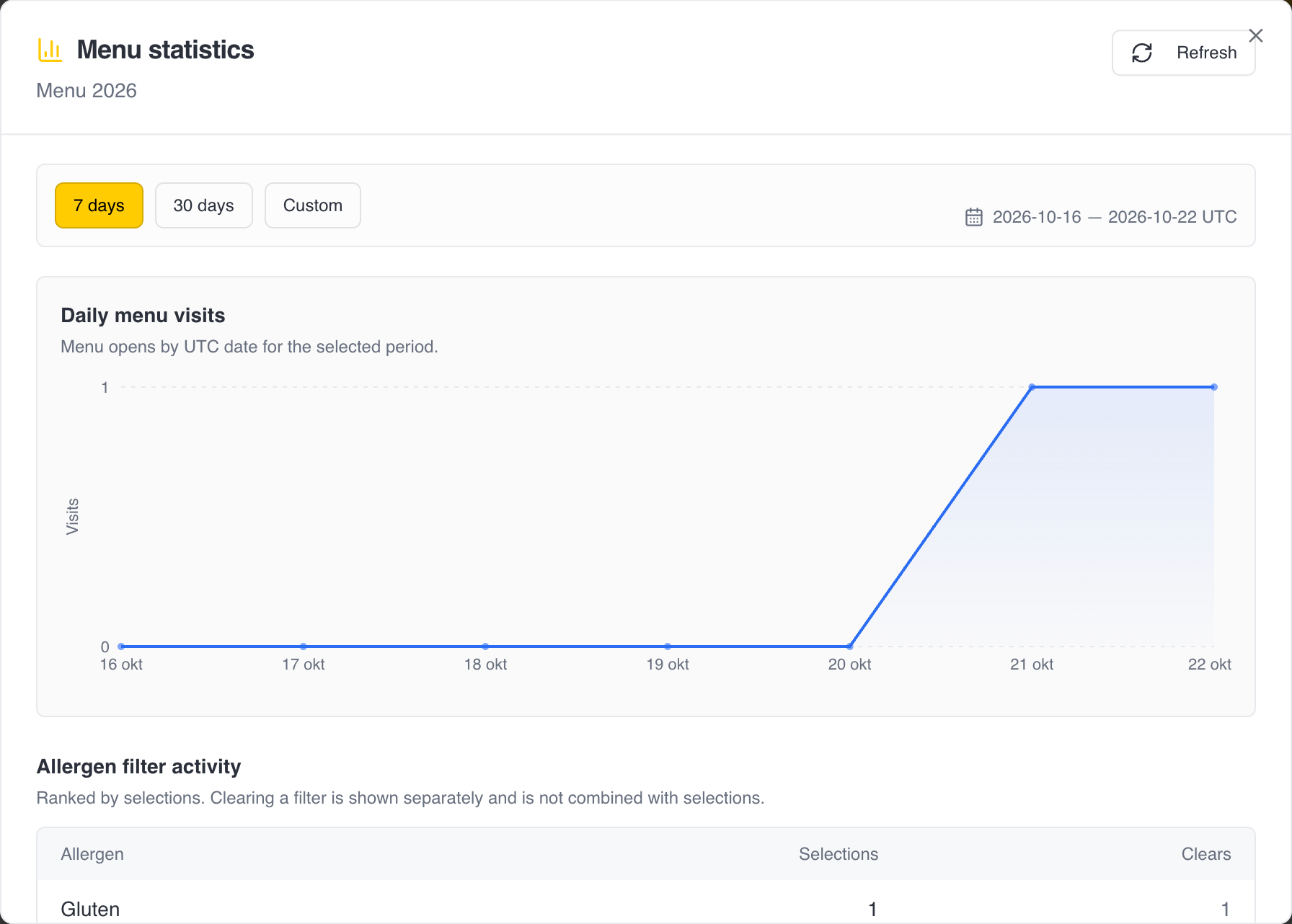
Select Statistics on a menu page card to see the daily visits and how often guests use the allergen and dietary filters, for the last 7 days, 30 days or a Custom period. The figures are anonymous daily totals in UTC. Previews you open from the editor are not counted.