![logo-mark-primary-color-4.png]](https://support.apicbase.com/hs-fs/hubfs/logo-mark-primary-color-4.png?height=40&name=logo-mark-primary-color-4.png)
Open it from the left menu under Compliance > Documents.
Who can do what
Everyone in your library sees the Documents menu entry. What a person can do depends on their role. You set it in the role editor (open a role under Library User Roles or Outlet User Roles), in the group Compliance - Documents:
- Create / edit documents: create and edit documents, upload new versions, submit them for review, discard them and delete them.
- Approve documents: approve, reject and retire versions.
- Manage document types: manage the list of document types.
- See full document history: see the Activity section of a document.
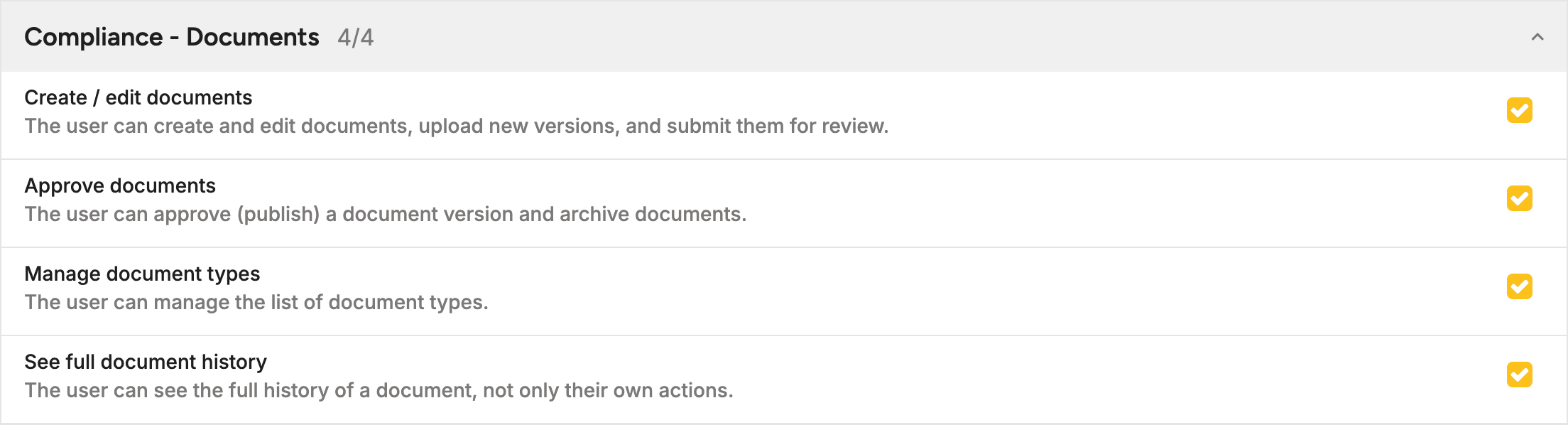
People with at least one of the first, second or fourth permission see all documents of their library or outlet, drafts included. Everyone else only sees the documents that ask them to acknowledge. The list shows them no status, because these documents are always in force. A document pinned to one outlet is only visible while you work in that outlet, and a document for the whole library is always visible. Outlet users manage documents pinned to exactly one of their outlets.
Add a document
- Open Compliance > Documents and select New document.
- On the Metadata step, enter a Title and choose a Type. Optionally set an Expiry date, add Tags and choose Outlets. If you choose no outlets, the document is visible to all outlets.
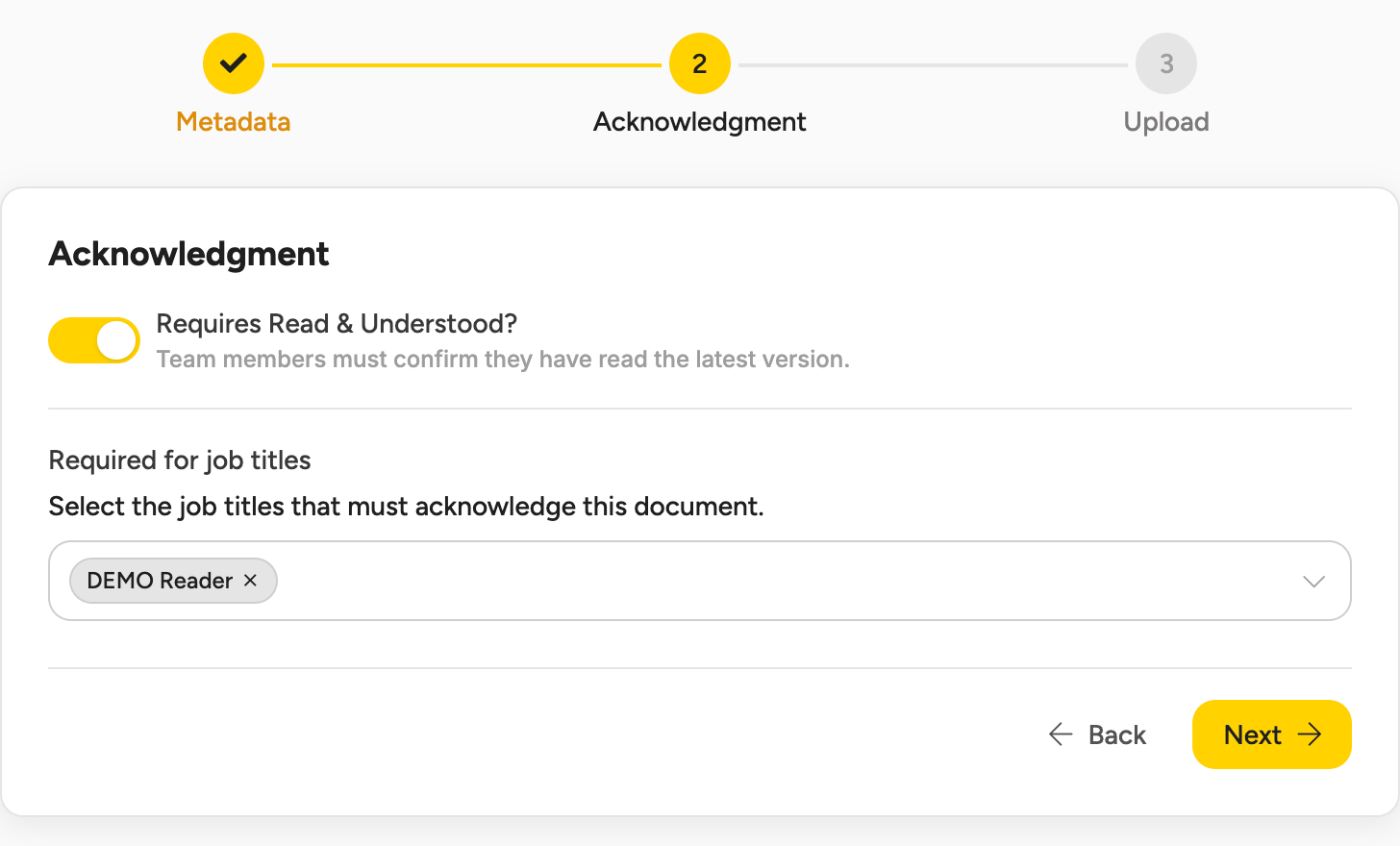
- Select Next. On the Acknowledgment step, switch on Requires Read & Understood? if people must confirm they have read the document, and choose the Required for job titles.
- Select Next. On the Upload step, add the file: PDF, Word, Excel, PowerPoint, JPG or PNG, up to 20 MB.
- Select Create document. The document is created with version 1 as a Draft.
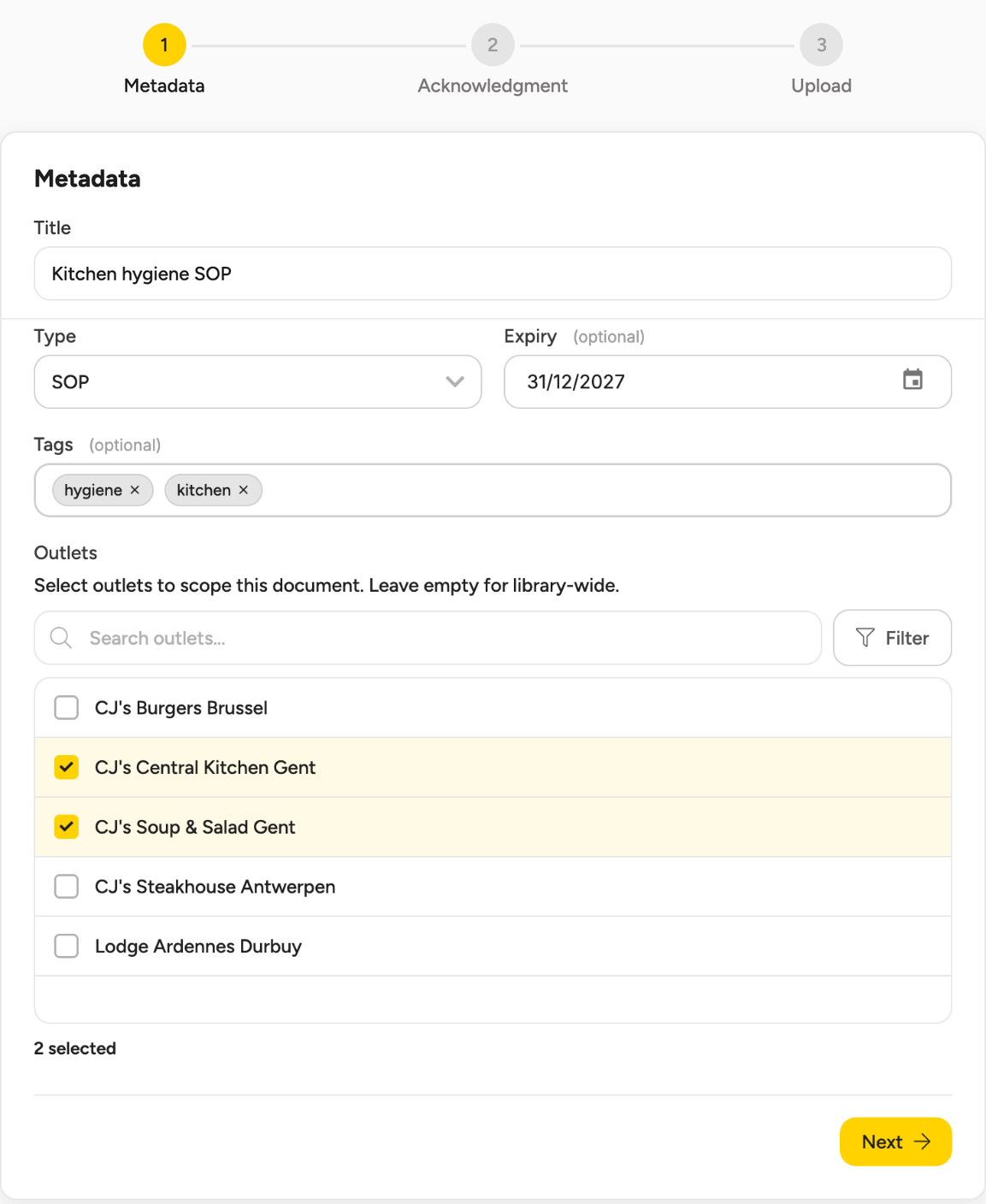
The page previews PDF, JPG and PNG files. For Office files you get a Download button. To change the title, type, tags, outlets or acknowledgment settings later, open the document and select Edit. You set the expiry date for version 1 in the wizard and for later versions when you upload them. An expired document stays in force, and the list shows Expired next to its date.
Review and approve a version
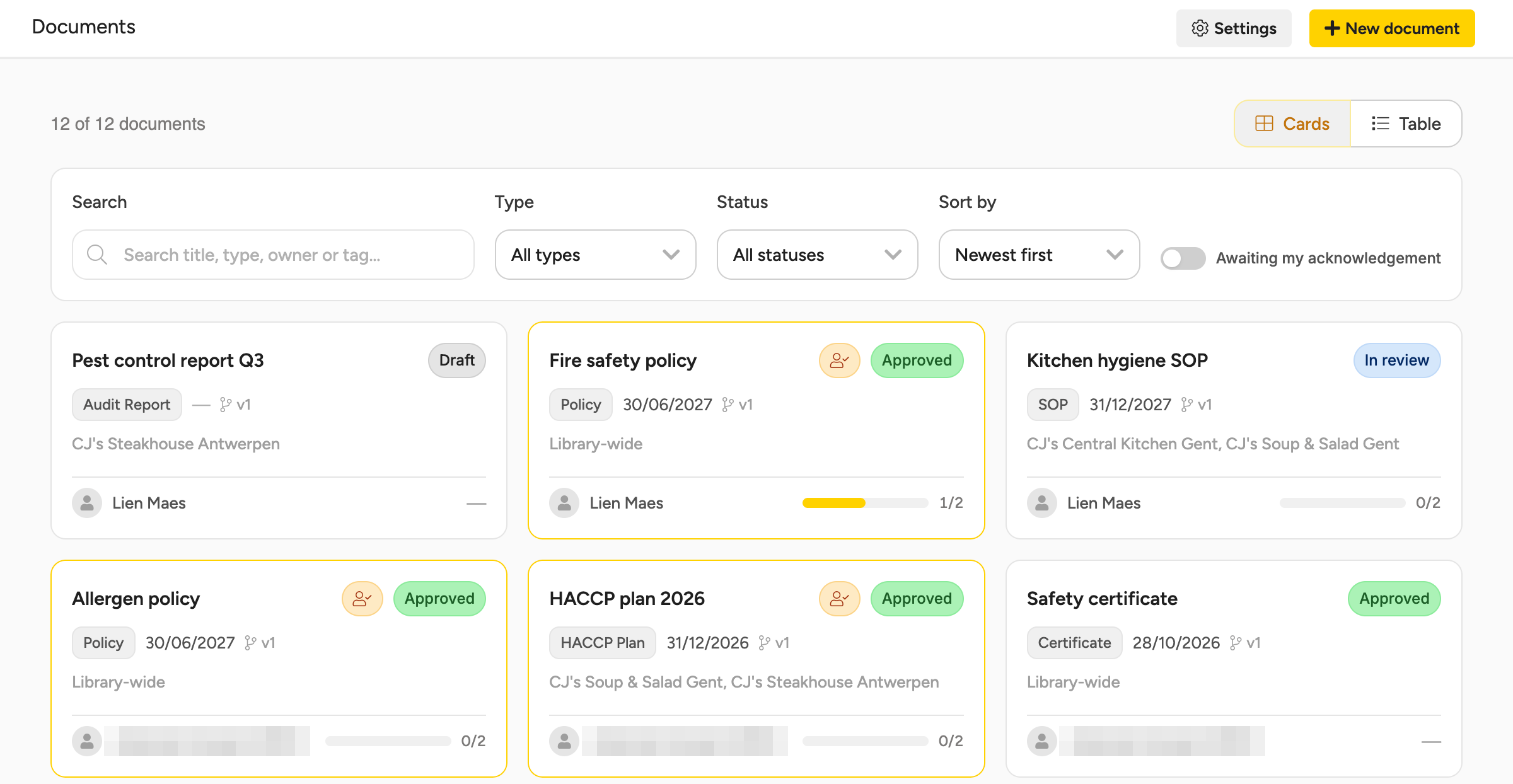
A version moves through Draft, In review and Approved. Only an approved version is in force. Open the document to see its Versions card.
- Someone with Create / edit documents selects Submit for review on the draft version.
- Someone with Approve documents selects Approve and confirms. The version is now in force.
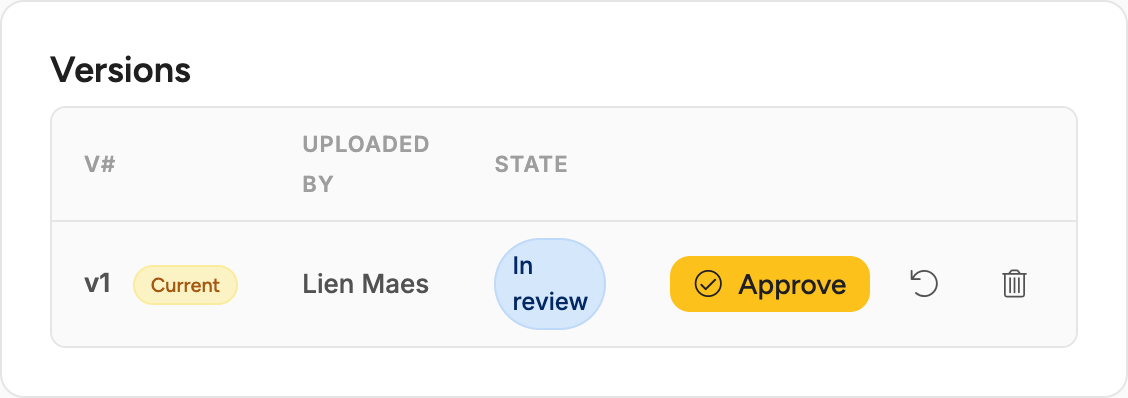
To send a version back, an approver selects the round-arrow icon next to Approve (tooltip Reject). It returns to Draft and can be edited. An editor can select the bin icon (tooltip Discard) instead: the version is archived and cannot be reopened.
Approving a version replaces the approved one, which is archived automatically. If the document asks people to acknowledge, everyone has to acknowledge the new version again.
Upload a new version
Open the document and use Upload new version. Choose the file, optionally add a Change note (optional) and an Expiry date (optional), then select Upload version. The new version goes through the same review. You can upload when no other version is open (Draft or In review).
Ask people to acknowledge a document
Switch on Requires Read & Understood? when you create the document or in Edit, and choose one or more Required for job titles. You manage job titles in Compliance Settings, on the Job Titles tab. Everyone with one of those job titles within the document's scope has to acknowledge it. Choose at least one job title, otherwise nobody is asked.
When a version is approved, everyone who has to acknowledge it gets a notification in Apicbase and an email with a Review and acknowledge button.
If you have to acknowledge a document, switch on Awaiting my acknowledgement in the Documents list to find it. Open the document and select Acknowledge on the Acknowledgement required banner at the top.
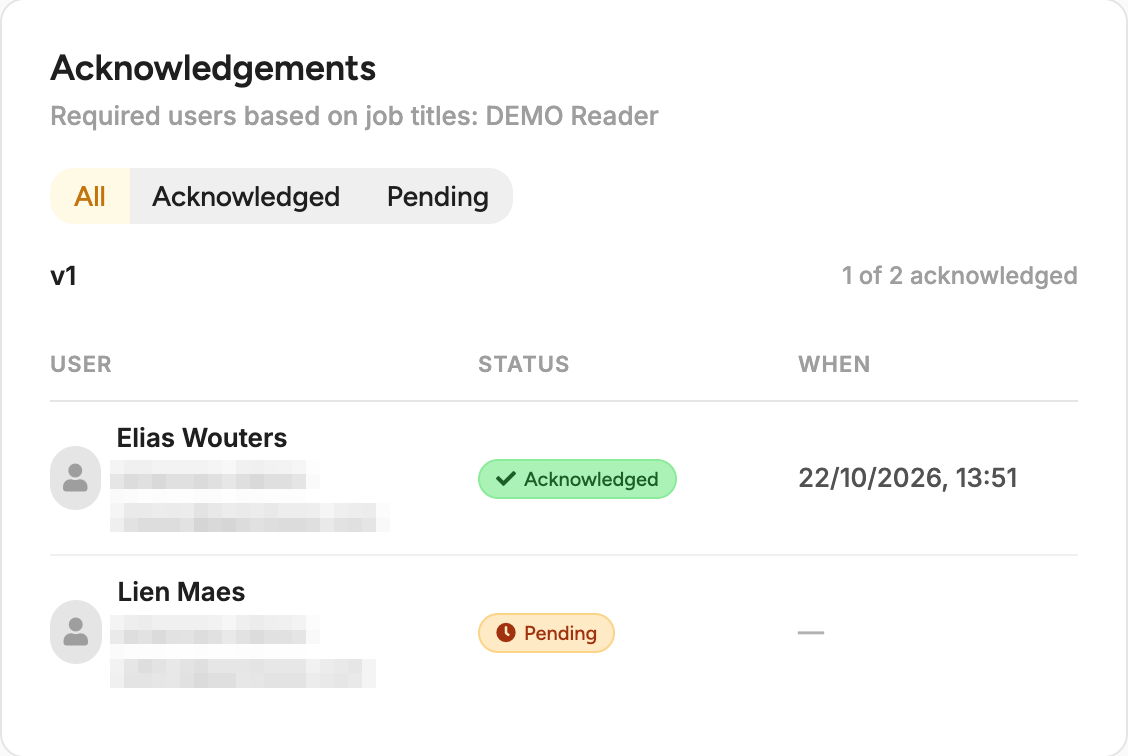
Head office follows the progress in the Acknowledgements card on the document page. It shows how many people have acknowledged and lists each person as Acknowledged or Pending, per version.
Retire or delete a document
To take a document out of force, someone with Approve documents selects Retire on the approved version and confirms. The document shows Out of force and no longer asks anyone to acknowledge. To bring it back, upload and approve a new version.
To delete a document, retire it first, then open Edit and select Delete document.
Deleting a document cannot be undone. Retire it instead if you only want it to stop applying.
Document types
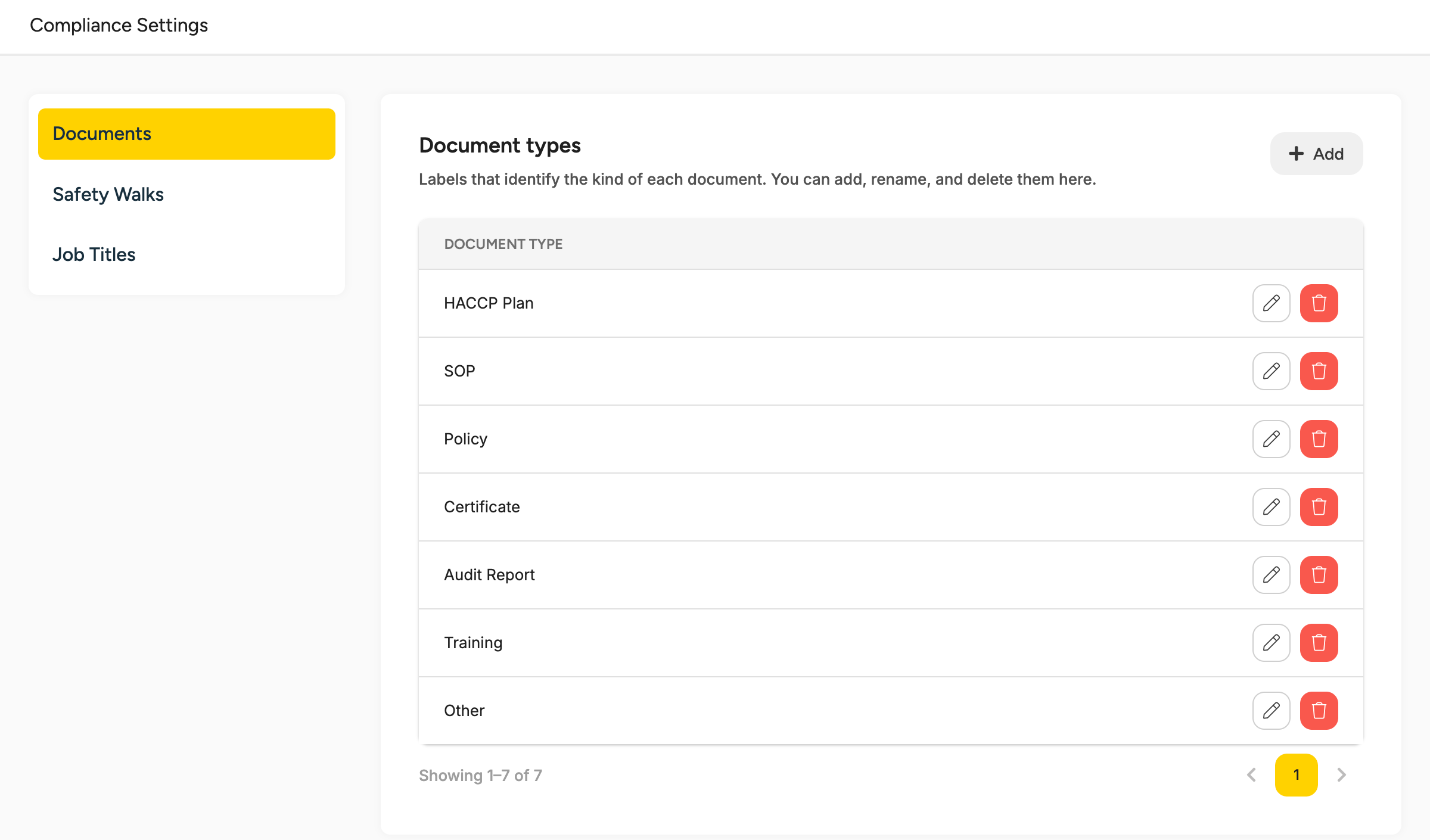
Every document has a type. Apicbase starts you with seven: HACCP Plan, SOP, Policy, Certificate, Audit Report, Training and Other. You can rename or delete them like any type you add yourself. To change the list, open Compliance Settings and go to the Documents tab. Under Document types, select Add, Rename or Delete. A type that documents still use cannot be deleted, so rename it instead.
Good to know
- Approvers are not notified that a version is waiting. To find it, set the Status filter on the Documents page to In review.
- The person who submits a version can also approve it. Give Approve documents to someone else if you want two people involved.
- An expiry date does not take a document out of force and sends no reminder.
- You ask people to acknowledge by job title, not by name, and an acknowledgement cannot be withdrawn.