![logo-mark-primary-color-4.png]](https://support.apicbase.com/hs-fs/hubfs/logo-mark-primary-color-4.png?height=40&name=logo-mark-primary-color-4.png)
While it reads a PDF invoice, Apicbase uses AI to check that the invoice adds up. On each line, the quantity times the unit price must give the line total. The lines, with discounts and charges, must give the net amount, and the net plus VAT must give the gross amount. If the result still does not add up, Apicbase keeps those values as they were first read from the document, and you correct them here. Invoices you receive via Peppol (UBL) are read from the structured file and do not go through AI extraction or review.
You need the Edit permission in the Invoice group of your role, and your library needs the Invoice line-level module. Without the module you do not see the Digital Invoice tab.
- Go to Procurement, select Invoices, choose the outlet and open the invoice.
- Select the Digital Invoice tab and compare the lines with the Original Invoice tab.
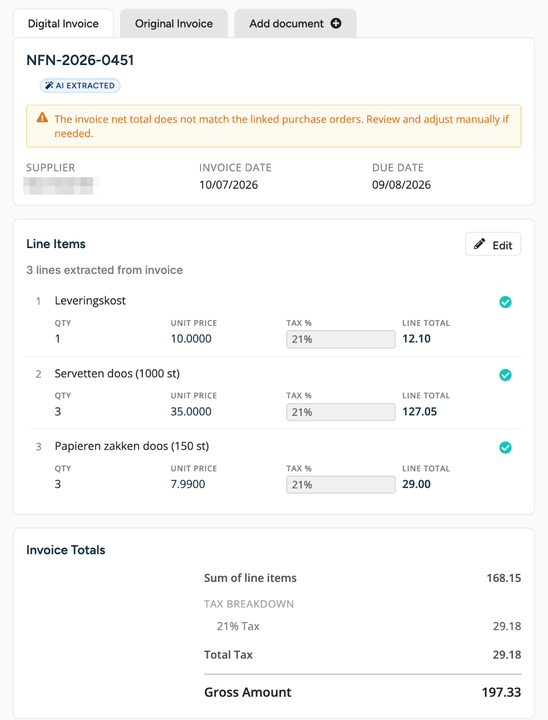
- Select Edit.
- Change the description (the text box at the top of the line), the Qty, Unit Price, Tax % or Line Total that is wrong.
- To add a line that was missed, select Add line, fill in the Description, Qty, Unit Price and Tax %, and select Add. The description is required, and the quantity and unit price must be above zero.
- To remove a line that is not on the invoice, select the trash icon at the end of the line (Remove line).
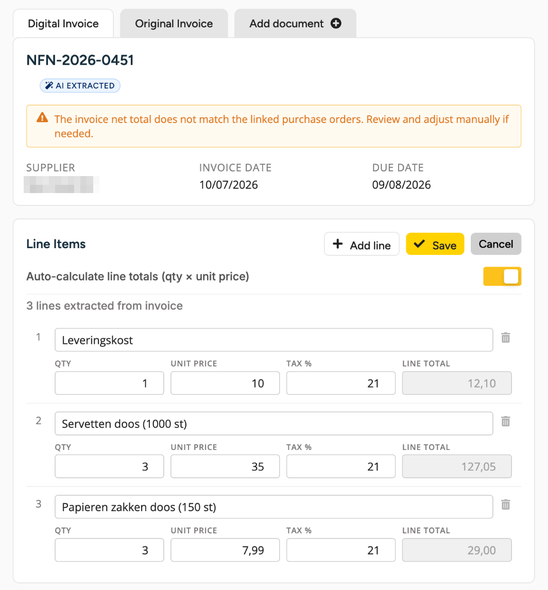
- Select Save. Select Cancel to discard your changes.
While you edit, the Line Total follows quantity times unit price. Switch off Auto-calculate line totals (qty × unit price) if you want to type the line total yourself. The Sum of line items, Total Tax and Gross Amount under Invoice Totals follow your changes.
When the net total of the invoice does not match the linked purchase orders, a notice appears at the top of the digital invoice. Compare the lines with the original document when you see it.
Limits
- Correcting an invoice does not approve it. Approving is a separate step for users with the Approve permission, and Apicbase never approves an invoice by itself.
- A user with only the View permission can open the digital invoice but cannot change it.
- Quantities and prices are stored as printed on the invoice, for example 4.940 kg. If a quantity or total looks a thousand times too large or too small, compare it with the original document and correct the line.
- While a credit request is open on the invoice, you cannot unlink its purchase orders. Selecting Unlink shows A credit request is open on this invoice, so its purchase orders cannot be unlinked. Ask support to withdraw the credit request first.