![logo-mark-primary-color-4.png]](https://support.apicbase.com/hs-fs/hubfs/logo-mark-primary-color-4.png?height=40&name=logo-mark-primary-color-4.png)
Add a connection
You need the Edit outlet settings permission in your role.
- Open the gear icon menu, choose Outlet Settings and select Edit Outlet Settings on the card of the outlet.
- Open the Integrations tab. The section Point of Sales Integration shows one card for each connection.
- Select + Add POS connection. A new card appears.
- Enter a Name and choose the POS with Choose EPOS Supplier. Fill in the connection details as you would for a single POS.
- Save the outlet.
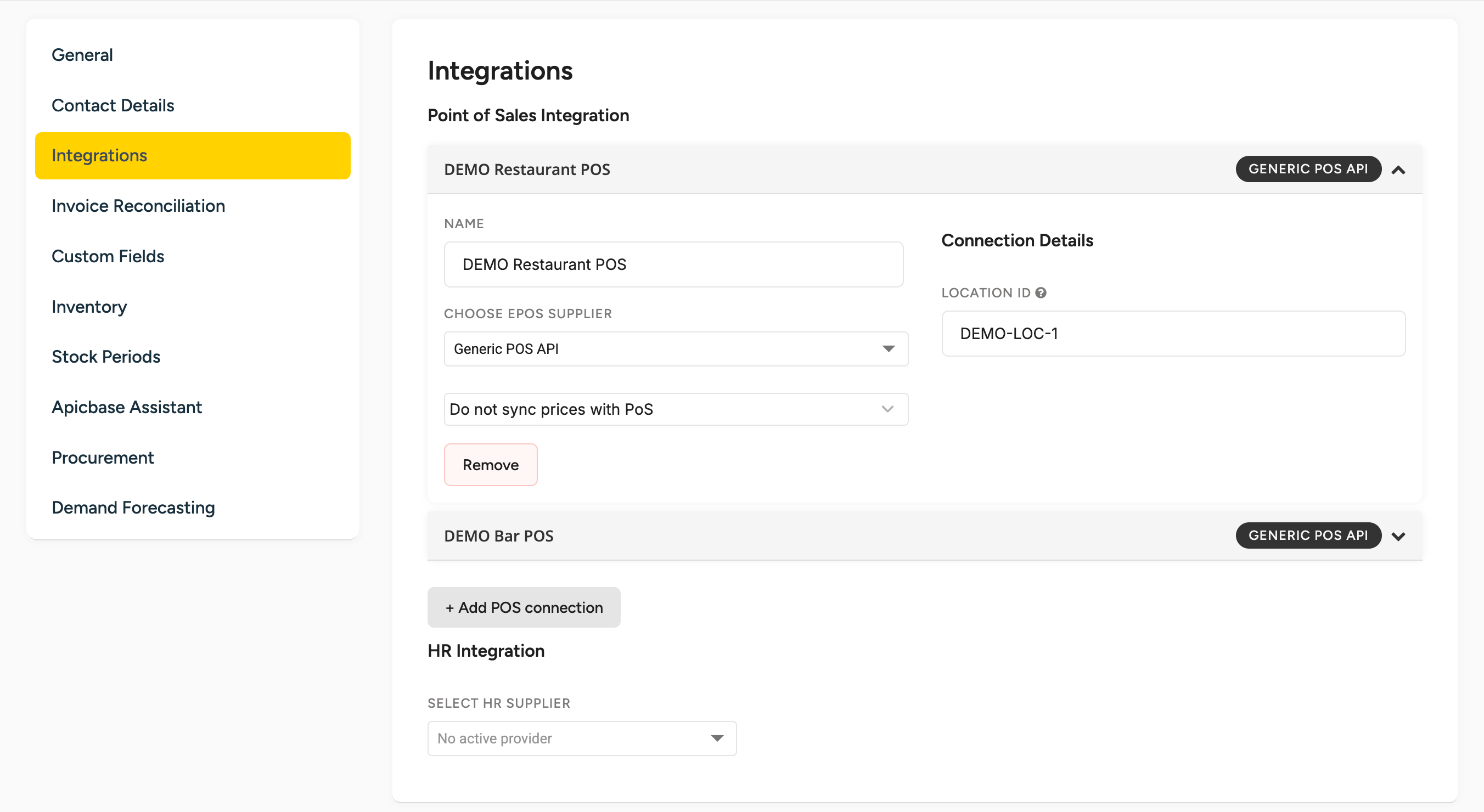
Give every connection its own Name. Two connections with the same name, or two without a name, cannot be saved. If two connections update the same recipe price, the last sync wins.
Each connection has its own name, POS, credentials and price sync options, and syncs on its own schedule. All sales count on the outlet you edited, and stock is deducted there.
Link the products of each connection
Products are linked per connection. A product you link on one connection is not linked on the other.
- Go to Sales > PoS Connection. You need the PoS Connection permission in your role.
- In Select Outlet, choose the connection. There is one option for each connection.
- Link the products as you would for a single POS.
With two or more connections, a connection name can appear twice in an option. The last name in the option is the connection it opens.
Remove a connection
- On the card of the connection, select Remove.
- In the Remove POS connection window, check the name under POS connection to remove: and select Remove.
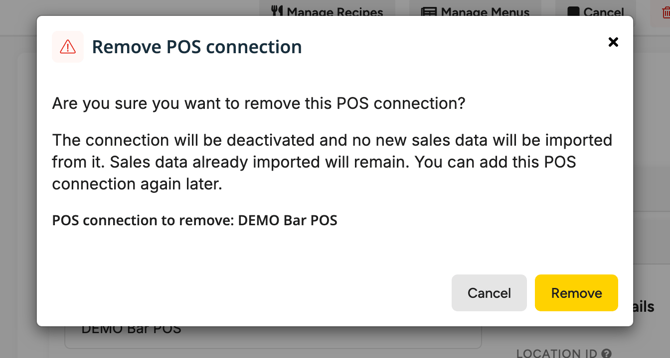
The connection is removed straight away, without saving the rest of the outlet. A card you have not saved yet disappears without a window.
A removed connection stays deactivated and imports no new sales. Sales already imported are kept. If you add the same POS again later, its earlier products and links come back. Enter its credentials again.
Troubleshooting
- Your POS may still send sales with the location ID of a removed connection. They are rejected with Outlet with matching location_id not found and nothing is shown in Apicbase. Change the location ID in your POS.
- If saving is refused with Location ID '…' is already used by another outlet in this library., give the connection another location ID. A location ID can belong to one connection only, across the whole library. A deleted outlet keeps its location ID too.
- A connection that fails every day for 15 days, for example because its credentials no longer work, is switched off automatically. Its card disappears and every user of the library receives a POS Sync Disabled email. Fix the cause, then add the connection again with the same POS and enter its credentials. Its products and links come back.
Limits
- You cannot switch on multiple POS connections yourself.
- Sales, stock and food cost are not split per connection. You see them per outlet.