![logo-mark-primary-color-4.png]](https://support.apicbase.com/hs-fs/hubfs/logo-mark-primary-color-4.png?height=40&name=logo-mark-primary-color-4.png)
Open the dashboard
Go to Sales > POS Sync Health, or open the POS Sync Health tile in the Insights Hub. As an outlet user you have no menu entry: use the tile. Your role needs the PoS Connection permission. Without it the page opens, but every block shows an error.
Read the overview
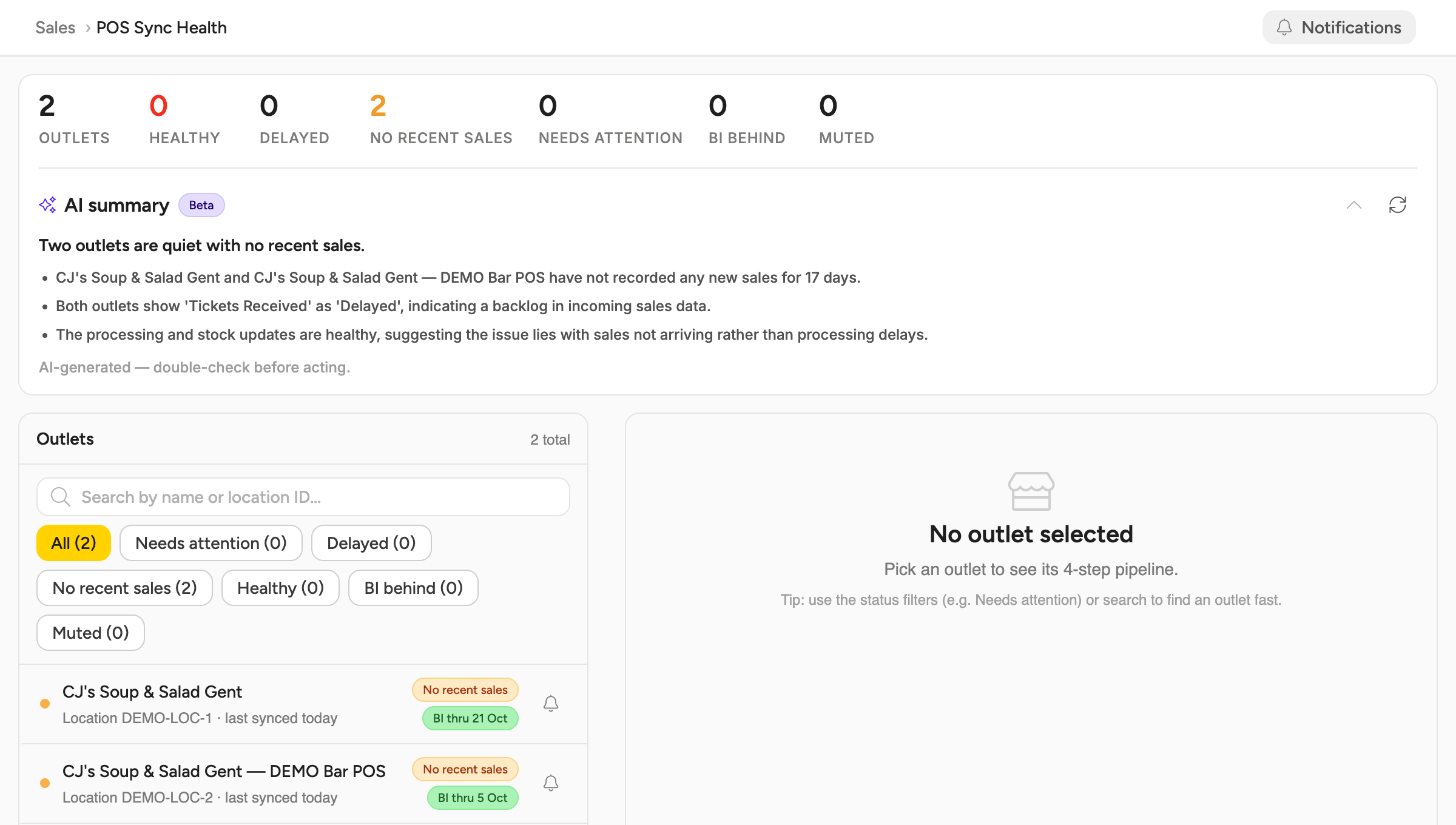
The counters at the top show the number of outlets (Outlets) and how many of them are Healthy, Delayed, No recent sales, Needs attention and BI behind. Muted counts the outlets you have muted (see Notifications). The outlet list below has the same statuses as filters, and you can search it by name.
- Healthy: the latest sale is at most 1 day old.
- Delayed: the latest sale is 2 days old.
- Needs attention: the latest sale is 3 days old or more, or the sync keeps failing or is stuck.
- No recent sales: no sales came in, and the recent syncs confirmed that your POS reported none. This usually means a quiet outlet. Some POS systems that deliver their sales as files cannot confirm this, so a quiet outlet on such a POS stays on Needs attention.
- BI behind: your reporting dashboards are behind the sales Apicbase has processed.
The AI summary (labelled Beta) above the list gives up to four points about what needs attention, based on the figures on this page. Outlets you have muted are left out. It can be wrong, so check before you act on it. Click the refresh icon (Regenerate summary) to create a new one.
Follow a sale through the steps
Select an outlet to see how far its sales have travelled.
- Tickets Received: the sale has arrived in Apicbase. This step only exists for a POS that sends its sales live (the Real-time push badge).
- Tickets Processed (real-time push) or Fetch POS (the Fetched on sync badge): Apicbase has worked out what was sold.
- Stock Updated: the sold items have been deducted from your stock.
- BI Synced: the data has reached your reports.
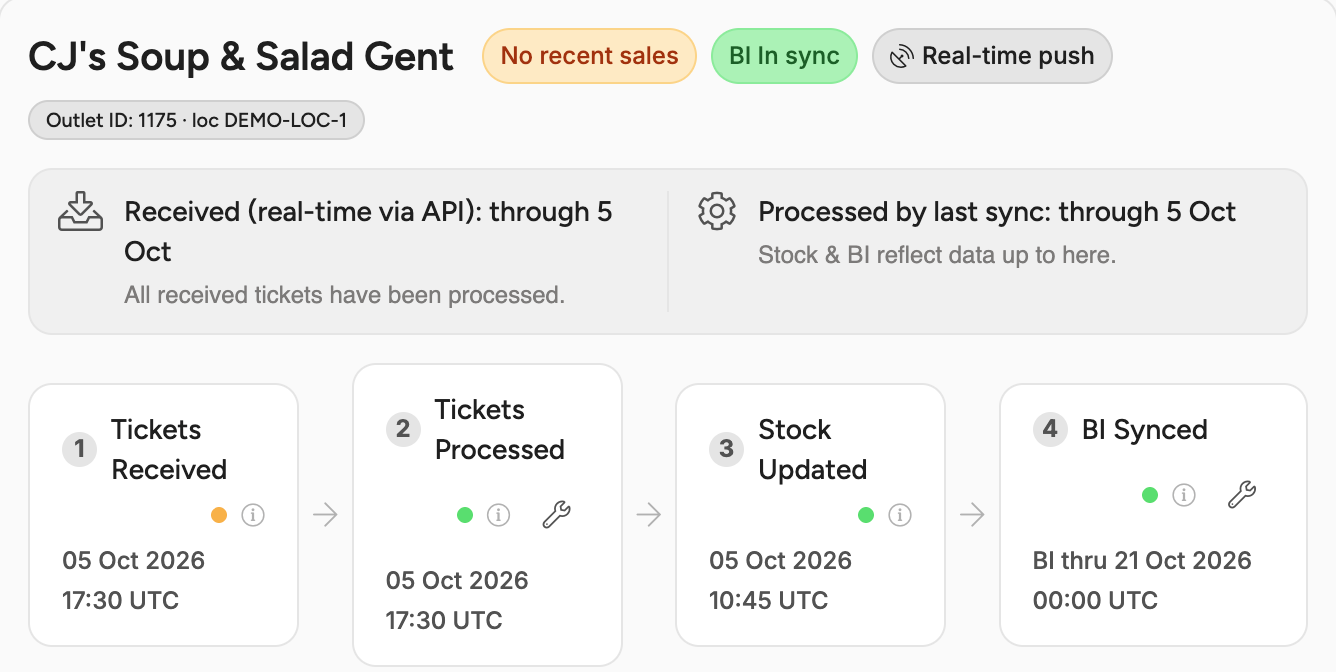
A step is only as current as the step before it. Start with the first step that shows a problem.
Three tabs sit below the steps. Processing logs lists the 50 most recent sync runs, and a date range shows older ones. Tickets received lists the 20 most recent tickets, and you open a ticket to see its product lines. Narrow the date range to see others. BI sync log shows the date your BI dashboards hold data through. It has no list of runs.
Run a sync
The Tickets Processed or Fetch POS step and the BI Synced step each have a small wrench button, whatever the colour of the step. Tickets Received and Stock Updated have none.
- Click the wrench next to the step. The tooltip reads Run a POS sync to process any tickets already received, Run a POS sync to fetch the latest sales or Run a BI sync to bring reporting up to date.
- For a POS sync, the panel switches to Processing logs, where the new run appears shortly. You also get a notification when the sync has finished. A BI sync sends no notification.
You can run one POS sync and one BI sync per outlet every 24 hours. An outlet with several POS connections shares that one run between them. A sync on a green step uses up the run as well, so keep it for a step that shows a problem. After that, the button shows Already run for this outlet today. Available again at {date}.
If your POS delivers its sales as files, check that the file has been sent before you run a sync. A sync cannot find a file that has not arrived, and the run for that day is used up.
Notifications
Each user sets up their own notifications. Use the bell on an outlet row for that outlet, or the Notifications button above the list for the whole library.
- Click the bell or Notifications and choose Configure notifications.
- Under Alert me about, tick the problems you want to hear about: Needs attention, Delayed or BI behind.
- Under Send via, tick how you want to be told.
- In Only after it persists for ... days, set how many days in a row the problem has to last.
- Click Save.
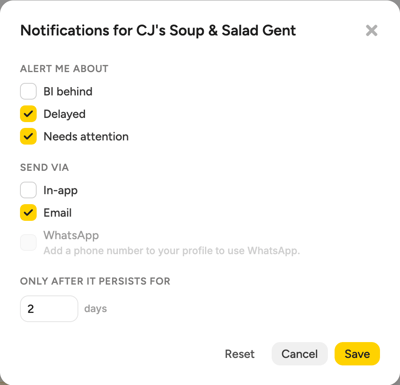
To stop, clear every box and click Save. A bell with waves means you have notifications set up for that outlet.
Alerts are switched on per library. Ask your Customer Success Manager whether they are active for yours, and keep checking the dashboard until they are.
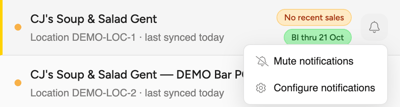
Already know about a problem at an outlet? Click its bell and choose Mute notifications. The outlet leaves your counters and AI summary, moves under the Muted filter and shows a crossed-out bell. Your colleagues still see it as before. Choose Unmute notifications to undo it. Muting from the Notifications button only silences your notifications for the whole library.
Good to know
- The dashboard does not refresh itself, and its figures can be up to an hour old. After a sync, check Processing logs, which shows the new run straight away.
- The POS Sync Health widget on the library dashboard is a separate, older widget. It does not open this page.