![logo-mark-primary-color-4.png]](https://support.apicbase.com/hs-fs/hubfs/logo-mark-primary-color-4.png?height=40&name=logo-mark-primary-color-4.png)
Before you start
Voice counting is one of the AI features. If you do not see the microphone button on your partial counts, or the voice screen does not open when you tap it, ask your Customer Success Manager to switch on AI features, including for the mobile app.
You count by voice in the mobile app only. The web app has no voice counting. You need the same user rights as for any other count; there is no separate permission for voice. The microphone only shows on a partial count you started yourself, while that count is open and your phone is online.
Counting by voice
- In the mobile app, open Count. Under Partial Counts, find the partial count you want to fill.
- Tap the yellow microphone button on that partial count. It sits next to the barcode and bottle buttons and has no text label.
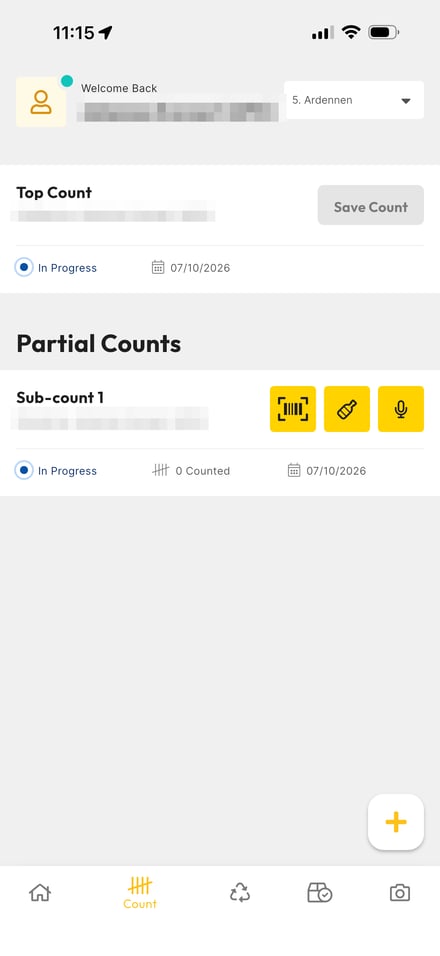
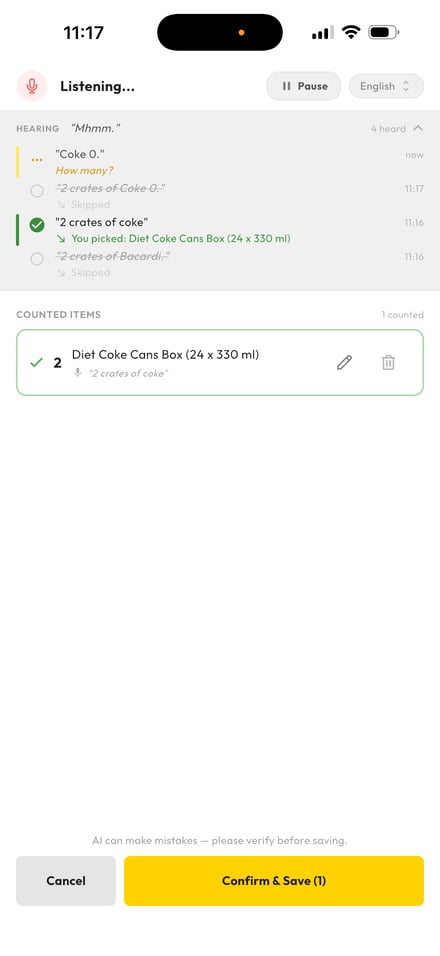
- The voice screen opens with Listening..., a Pause button and the language you speak in, for example English. To speak another language, tap the language and choose yours.
- Say the product and the quantity, for example two crates of Diet Coke. Under HEARING the app lists what it heard, newest first.
- When the app knows which product you mean, the line appears under COUNTED ITEMS with the quantity, the product and the words you said. Tap the pencil to change a line or the bin to remove it.
- When the name fits more than one product, the app shows a NEEDS YOUR REVIEW card with Which item did you mean? and a list of products. Tap the right one. If it is not in the list, tap Search all items.
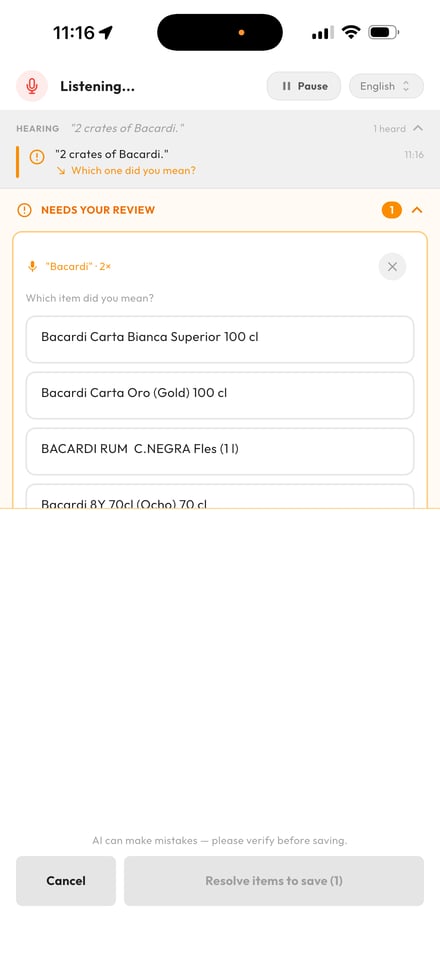
- When every line is right, tap Confirm & Save (N), where N is the number of lines. While a review card is still open, the button reads Resolve items to save (N) and you cannot save yet. Tap Cancel to close the screen without saving the lines. If lines are already counted, the app first asks Discard voice count?.
- Back on the count screen, the partial count shows how many items are counted. Finish the count as you always do.
Under each phrase in HEARING, a short line tells you what happened:
- How many?: the app heard a product but no quantity. Say the quantity next.
- counted with next: the phrase was joined to the one you said after it.
- Which one did you mean?: pick the product in the NEEDS YOUR REVIEW card.
- You picked: ...: the product you chose in the card.
- Skipped, struck through: the phrase did not become a line.
How to phrase your counts
Say the product name and the quantity together. If you only say the product, the app asks How many? and joins the next thing you say to it. If you only say a quantity, it waits for the product.
Name the product the way it is called in Apicbase, for example Diet Coke rather than coke. When a name fits several products in your library, the app asks you to pick, and at the moment that happens for most names. Saying the package, for example two crates of Bacardi, does not always settle it.
You can correct yourself while speaking. Ten crates of Coca-Cola, scratch that, six crates sets the line to six. No, not bananas, avocado replaces the product and keeps the quantity. Never mind removes the last line. Start over clears everything you said on this screen.
Numbers work in words and in digits, and two dozen becomes 24. Speak in the language shown at the top of the screen. Product names in another language are often not recognised.
Nothing you say is added to the count until you tap Confirm & Save (N). Check every line first, especially the ones where you picked a product from a list.
Good to know
- The first time anyone in your library counts by voice, the app prepares your product list in the background. For the first few minutes it may not recognise any product. Wait a few minutes and try again.
- The app looks for products in your whole library, not only in the products of the outlet you are counting. Check that the product you pick belongs to your outlet.
- Where a product has a barcode, scanning it is usually quicker. Voice works best for items without a barcode, such as fresh produce and opened packaging.