![logo-mark-primary-color-4.png]](https://support.apicbase.com/hs-fs/hubfs/logo-mark-primary-color-4.png?height=40&name=logo-mark-primary-color-4.png)
1. Templates and recipe books
A template is the design of one page. A recipe book is an ordered list of sections. Each section takes one template, points it at your recipes and decides how often it repeats:
- Once: the template appears one time, for example a cover page.
- Per recipe: one page for every recipe in the section, for example recipe cards.
- Per menu: one page for every menu, for example an allergen sheet per menu or a planning calendar.
Design your templates first (see Designing a template), then build books from them.
2. Create a book
- Go to Products > Templates and open the Books tab. As an outlet user, open Recipes in the list view and choose Templates > Templates.
- Click Create Recipe Book, type a name and click Create Recipe Book.
- Click Add section.
- Choose the template, then the repeat mode.
- Choose the recipes the section contains (see 3).
- Click Save sections.
Add more sections with Add, and move them up or down with the arrows.
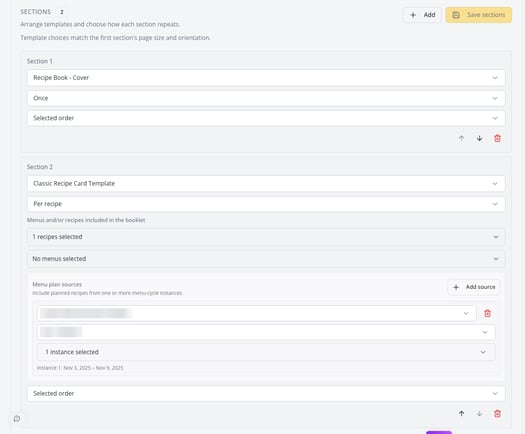
The first section fixes the page size and orientation of the whole book. After that, the other sections only offer templates in the same format, so put a section with the format you want first.
Click Save sections before you leave the book. Sections you have not saved are lost.
3. Choose the recipes
A Per recipe section has two pickers under Menus and/or recipes included in the booklet, and a Menu plan sources block. You can use all three in one section, and everything you select is added together:
- The recipes picker: tick individual recipes.
- The menus picker: pick one or more menus to include all their recipes.
- Menu plan sources: include what is planned in your menu planning. Click Add source, choose the menu plan, then the outlet, then one or more instances. An instance is one dated run of the menu plan at that outlet, for example the week starting 10 November. Click Add source again to add another plan, outlet or week.
The dropdown at the bottom of the section sets the order: the order you selected, alphabetical, your own drag-and-drop order, or grouped by course.
A Per menu section has Included menus and Menu plan sources. A Once section has no recipe selection at all.
3.1. Print a week of your menu planning
This book prints what an outlet has planned for a week, in two parts:
- The recipe cards. Add a Per recipe section with your recipe card template and a menu plan source for the outlet and week. The book gets one card for every planned recipe.
- The planning itself. Add a section with a template that contains a Calendar block, set it to Per menu and add the same menu plan source. The book shows the week with the courses and recipes planned each day.
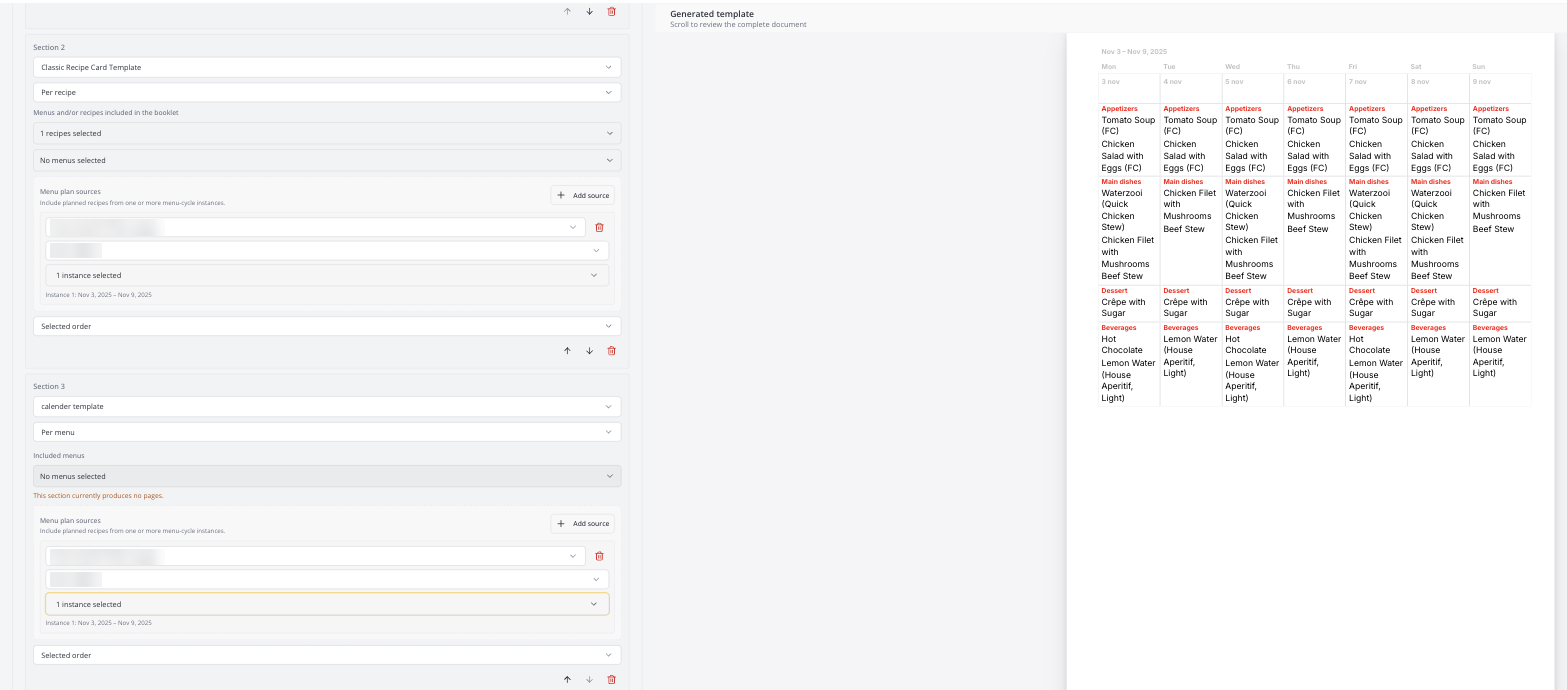
The period printed is the period of the instances you select. How long an instance is depends on how your menu cycle is set up: a weekly cycle gives a week, a daily cycle gives a day. Select several instances to cover a longer period.
4. Load the book
The book does not fetch any data while you build it. Click Load data to see the result. Loading takes a few seconds per recipe and shows its progress. Once loaded, the preview refreshes each time you change a section. The buttons above the preview switch between single pages, two pages side by side and an overview.

5. The live book and saved versions
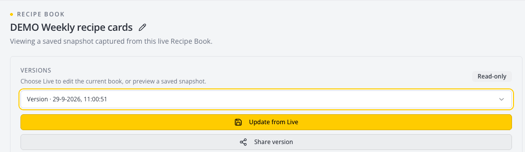
A book is live: each time you load it, it shows your current recipes and templates. When you need a copy that stays the same, click Save version. A saved version is a read-only snapshot, and it does not change when your recipes do.
Switch between the live book and your saved versions with the dropdown under VERSIONS. To refresh a saved version with today's data, open it and click Update from Live.
6. Share a book
You share a saved version as a link.
- Open the saved version and click Share version.
- Choose whether readers can print the book (Allow printing) and switch between single pages and a two-page spread (Allow booklet view).
- Click Create and copy link, and paste the link wherever you need it.
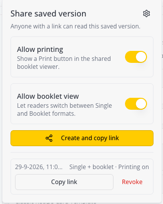
The link opens a reader with search, zoom and page navigation, plus print and the booklet view if you allowed them. On a phone it shows one page at a time.
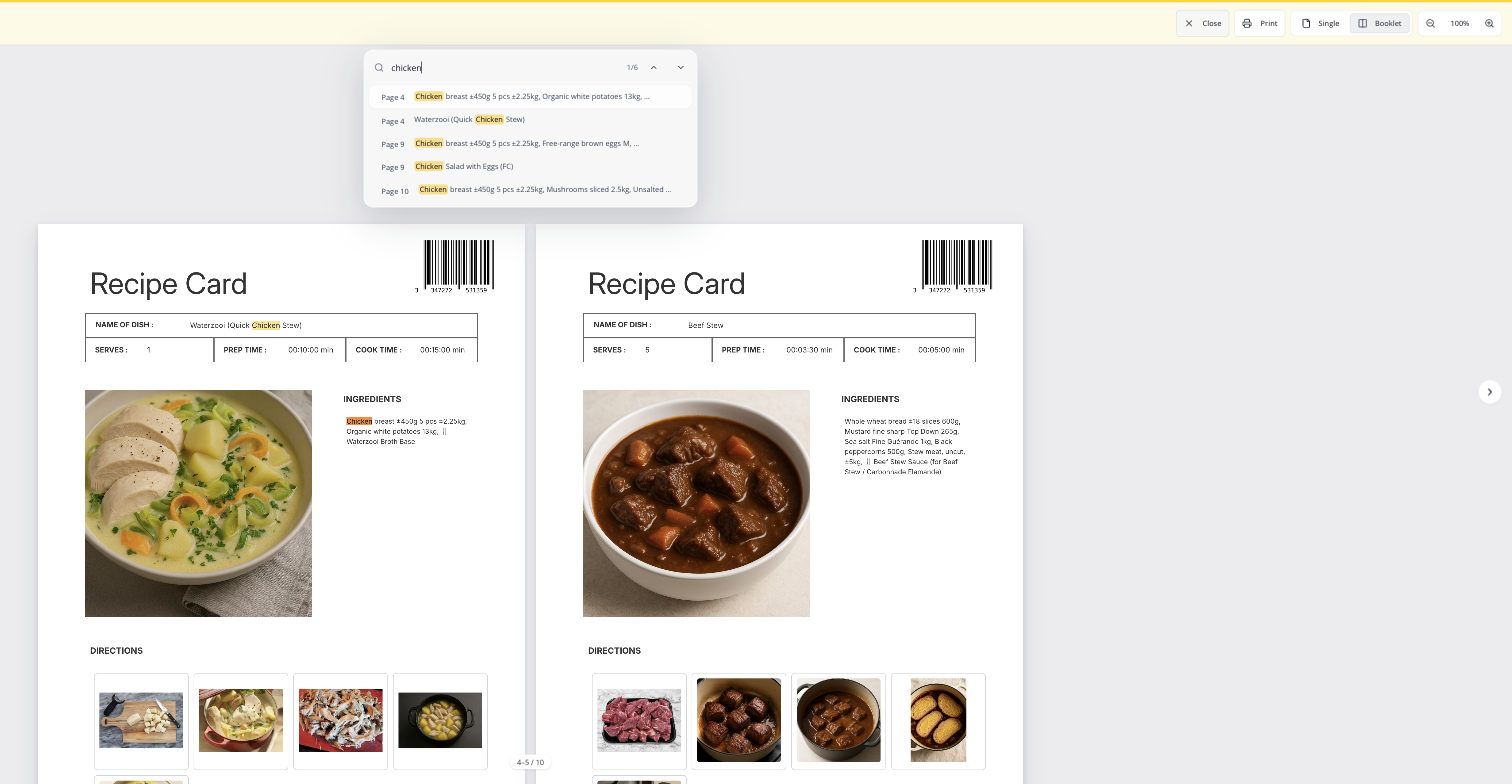
Anyone who has the link can read the book, without logging in. To stop sharing, open Share version and click Revoke next to the link.
7. Branding
The colours and logo of the reader come from Books > Settings: the top stripe, the header background, your company logo, and whether the book title is shown. These settings apply to every shared book.
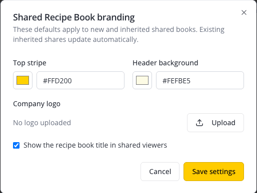
To give one book its own look, for example in the colours of a client, open Share version, click the cogwheel and choose Override for this book.
8. Print
Click Print at the top of the book to open your browser's print dialog, where you can also save the book as a PDF. A recipe book is not limited to 50 recipes.
Limits
- You can share saved versions only, not the live book.
- A menu plan source takes whole instances. You cannot select part of an instance, so the shortest period you can print is the length of one instance in your menu cycle.
- A Once section cannot take recipes or menus.