![logo-mark-primary-color-4.png]](https://support.apicbase.com/hs-fs/hubfs/logo-mark-primary-color-4.png?height=40&name=logo-mark-primary-color-4.png)
What the integration does
Orders go to AB InBev by email, as for any supplier, with a CSV file attached that holds the order lines. AB InBev's system reads that file and enters the order. Only orders are sent. You add AB InBev's articles and prices to your ingredients yourself, the same way as for any other supplier. Order confirmations, delivery notes and invoices do not come into Apicbase, so you receive your deliveries as usual.
Getting connected
Ask your AB InBev account manager to switch on automatic order entry for your account, and agree a start date with them. Ask them as well which customer number to use for each outlet. You then do the setup in Apicbase yourself, as described below.
Setting it up
- Go to Suppliers, select More next to AB InBev and choose Edit Supplier Details.
- In E-mail (needed for Ordering), enter AB InBev's order email address: cx.orders@ab-inbev.com for outlets in Belgium, klantenservice.horeca@ab-inbev.com for outlets in the Netherlands.
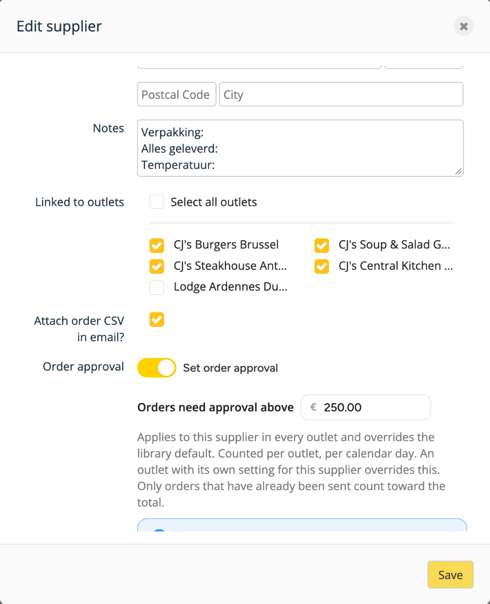
- Tick Attach order CSV in email? and save. Do this on the start date you agreed with AB InBev.
- Open the supplier, go to the Outlet Ordering Details tab and add your AB InBev customer number for each outlet under Customer Numbers.
- Add AB InBev's articles to your ingredients as packages, each with AB InBev's article number. AB InBev uses the article number to recognise each line.
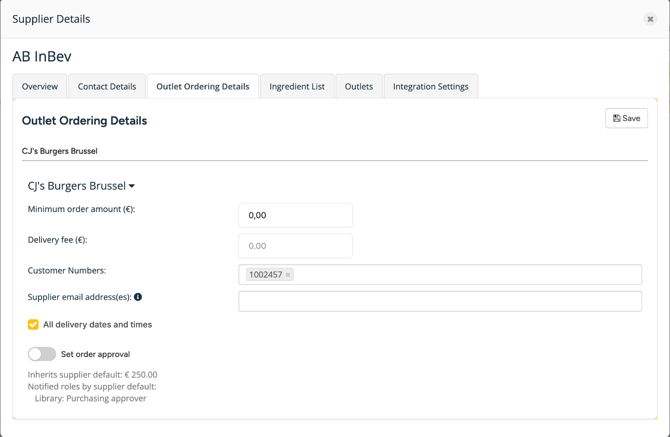
If an outlet has its own address under Supplier email address(es) on the same tab, that outlet's orders go there instead. Make sure it is AB InBev's order address as well.
Sending an order
Create and send the purchase order as usual. Pick the outlet's customer number and set a delivery date. The email to AB InBev includes the file purchase_order_ followed by the order number. The copy of the order email that you receive has no attachment.
The file has one line per ordered item, with: the article number, the quantity, the order number, the date and time of ordering, the delivery date, the customer number, the item's barcode (GTIN) when you filled it in, and the order remarks.
Check that every line has AB InBev's article number before you send. Apicbase sends the order anyway, but AB InBev cannot match a line without one.
Contact
For your account, customer numbers, articles or prices, contact AB InBev. For anything in Apicbase, contact support@apicbase.com or your Customer Success Manager.