![logo-mark-primary-color-4.png]](https://support.apicbase.com/hs-fs/hubfs/logo-mark-primary-color-4.png?height=40&name=logo-mark-primary-color-4.png)
Open Insights Hub, choose Dashboards and select the Management Figures tile.
Before you start
The figures are only as good as your data: closed counts, registered goods receipts, waste, transfers and POS items linked to recipes. A count, waste entry or delivery you just registered can take up to 5 minutes to show. Reload the page after that.
Choose your period
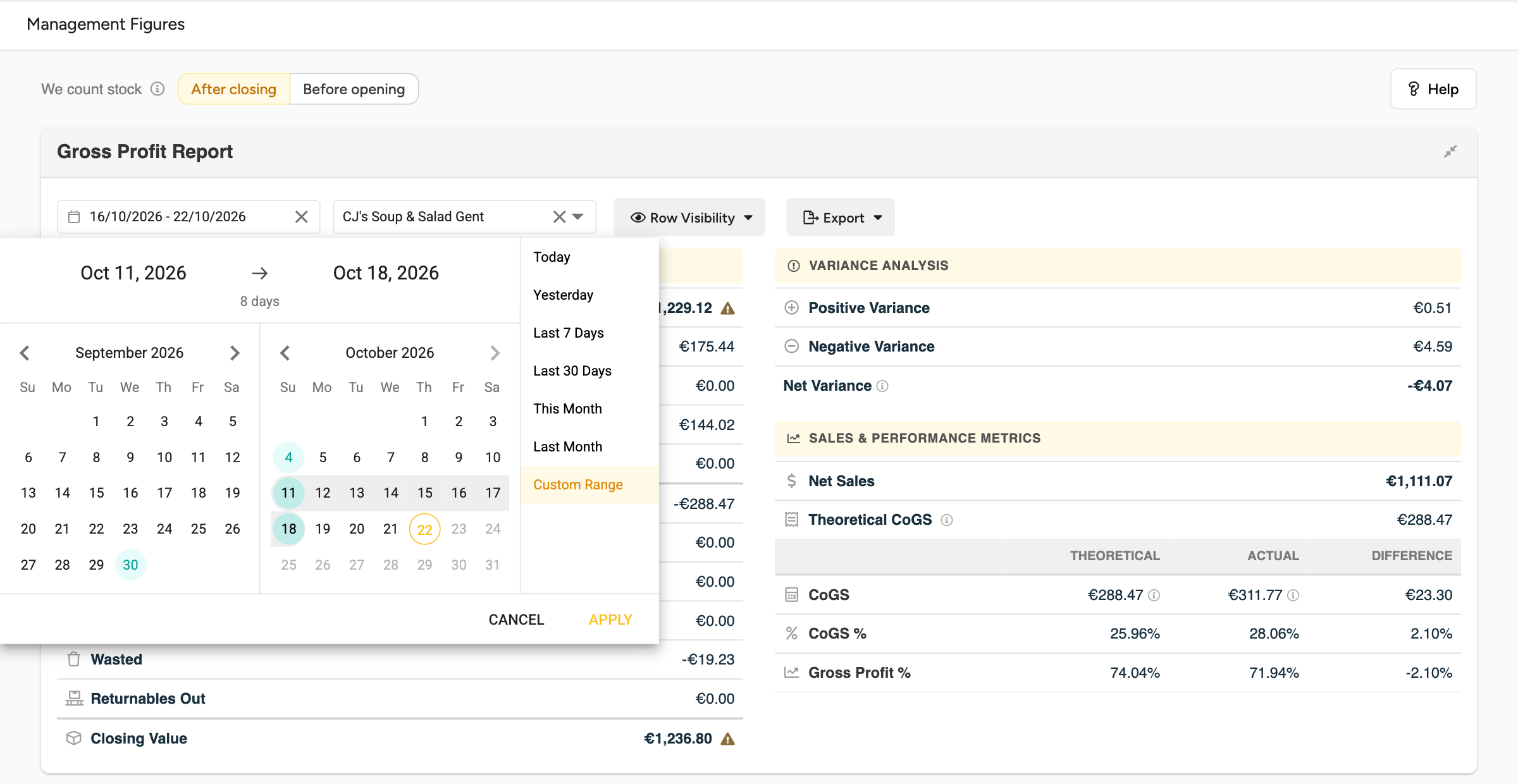
Each table has its own calendar, so you can compare two periods side by side. The default is the last 7 days, and days with a closed full count are coloured. To report on the period between two counts, select the two count days. If an outlet closed a full count on your first or last day, its stock figures start or end at that count.
Tell Apicbase when you count
Sales are counted in whole days, in your library timezone. When the Gross Profit Report shows one outlet that has its own timezone, that timezone is used. The We count stock switch above the Gross Profit Report decides what happens to the sales of a count day:
- After closing (the default): you count after service. If a full count closed on the first day of your period, that day's sales are left out, because they belong to the previous period.
- Before opening: you count before service. If a full count closed on the last day, that day's sales are left out, because they belong to the next period.
Without a full count on your first or last day, both options give the same figures.
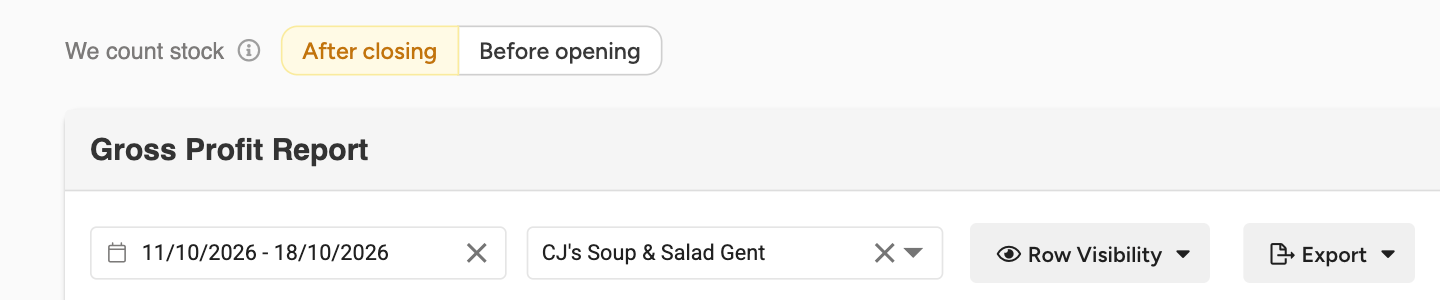
If your count finishes after midnight, choose Before opening. A count that ends after midnight falls on the next calendar day.
The switch applies to all three tables. It changes Net Sales and the cost of those sales, but not waste, deliveries, transfers or the other stock figures. Your browser remembers your choice.
Green ticks and amber triangles
A green tick on an opening or closing value means it comes from a full count closed that day. An amber triangle means no full count closed that day, so the value is calculated from your movements. A library total only gets a green tick when every outlet counted that day. To find the outlet that did not, set Closing Value Status to Theoretical only in Inventory Movement - All Outlets.
The Gross Profit Report
This table covers one outlet, or all your outlets together. Use Select an outlet to choose one, or leave it empty for every outlet you have access to.
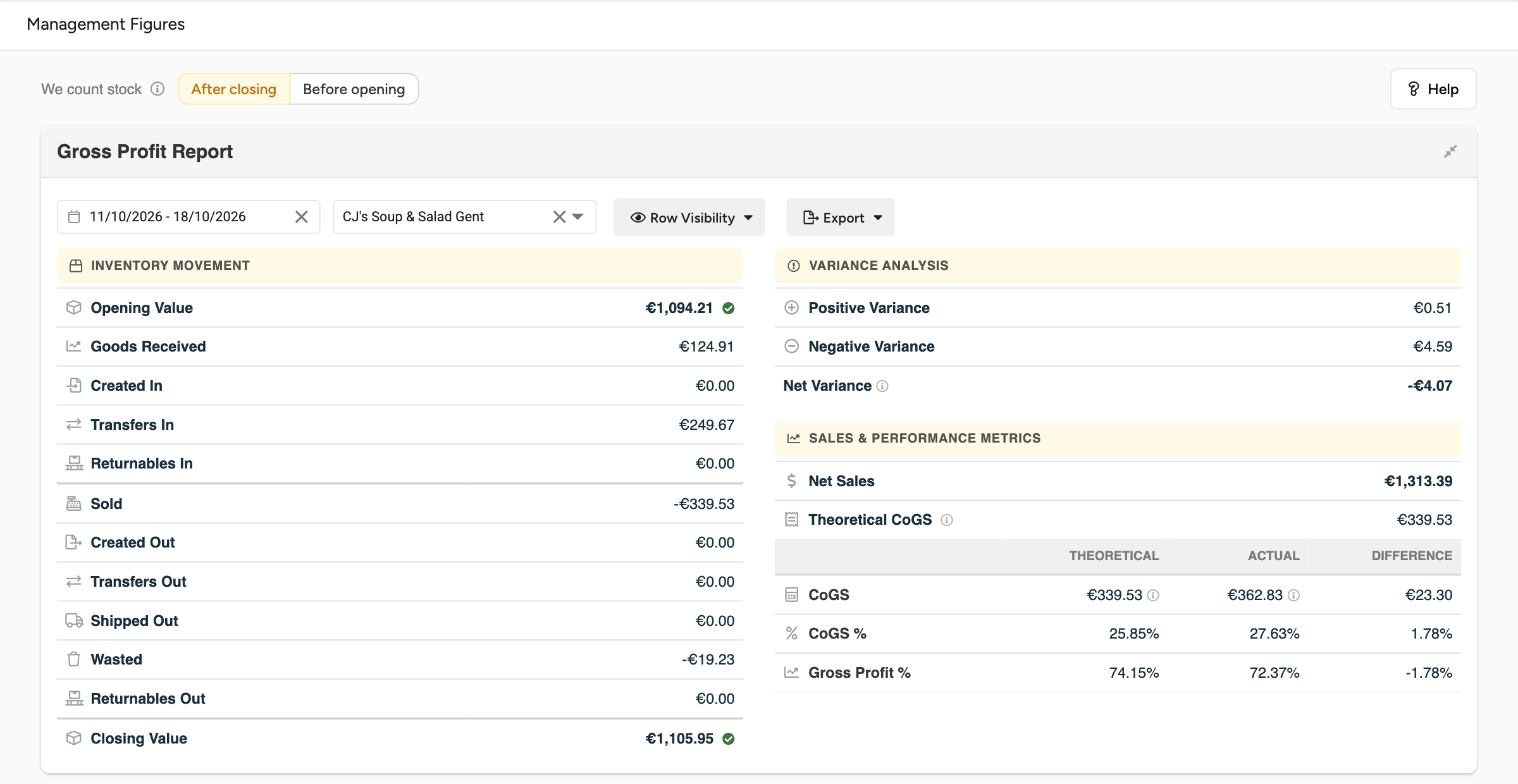
It has three parts.
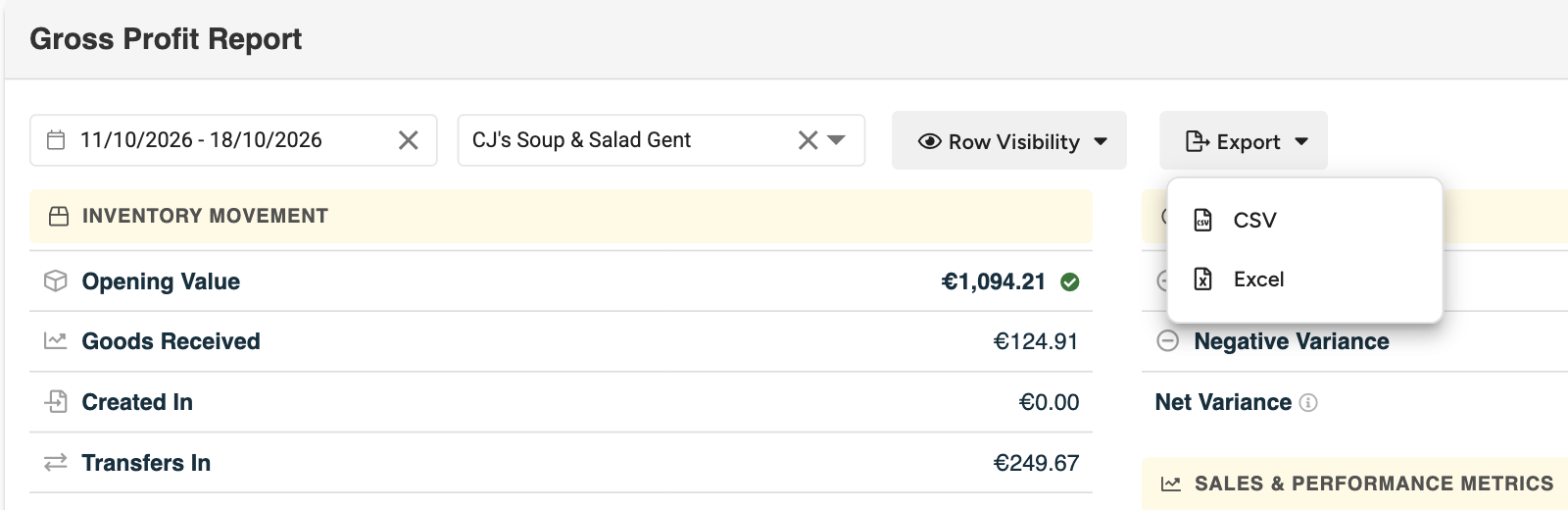
- Inventory movement shows where your stock value went, from Opening Value through Goods Received, Sold, Transfers Out and Wasted to Closing Value.
- Variance analysis shows what your counts corrected. A variance is the stock you counted minus the stock you should have had at that moment. Positive Variance is what you found extra, Negative Variance what was missing and Net Variance the difference.
- Sales & performance starts with Net Sales: everything you sold, excluding VAT and after discounts, including manual sales and items without a recipe. Theoretical CoGS is the food cost of what you sold: the stock each sale used or, when a sale used no stock, its recipe's food cost. Labour costs on your recipes are not included.
Actual CoGS = Theoretical CoGS + Waste - Net Variance. A net loss in your counts is added and a net surplus is taken off. For example, €800 of theoretical CoGS, €20 of waste and a net variance of -€100 give an actual CoGS of €920. The CoGS and gross profit percentages show both figures against your net sales, so you see what waste and count differences cost you.
Actual CoGS can be lower than theoretical CoGS when your counts found more stock than was missing. It can even be below zero, for example in the first period after an outlet's first full count.
Sold in the inventory movement is the theoretical CoGS of your sales, not a stock movement. That is why the inventory movement does not add up exactly to the closing value.
If your library works with returnable packaging, the inventory movement also shows Returnables In and Returnables Out: the crates, kegs and other returnable items that came in with a delivery or went back to the supplier. The same two columns appear in Inventory Movement - All Outlets. They are kept apart from Goods Received and are not part of your CoGS. Returnables In is the deposit value. Returnables Out is valued at the item's average stock value, so it can differ from the deposit on the delivery. You only see these figures when your library has the Returnables module. Your Customer Success Manager can switch it on.

Use Row Visibility, and Column Visibility in the all-outlet tables, to hide figures you do not need. This only applies in your browser.
The all-outlet tables
Inventory Movement - All Outlets shows the inventory and variance figures with one line per outlet. You can search by outlet name, group outlets with Outlet Grouping and filter on actual or theoretical values.
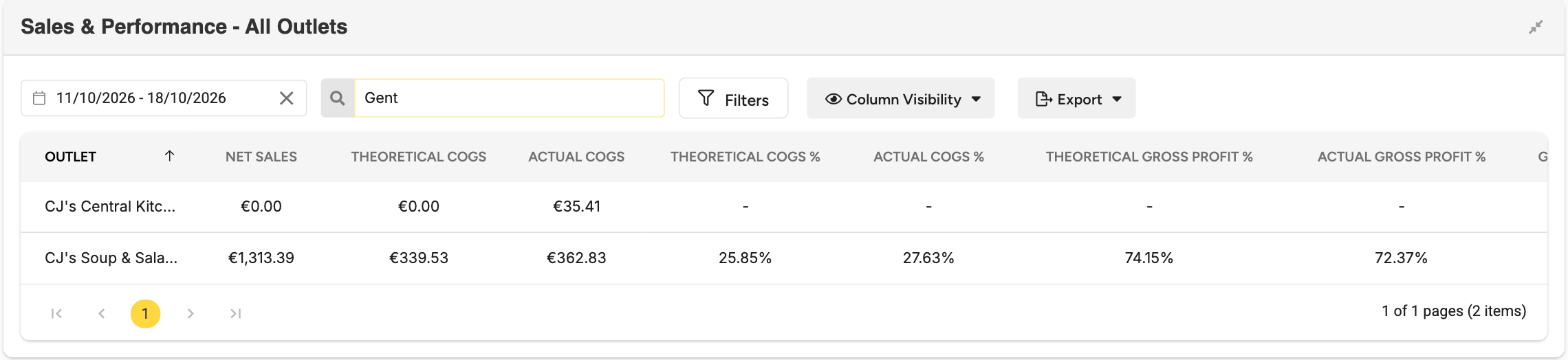
Sales & Performance - All Outlets shows one line per outlet with its sales, costs, percentages and Gross Profit Difference.
Export
Each table has its own Export menu with CSV and Excel. The file name, and a line in the Excel file, show your We count stock choice.
Who sees which outlets
Management Figures needs the Sales and Inventory modules. Library users always have access. Outlet users need the Insights Hub permission View Dashboards on their outlet role. Without it, they see You don't have access to this page. With it, they see only the outlets assigned to them, and the totals of those outlets.
Frequently asked questions
Why do my figures differ from an export I made earlier for the same period?
Management Figures calculates its figures each time you open the page, from your current data. A count, delivery, waste entry or price you correct later changes the figures of a past period too.
Why is Theoretical CoGS lower than the cost in COGS Insights?
Management Figures counts the food cost of what you sold. COGS Insights also includes the labour cost set on your recipes.
Why does Net Sales not match the Sales Dashboard for the same week?
Management Figures leaves out the sales of a count day at the edge of your period: the first day with After closing, the last day with Before opening. The Sales Dashboard includes every day you select. If you count after closing, start the Sales Dashboard on the day after your first count day to compare.
Why is Net Variance different from the Count Variance dashboard?
Your period starts at the count on your first day, so the corrections of that count belong to the period before. The Count Variance dashboard includes them.