![logo-mark-primary-color-4.png]](https://support.apicbase.com/hs-fs/hubfs/logo-mark-primary-color-4.png?height=40&name=logo-mark-primary-color-4.png)
Start a search
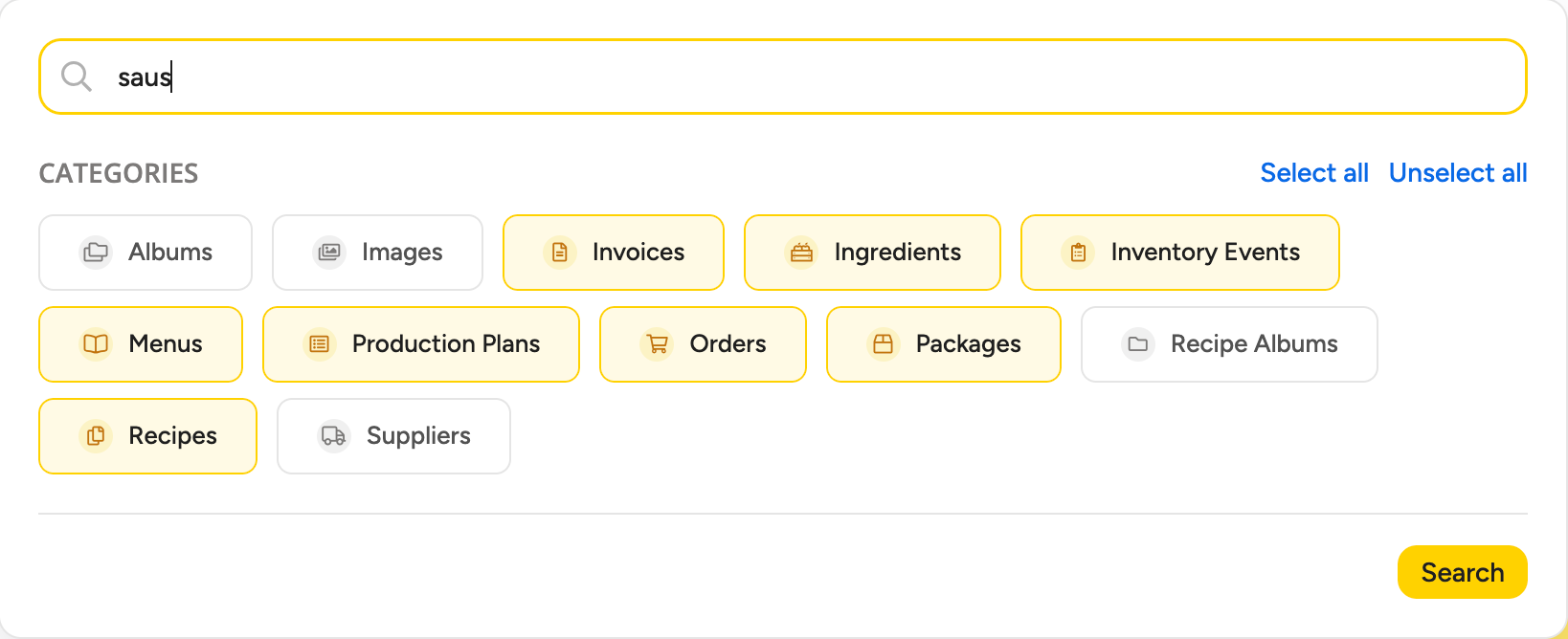
- Select the search icon in the top navigation bar and type a name, an order number or a barcode in the field that opens.
- Select the categories you want to search if you want to narrow the search down.
- Submit the search. The Global Search page opens with your results.
Read the results
The page opens with Top Results: the best matches from all categories together. The badge shows how many top results there are (up to 10). Three are shown first. Select Show more for the rest.
Below that, every category has its own section: Ingredients, Recipes, Menus, Packages, Orders, Invoices, Suppliers, Inventory Events, Production Plans, Images and Albums. A section shows 5 results first. Select Show more to see 10 per page, and use the page controls to go further.
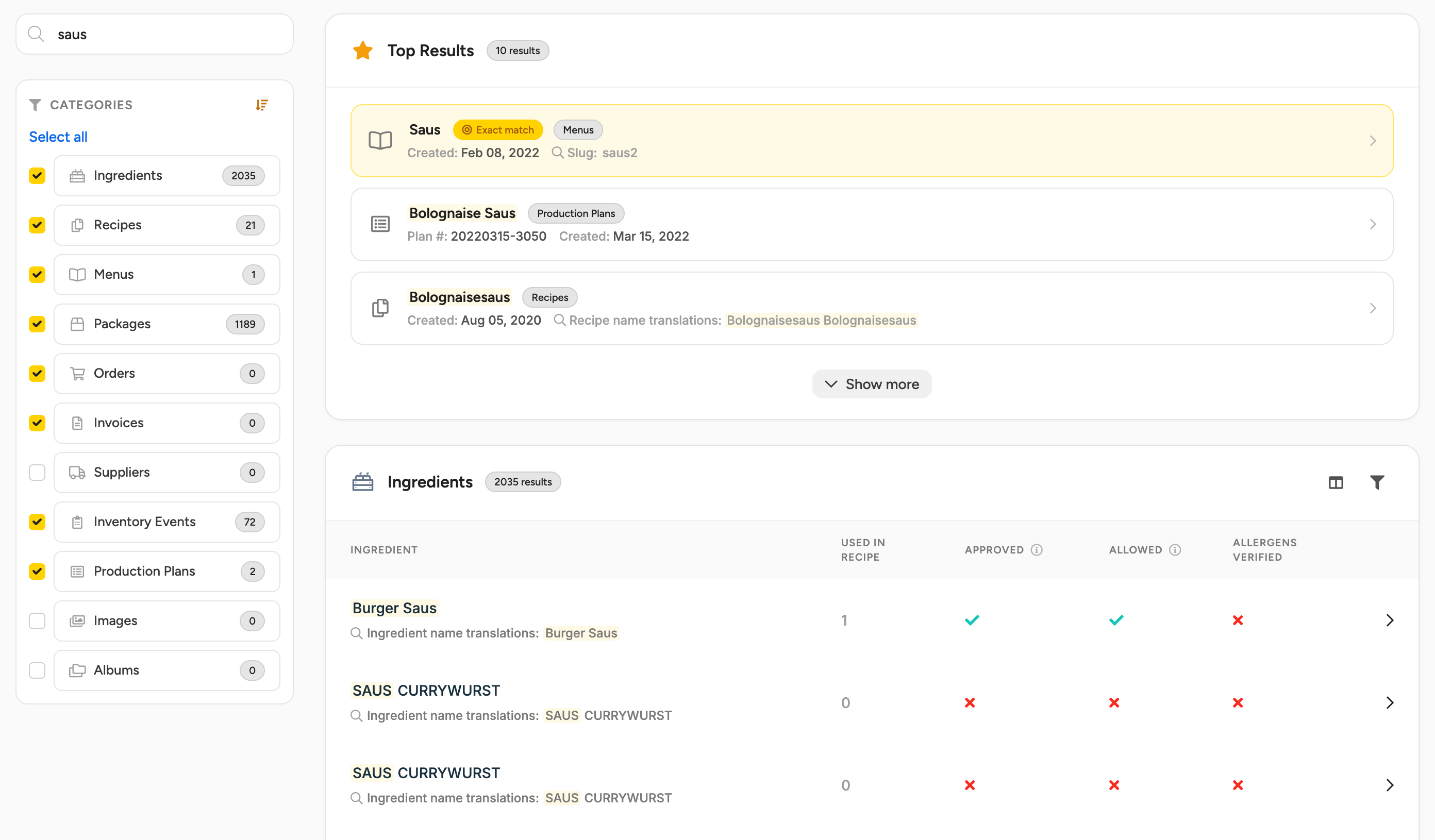
Results are ordered by relevance, and items that are used often rank higher. Select a result to open it. It opens in a new browser tab, so your results stay where they are.
Choose what is searched
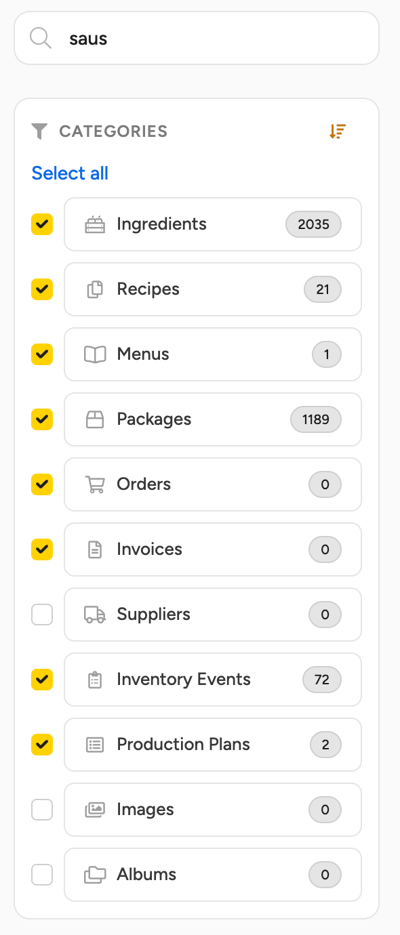
Use the Categories list on the page to choose which sections you see. On your first search, Albums, Images and Suppliers are not selected. Select them if you need them. Your browser remembers your choice.
Show more columns
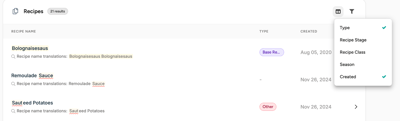
Some columns start hidden. Use Column visibility on a section to show them. For example, Recipe Stage, Recipe Class and Season are hidden on Recipes, and Stock Item, GTIN and Active are hidden on Packages. Your choice is remembered in that browser only.
When nothing is found
If nothing matches, the page shows No results for "…" with your search term. It suggests a different keyword, removing filters or checking your spelling.
What Global Search does not do
- It does not remember your last search. Opening the page without a search term starts empty.
- It does not save searches or tell you when something new matches.
- You cannot choose the sort order of the results.
- It does not search Recipe Albums.
Frequently asked questions
Why can't I find an item I know exists?
Check that its category is selected under Categories. Archived and hidden items are not shown for ingredients, recipes, menus, packages, orders, invoices and inventory events. A new or just changed item can take a short while to appear.
Why do I see Invoices or Inventory Events when we do not use them?
The list of categories is the same in every library, whether the library uses that module or not. A section for a module you do not use stays empty. Deselect the category under Categories to hide it. Your browser remembers that too.