![logo-mark-primary-color-4.png]](https://support.apicbase.com/hs-fs/hubfs/logo-mark-primary-color-4.png?height=40&name=logo-mark-primary-color-4.png)
You need the AI features and the Edit permission for ingredients or recipes. Enrich Data is for library users; outlet users do not see it. Ask your Customer Success Manager to switch on AI features.
Fill in data with AI
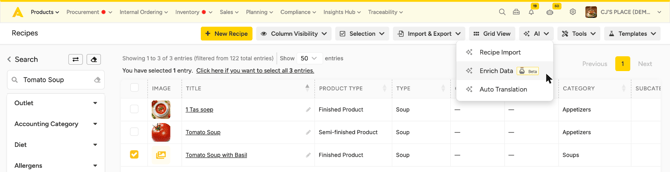
- In the ingredient list or the recipe list, tick the items you want to complete. Select up to 50 items at a time: filter the list to work through a large library in batches.
- Open the Selection menu or the AI menu and choose Enrich Data.
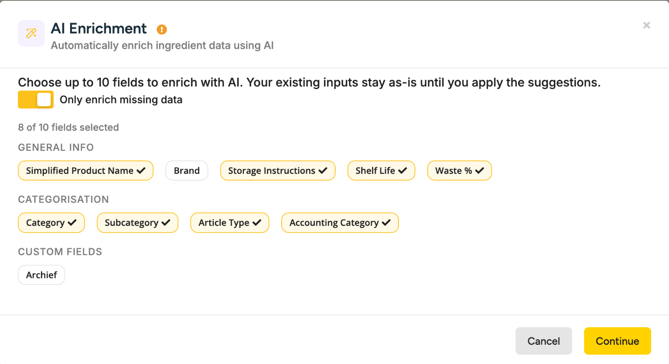
- Select the fields you want filled, up to 10 for ingredients and 20 for recipes.
- Turn on Only enrich missing data to keep every value you already have. With it off, the AI can also suggest a new value for a field that is already filled.
- Click Continue. The AI needs a short moment per batch.
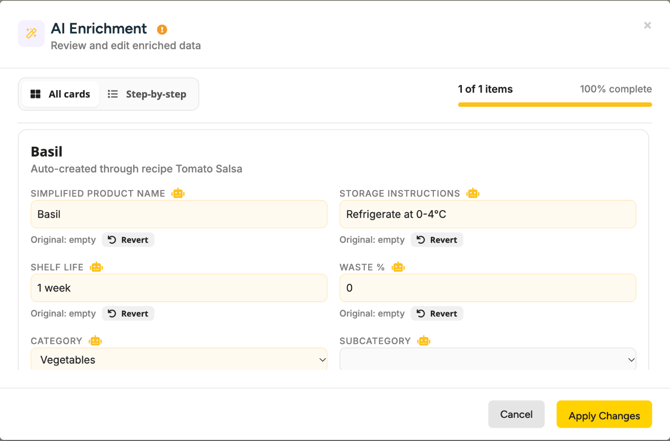
- Review each item. Every suggestion is highlighted. Change a value, pick another option, or click Revert to keep the original. Hover over the robot icon to see why the AI chose a value. Prefer one item at a time? Switch to Step-by-step.
- Click Apply Changes. Only then are the values saved.
What the AI can fill in
- Ingredients: Simplified Product Name, Brand, Storage Instructions, Shelf Life, Waste %, Category, Subcategory, Article Type, Accounting Category and your own custom fields.
- Recipes: Shelf Life, Storage Conditions, Highly Perishable, Difficulty, Kitchen Utensils, Category, Subcategory, Cuisine, Type, Class, Seasons, the Production Time fields (prep, cooking and plating times) and your own custom fields.
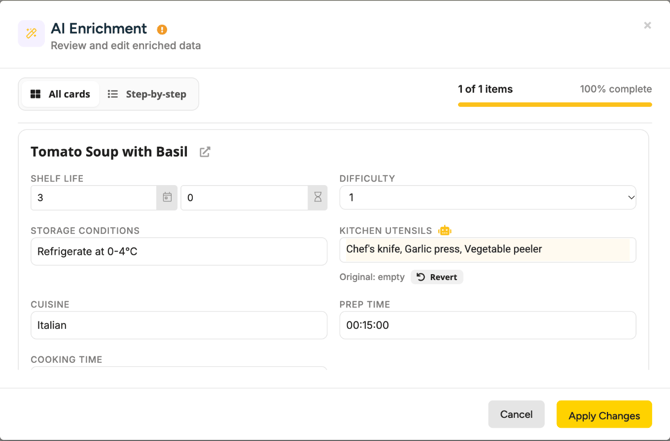
Allergens and nutrition values are not part of Enrich Data. For categories, kitchen utensils and choice fields, the AI only picks values that are already set up in your library. When it has no confident answer, the field shows AI could not find a confident value and keeps what it had.
Good to know
- If your library shows simplified ingredient names (Library Settings, Preferred Ingredient Name), applying a Simplified Product Name changes how the ingredient is listed: the list shows the short name. The full name is kept, so clearing Simplified Product Name brings it back.
- Applied values work like a manual edit. To change one later, edit the ingredient or recipe.