![logo-mark-primary-color-4.png]](https://support.apicbase.com/hs-fs/hubfs/logo-mark-primary-color-4.png?height=40&name=logo-mark-primary-color-4.png)
Here you can find the different reasons why ingredients might not be showing, along with what to do in each situation and a helpful checklist.
What could be the cause:
Ingredients may not appear in the system for several reasons, depending on the area of use.
- In Product Development, ingredients must be properly added before they appear in the Ingredient overview or can be used in recipes. It’s important to check that the ingredient has been added manually or through a supplier integration, that it isn’t archived, and that no filters are hiding it.
- In Procurement, if an ingredient can’t be found when placing an order, it might be missing supplier details or package information, or it could be archived or hidden by filters. It’s also necessary to check whether the ingredient belongs to an integrated supplier and, if so, confirm with the assortment manager that it has been added. Additionally, verify that the ingredient is marked as 'orderable'.
- When counting inventory, missing ingredients might be caused by filters, incorrect outlet links or the ingredients are not yet set as 'stockable'. Confirm that the ingredient has been added to the system, clear filters, ensure it’s not archived, and check that it’s linked to the correct outlet.
What to do in case:
1. The ingredient is not added
Ingredients will only show up if they are added and saved.
-
Open the Product page where the ingredient table appears.
-
If the ingredient isn’t listed, click Add Ingredient and fill out the ingredient data. Learn here how to add a new ingredient.
-
Important: Click Save before leaving the page — if you don’t save, the ingredient will not be added.

2. The ingredient is archived
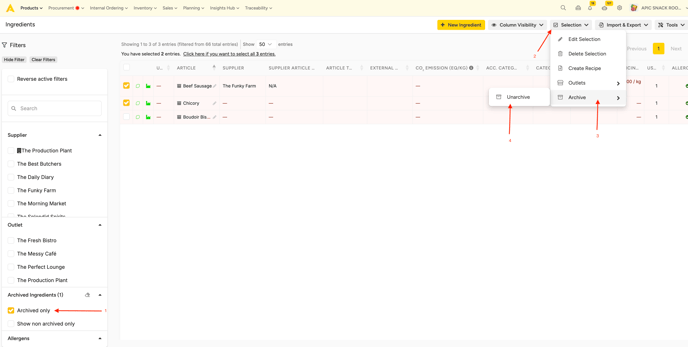
Archived ingredients won’t appear in the ingredient list or in the recipe.
1. Enable Show archived items.
2. Select the item you want to Unarchive.
3. Click on Selection, then Unarchive.
4. Save your changes once done.
3. Filters are hiding the ingredient
Filters can hide ingredients unintentionally and you can't use it in a recipe or you don't see it in you overview.
-
Review any active filters applied to the ingredient table, inventory actions or procurement actions.
-
Clear all filters or adjust them to include all ingredient types.
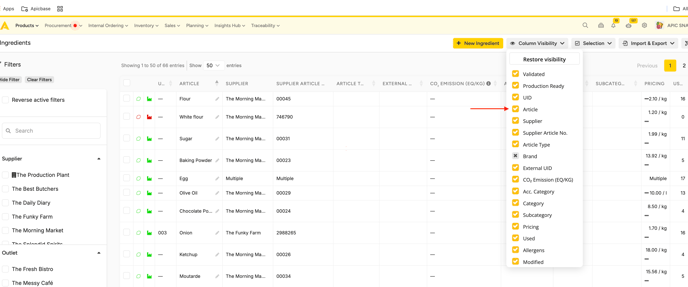
Learn here about filter and search bars. - Check column visibility: Make sure the Article column is selected in the column visibility settings — this ensures the article name is displayed.
5. The ingredient is not showing up while creating a recipe
1. Check for spelling mistakes
2. Check steps 1-4
3. If you enter an ingredient that is not yet in your library, Apicbase gives you the option to create a new ingredient.
6. Supplier and package information are not added
1. Review Supplier Details
Check that all supplier information is complete and accurate including company name, contact details, and any other relevant data.
2. Add Missing Packages and Information
Verify that each ingredient has the correct packaging details (unit size, quantity, supplier reference). Add any missing information where needed.
3. Add and Link a New Supplier
If the supplier does not yet exist in the system, create a new supplier profile and link it to the corresponding ingredient.
7. Link the ingredient to the corresponding outlet
It might be that the ingredient is not linked to an outlet. Learn here how to link items to Outlets.
8. The ingredient from an Integrated Supplier is missing
Articles from integrated suppliers are created and updated automatically with the latest data, including prices and product details. The assortment is linked to your customer number to show only relevant items. Information such as brand, GTIN, allergens, and nutritionals may differ between suppliers. Apicbase displays exactly what it receives from the supplier.
If you’re missing articles from an integrated supplier, please contact your Account Manager.
For more information about integrated suppliers — including available integrations and contact details please refer to our article about integrated suppliers.
If your ordering through Hanos, check out this article.
9. The ingredient is set as not orderable
If the ingredient is set not as orderable, it will not appear while ordering.
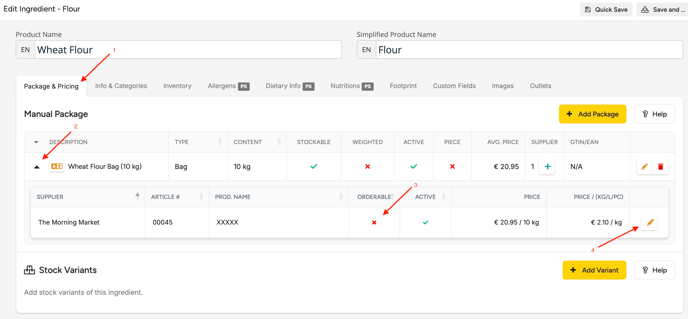
1. Go to Products and select Ingredients.
2. Then click on the pencil next to the ingredient name to open the ingredient settings.
3. Navigate to the Packaging & Pricing section.
4. Click on the arrow next to the package.
5. Check if the ingredient is marked as orderable (green mark) or not orderable (red cross).
6. Click on the pencil next to the price to edit the supplier package.
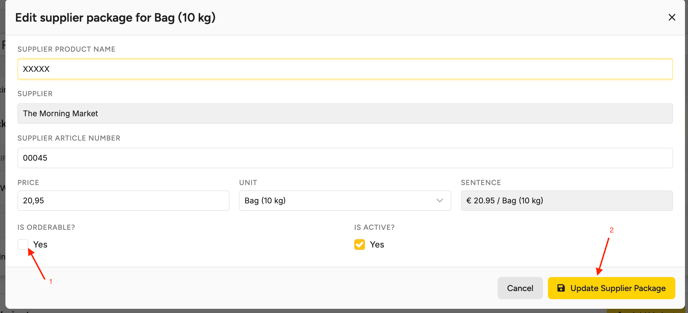
7. A pop-up window will appear were you can set the ingredient as orderable.
8. Click on "Update Supplier Package" and your ingredient is now set as orderable.