![logo-mark-primary-color-4.png]](https://support.apicbase.com/hs-fs/hubfs/logo-mark-primary-color-4.png?height=40&name=logo-mark-primary-color-4.png)
Learn in this guide how to use the Barcode Scanner App to manage your waste.
Step 1: Open the app and go to the Waste section. A new waste event starts automatically.

Step 2: Choose how to log waste: scan the product’s barcode or enter items manually. If the item’s barcode is already registered in your library, tap the Camera Scan option.
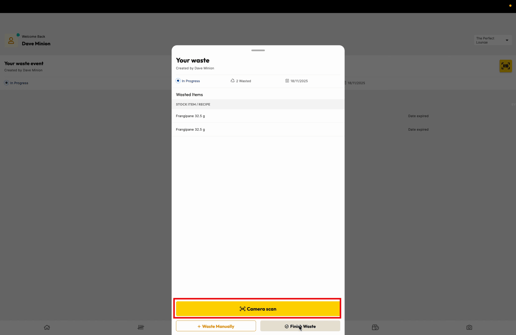
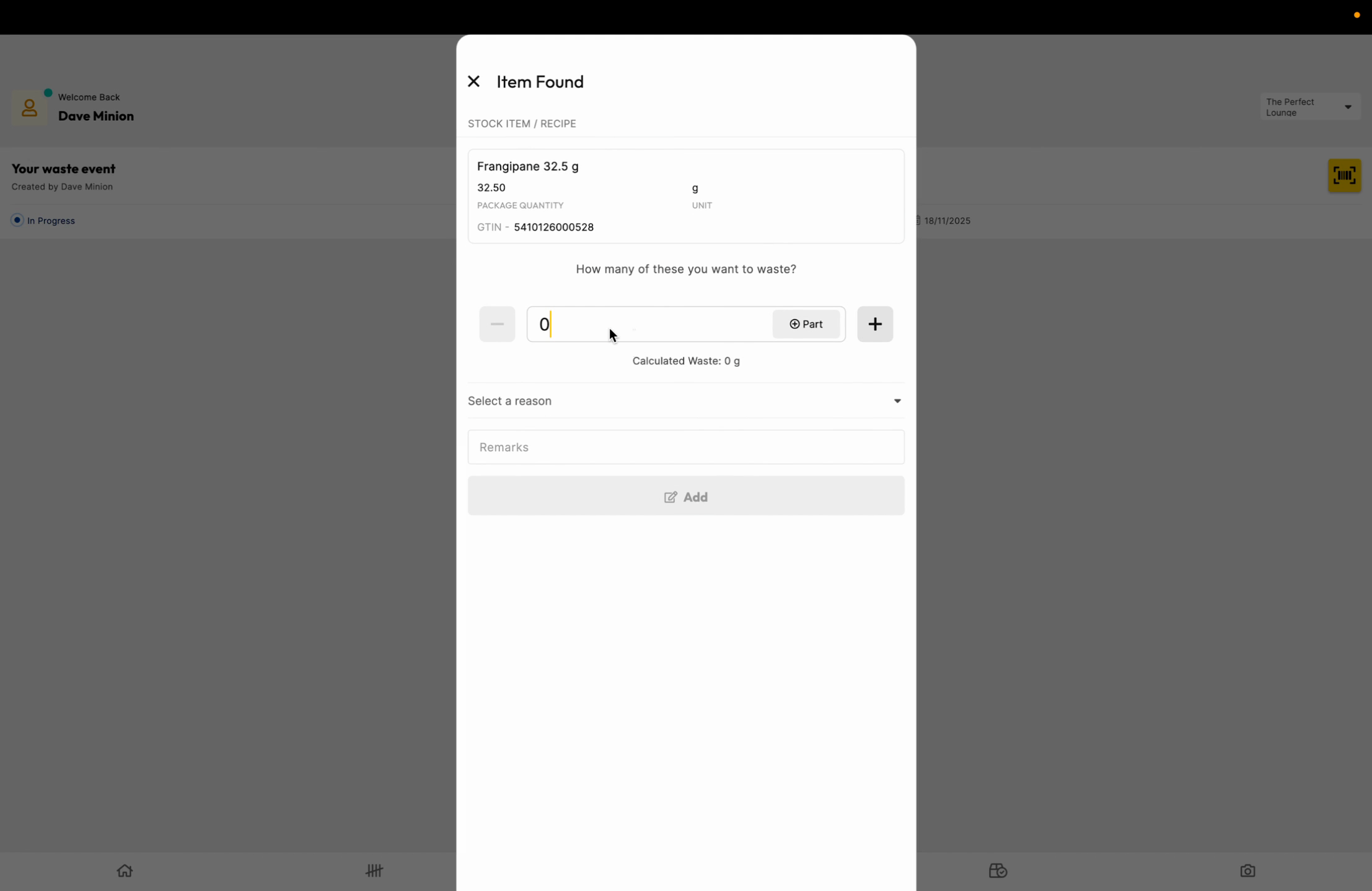
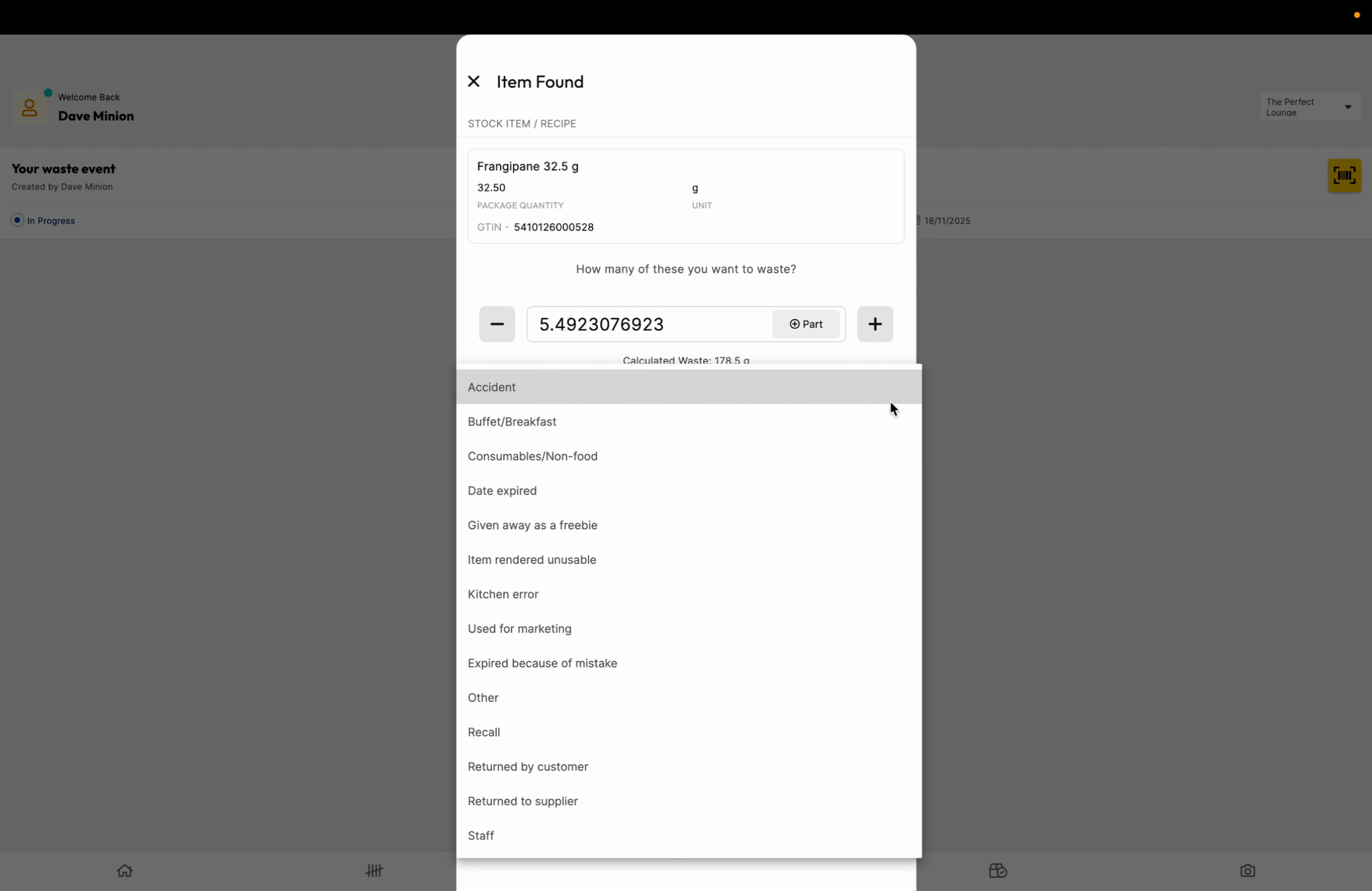
Step 3: Scan the product’s barcode with your device. Enter how many items you’re wasting. If it’s a partial waste, enter the specific amount.
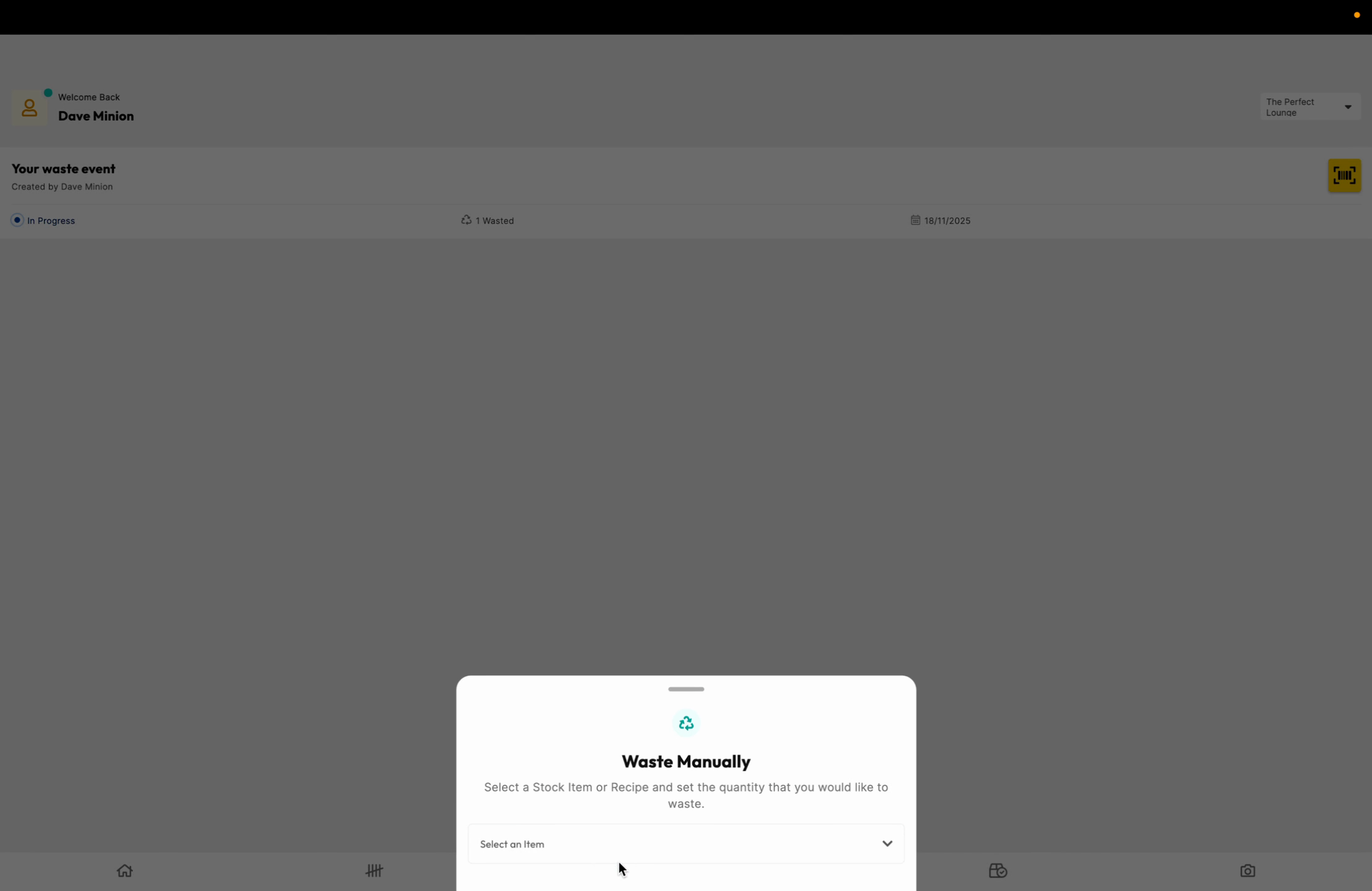
Or to waste manually, tap Waste Manually. Select the ingredient or recipe you can search by name, like “frangipane.”
Step 4: Pick a waste reason, such as Date Expired. Add any remarks if needed, then tap Add to log the waste.
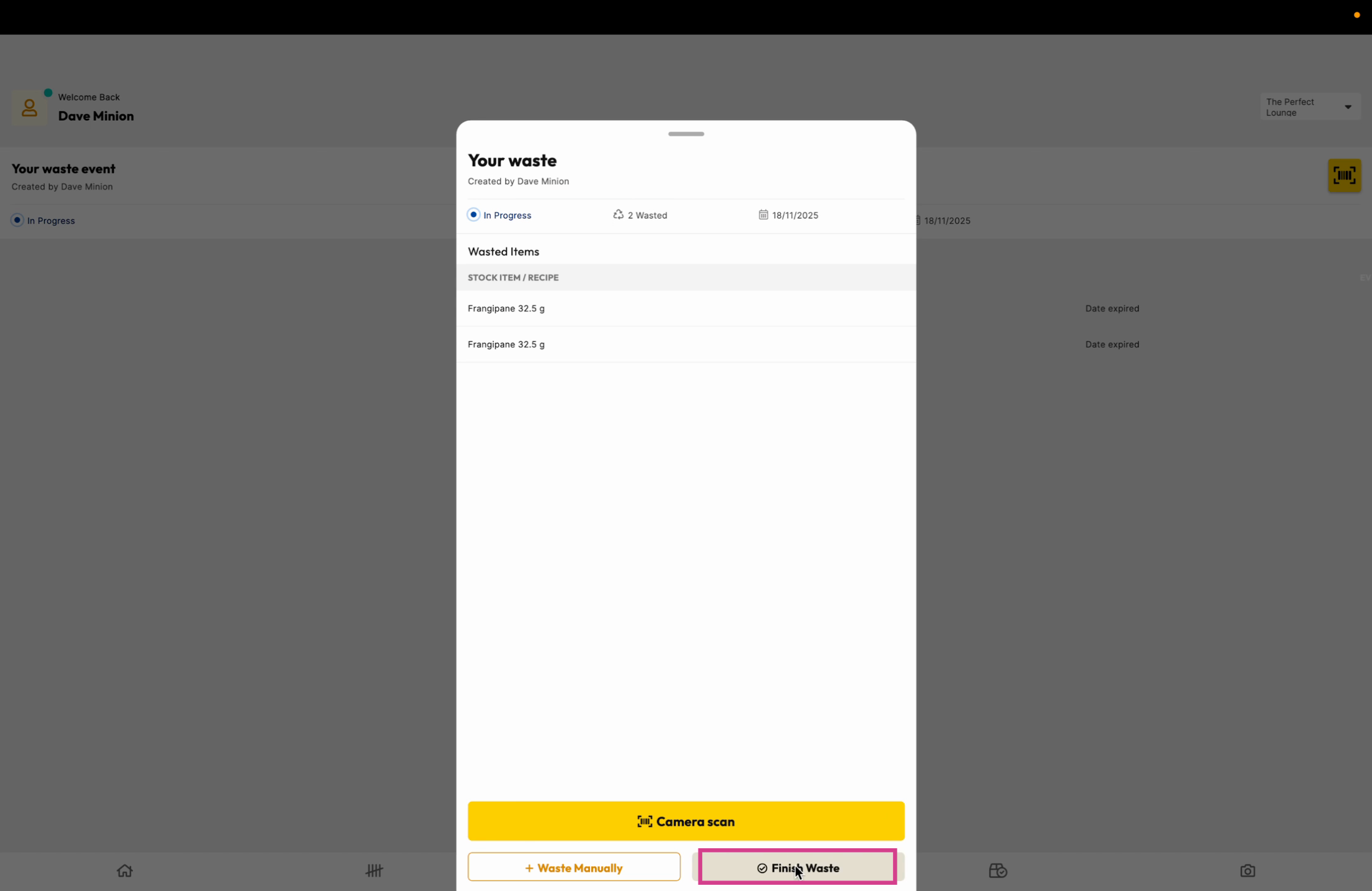
Step 7: When you’re done, tap Finished Waste to complete the event and register the waste.