![logo-mark-primary-color-4.png]](https://support.apicbase.com/hs-fs/hubfs/logo-mark-primary-color-4.png?height=40&name=logo-mark-primary-color-4.png)
Table of Content
1. How to Connect
Following the instructions in the PoS Integrations article, you should navigate to the Integrations Tab in your outlet settings.
To begin, look for Generic PoS API in the list of PoS suppliers (1).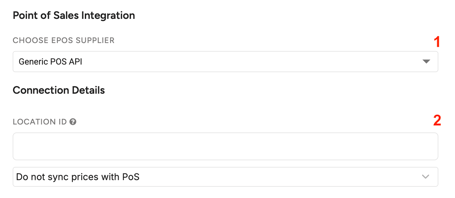
This integration was built by a particular reseller, Kassanet Pieterse, so there are two possible scenarios:
-
If Kassanet Pieterse is your Vectron reseller: contact your account manager and ask them to set up the integration for you. They will know the process to be followed. They should eventually give you a Location ID that you will add in the outlet details in Apicbase (2).
- If Kassanet Pieterse is not your Vectron reseller: inform your Vectron reseller about your wish to integrate Vectron with Apicbase via Kassanet Pieterse. Your reseller should contact Kassanet Pieterse to set up the integration. They will receive the onboarding video from Kassanet Pieterse and the dealer will set up the integration. They will eventually share with ou a Location ID that you will add in the outlet details in Apicbase (2).
Ones you added the Location ID, don't forget to click Save before leaving the page! Once your PoS is connected to your outlet, you can move on to the next steps, as explained in the PoS Integrations article.
2. Relevant Details
- Integration fee: Vectron's resellers usually charge their customers to establish connections with other software. This fee might vary between resellers, so you should check the conditions with your own reseller. In case your reseller is not Kassanet Pieterse, the invoicing of the fee will go via Apicbase: other resellers will never be invoiced.
- Multiple Prices Sync option: Unlike with other integrations, this integration allows three possibilities in terms of Price Syncing. To better understand what this means, make sure to check the corresponding section of this article. In this integration, the options are:
- Do not sync prices with PoS: no prices will be shared between the recipes in Apicbase and the sales items in Vectron.
- Sync prices from PoS to Apicbase: This is the setup explained in the other article, where Apicbase recipes will update their prices to follow the ones set in Vectron's sales items.
- Sync prices from Apicbase to PoS: In this case, Apicbase becomes the source of truth for the recipe prices, and it will be Vectron's sales items who adopt the prices of their corresponding Apicbase recipes.