![logo-mark-primary-color-4.png]](https://support.apicbase.com/hs-fs/hubfs/logo-mark-primary-color-4.png?height=40&name=logo-mark-primary-color-4.png)
Table of contents
1. What Are Traceability Logs?
2. Understanding the Log Columns
3. Event Types
5. Using the Log During Audits and Recalls
6. Troubleshooting: Common Scenarios
1. What Are Traceability Logs?
Every time a traceability action takes place in Apicbase — a delivery is received, a lot is used in production, a batch is produced, or a product is dispatched — an entry is written to the Traceability Log automatically. No manual input is required beyond performing the action itself.
The log is cumulative and append-only: entries are never deleted or overwritten. This makes it the single source of truth for every ingredient's journey through your operation, from the moment it arrives from a supplier to the moment it leaves as a finished product.
The log answers two fundamental questions about any lot:
- Backward traceability: Where did this come from? Which supplier delivered it, on which date, with which lot number, and what other products was it used in?
- Forward traceability: Where did this go? Which finished products contain this ingredient, and which customers or outlets received those products, and when?
Accessing the Traceability Logs
- Click on Traceability in the top navigation bar.
- In the dropdown, select Event Logs.
- Use the outlet selector to choose which kitchen or site you want to view logs for.
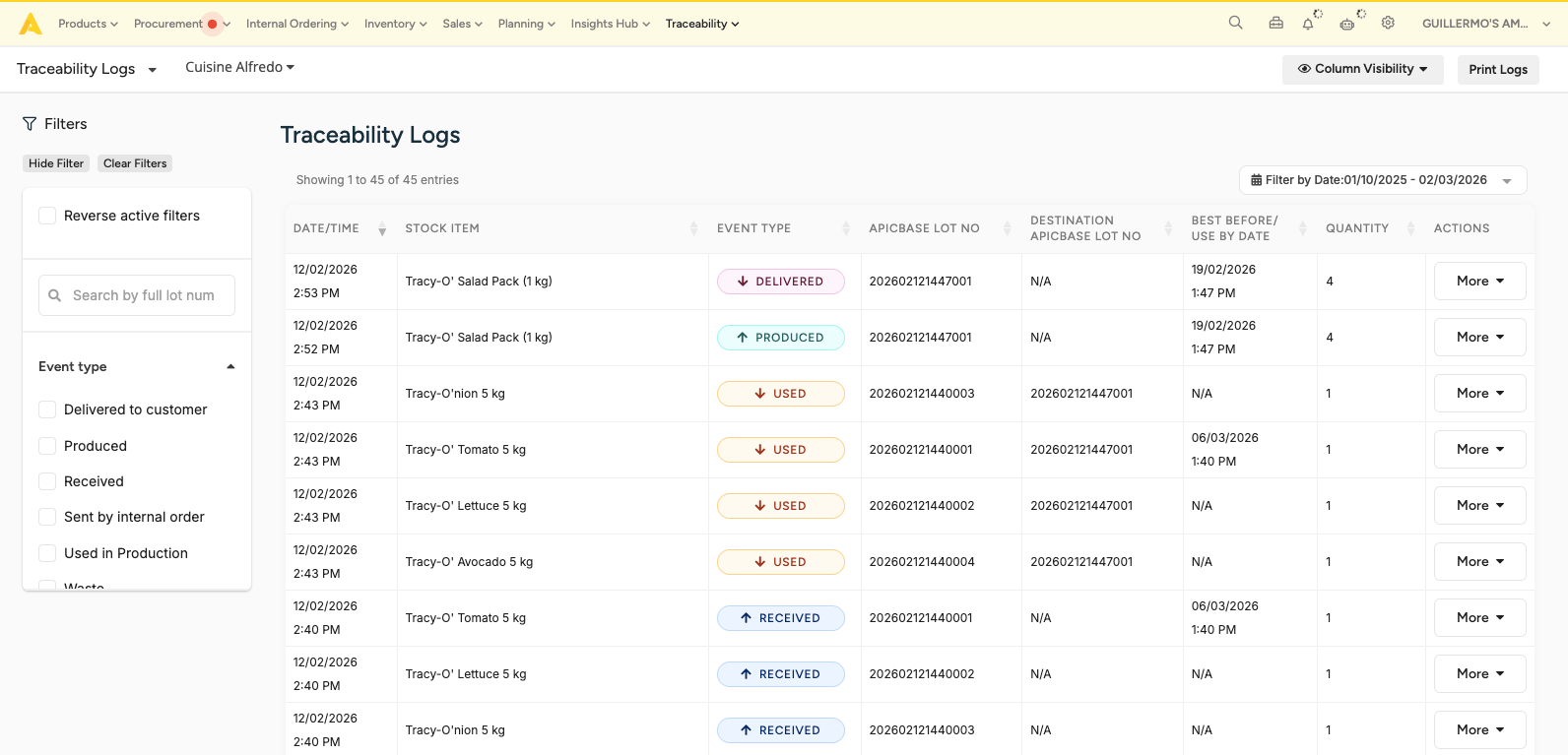
The log opens showing the most recent entries at the top, with all event types visible by default. The entry count at the top of the table (e.g. "Showing 1 to 45 of 45 entries") confirms how many events match your current filters.
2. Understanding the Log Columns
Each row in the Traceability Log represents a single event. The columns are:
DATE/TIME The exact date and time the event was recorded in Apicbase. Entries are sorted with the most recent first by default.
STOCK ITEM The ingredient or product involved in the event — for example, "Tracy-O' Tomato 5 kg". This refers to the stock item as it is named in your Apicbase library.
EVENT TYPE A colour-coded badge indicating what kind of event occurred. See the full breakdown in the next section.
APICBASE LOT NO The unique lot number assigned to this stock item in Apicbase. This is the number that appears on the printed label and that links all events in a lot's history together.
DESTINATION APICBASE LOT NO For events where a lot is consumed or moved, this column shows the lot number it was consumed into or sent to. For example, when an ingredient is Used in Production, this column shows the lot number of the finished product it became part of. This is what creates the linked chain between input and output lots. For events like Received or Delivered to customer, this column shows N/A.
BEST BEFORE / USE BY DATE The expiry or best-before date entered for this lot at the time of receiving or production.
QUANTITY The number of units involved in this event, expressed in the stock item's unit of measure.
ACTIONS A More dropdown allowing you to view the full detail of that log entry.
3. Event Types
The Event Type column uses colour-coded badges to identify what happened at each step. The following event types exist in the log:
⬆ RECEIVED (blue) An ingredient or stock item was received into inventory — a delivery was registered in Apicbase and a Receiving label was printed for this lot. This is always the first event in any lot's history.
⬇ USED (orange) A lot was scanned and consumed as an input to a production batch. The Destination Apicbase Lot No column on a USED row shows the lot number of the finished product this ingredient became part of. This is the link that enables backward traceability.
⬆ PRODUCED (teal) A new lot was created as the output of a production run. The stock item shown is the finished product, and the lot number is the one printed on the Production label. Looking up this lot number in the Destination Apicbase Lot No column of the corresponding USED rows shows everything that went into it.
⬇ DELIVERED (pink/red) A finished product lot was dispatched — delivered to a customer or sent via an internal order to an outlet. This is always the final event in a lot's forward chain.
→ SENT BY INTERNAL ORDER A lot was transferred to another outlet via an internal order. This event records the movement between sites within your operation.
Event Type Reference
| Badge | Colour | What it means | Destination Lot populated? |
|---|---|---|---|
| RECEIVED | Blue ⬆ | Stock item received into inventory from a supplier | No — N/A |
| USED | Orange ⬇ | Ingredient lot consumed as input to a production batch | Yes — shows the PRODUCED lot it fed into |
| PRODUCED | Teal ⬆ | Finished product lot created from one or more inputs | No — N/A |
| DELIVERED | Pink/Red ⬇ | Finished lot dispatched to a customer | No — N/A |
| SENT BY INTERNAL ORDER | Pink/Red ⬇ | Lot transferred to another outlet via internal order | Shows destination outlet lot, if applicable |
4. Filtering the Log
The left-hand sidebar contains all filter controls. Filters apply immediately without needing to click a separate search button.
Search by full lot number Enter a complete Apicbase lot number to show only events involving that specific lot. This is the fastest way to pull up the history of a known batch.
Event type checkboxes Check one or more event types to show only those events in the table. The available options are: Delivered to customer, Produced, Received, Sent by internal order, Used in Production, Waste. Leave all unchecked to show all event types.
Reverse active filters Checking this box inverts your current filter selection — useful if you want to see everything except a specific event type.
Filter by Date Located in the top-right corner of the log table. Click it to set a custom date range. By default, the log shows all entries up to the current date.
Column Visibility The Column Visibility button at the top right of the screen allows you to show or hide individual columns. This is useful when exporting or printing a focused view of the log.
5. Using the Log During Audits and Recalls
Reading a Lot's Full Chain in the Log
The real power of the Traceability Log is in the APICBASE LOT NO and DESTINATION APICBASE LOT NO columns working together. Here is how to read a complete lot chain from the log:
Example: tracing a salad pack back to its ingredients
Let's imagine, lot 202602121447001 (Tracy-O' Salad Pack 1 kg) has the following entries, reading from bottom to top (oldest to newest):
- Several RECEIVED events for the individual ingredients (Tomato, Lettuce, Onion, Avocado) — each with their own lot numbers (
...40001,...40002,...40003,...40004) - Four USED events, one for each ingredient lot — all showing
202602121447001in the Destination Apicbase Lot No column, confirming that all four ingredient lots were consumed into this finished lot - One PRODUCED event for lot
202602121447001— confirming the finished salad pack was created - One DELIVERED event for lot
202602121447001— confirming the batch was dispatched to a customer
This chain is the complete backward and forward trace for that lot, readable directly from the log without needing any additional tools.
During a routine audit
- Open Traceability → Traceability Logs and select the relevant outlet.
- Set the Filter by Date to the period being audited.
- Review that each production run has a matching set of USED events (one per input ingredient) followed by a PRODUCED event. Gaps in this pattern indicate a step was not scanned.
- Verify that every PRODUCED lot is followed by either a DELIVERED event, a SENT BY INTERNAL ORDER event, or a WASTE event. A PRODUCED lot with no downstream event indicates stock that is either still in inventory or unaccounted for.
- Use Print Logs to generate a hard copy for your audit file.
During a product recall
- Filter the log by the affected ingredient or supplier lot number using Search by full lot number.
- Identify all USED events for that lot — these show, via the Destination Apicbase Lot No column, every finished product lot the ingredient was incorporated into.
- For each destination lot identified, search again to find its DELIVERED or SENT BY INTERNAL ORDER events — these show exactly where the finished products went and when.
- Print or export the filtered log for each affected lot as your recall documentation.
❗ Important: The recall scope is only as complete as your scanning record. Any production where an ingredient was used without being scanned will not appear in the log chain. See Troubleshooting: Common Scenarios below.
6. Troubleshooting: Common Scenarios
Scenario 1 — A PRODUCED lot has no corresponding USED events
Symptom: You can see a PRODUCED event for a finished product, but there are no USED events with that lot in the Destination column — so you cannot trace what went into it.
Most likely cause: Staff completed the production batch without scanning the input ingredient lots, or scanned them against a different lot number.
How to investigate:
- Filter the log by the production date and Produced event type to confirm the batch was logged.
- Check the same date range for Used in Production events and look for any that have a blank or different Destination lot — these may have been incorrectly attributed.
- If no USED events exist for that date at all, the scanning step was skipped entirely. This represents a gap in the audit record that needs to be documented in your corrective action log.
❗ Important: A missing scan means a missing link in the traceability chain — a compliance gap under food safety regulations. If this occurs regularly, treat it as a training priority and review scanning procedures with the relevant team.
Scenario 2 — A lot appears in USED events but the ingredient doesn't match the recipe
Symptom: The USED events feeding into a finished product lot show ingredient lots that don't correspond to the recipe — for example, the wrong supplier is linked, or an ingredient that isn't in the recipe appears.
Most likely cause: A staff member scanned the wrong label — either a label left on a container from a previous lot, or a mislabelled container from a previous day.
How to investigate:
- Note the APICBASE LOT NO of the incorrectly linked ingredient from the USED event row.
- Search for that lot number to find its RECEIVED event and check the supplier, delivery date, and expiry date. Compare this against your delivery records for that period.
- Check the DATE/TIME of the incorrect USED event and cross-reference with your team to identify who was working at that station.
What to document: Record both the incorrect lot link and the correct lot in your audit notes. The log is append-only and cannot be edited, so the incorrect scan will remain in the record. Contact your Apicbase CSM if a formal correction note needs to be associated with the affected entries.
💡 Prevention tip: Enforce a strict "one label per container, always" rule and train staff to remove and discard old labels immediately before applying new ones. Most wrong-lot scans occur when a residual label from a previous batch is still attached to a refilled container.
Scenario 3 — A supplier's batch reference cannot be found in the log
Symptom: You receive a supplier recall notice quoting a specific batch reference, but searching for it in the log returns no results.
Most likely cause: Either the delivery was not registered in Apicbase, or the supplier's batch reference was not entered as the lot number at the time of receiving — a generic or placeholder lot number was used instead.
How to investigate:
- Filter the log by Received event type and the approximate delivery date. Search for the ingredient by stock item name.
- Review the APICBASE LOT NO values on the RECEIVED entries for that ingredient and date. If a generic number was used (e.g. a date stamp without the supplier's reference), the lot is in the system but unsearchable by the supplier's reference.
- If no RECEIVED event exists at all for that ingredient around that date, the delivery was never registered in Apicbase. You will need to reconstruct the chain manually using paper delivery notes or supplier documentation.
Prevention: Make it a standard operating procedure that the supplier's own batch reference is always entered in the lot number field at the time of receiving. This is what makes a supplier-initiated recall searchable in seconds rather than minutes.
Scenario 4 — A RECEIVED lot has no USED or DELIVERED events after it
Symptom: A lot shows a RECEIVED event, but nothing follows it — no USED, PRODUCED, DELIVERED, or WASTE events exist for that lot number.
Most likely cause: The ingredient is still in storage and has not yet been used, or it was used or disposed of without scanning.
How to investigate:
- Check the BEST BEFORE / USE BY DATE on the RECEIVED entry. If the date has passed, this is a potential food safety issue regardless of whether it was used or discarded.
- Physically check your storage for a container with this lot number still attached.
- If the lot date has not passed and the container is still in storage, no further action is needed — the chain will continue when it is next used.
- If the container is no longer in storage but no downstream events exist, this is an unaccounted-for quantity. Document it and register it as waste retroactively if appropriate, then contact your CSM if a log entry needs to be noted.
💡 Proactive audit tip: Periodically filter the log by Received event type and a date range older than your standard shelf life. Any RECEIVED lots with no downstream events that pre-date their use-by date represent gaps worth investigating before an external inspection.