![logo-mark-primary-color-4.png]](https://support.apicbase.com/hs-fs/hubfs/logo-mark-primary-color-4.png?height=40&name=logo-mark-primary-color-4.png)
How to Connect
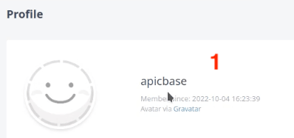
To set up the Revo integration you will need a Username and a Token. You will find there in your Revo account. First, go to your Revo account and, in the side panel, go to Manage Account. There you will find your username (1), in this example the username is "apicbase".
To get the token, you should navigate to the side panel and click tokens (2). There you can create a token with a name you can choose yourself (3), in this example the token was named apicbase_test_token, but you can use any other name.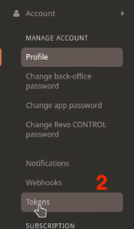
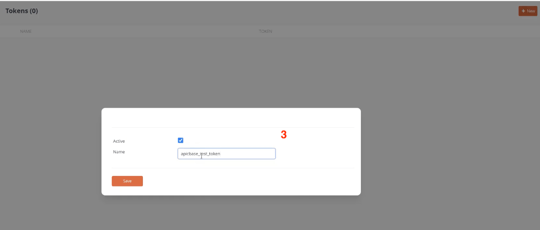
After creating it, the token will be visible (4). You can copy it from there.
Now, following the instructions in the PoS Integrations article, you should navigate to the Integrations Tab in your outlet settings. Look for Revo in the list of PoS suppliers (5). You can then pastethe Username (6) and Token (7) in their corresponding fields. Don't forget to click Save before leaving the page!
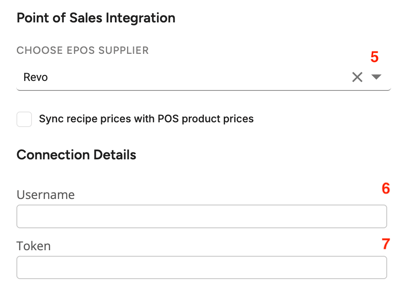
Once your PoS is connected to your outlet, you can move on to the next steps, as explained in the PoS Integrations article.