![logo-mark-primary-color-4.png]](https://support.apicbase.com/hs-fs/hubfs/logo-mark-primary-color-4.png?height=40&name=logo-mark-primary-color-4.png)
If you have not installed the app, take a look here.
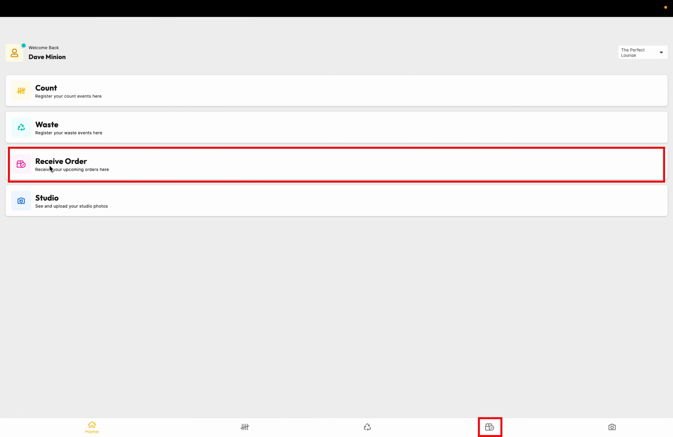
Step 1: Open the app, log in with your Apicbase credentials and select Receive Order to see your recent orders, sorted by supplier.
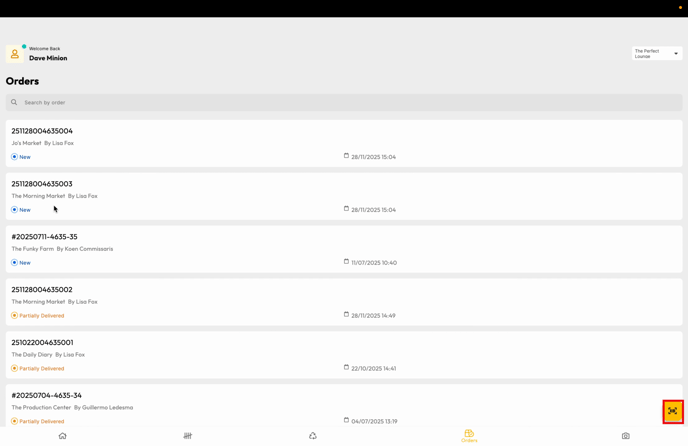
Step 2: Then you will see all your orders: the ones with expected deliveries at the top (New), followed by the ones already Partially Delivered, and finally the closed orders (Delivered). And finally the closed orders (Delivered). Click on the order you want to work on to get started or click on the barcode scanner item and scan the barcode of your item and you'll immediately see the details of the delivered item.
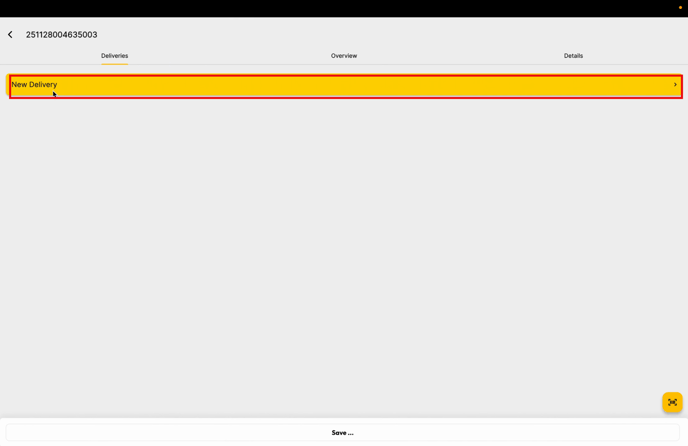
Step 3: But you can also first press New Delivery to view all delivered items.
Then you'll see the details of the delivered item.
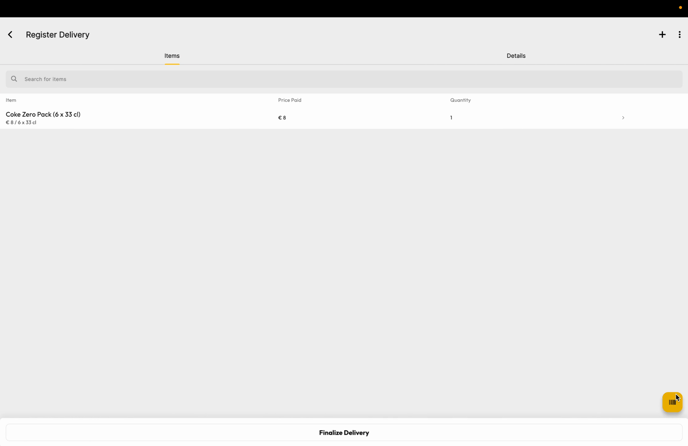
Step 4: Add or remove items using the item list. Set a quantity to zero if nothing was received—it’ll update the status to “none.” Enter the correct quantity for items received.
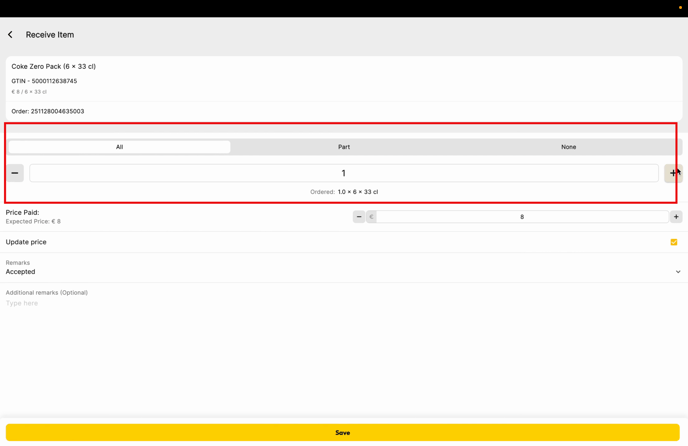
Step 5: Review the price paid and decide if the price should be updated for this item.
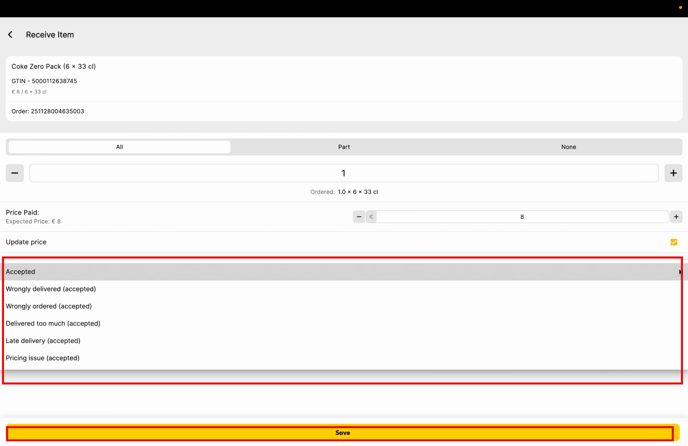
Step 6: Use the Remarks dropdown to add delivery notes, or type in extra remarks as needed.
Step 7: Hit Save to save this delivered item
Step 8: To check delivery details, switch to the Details tab. Confirm the delivery date and attach a delivery note if required.
Step 9: Fill in any additional information such as Discount Remarks, Delivery Remarks, or Returnable Remarks as necessary.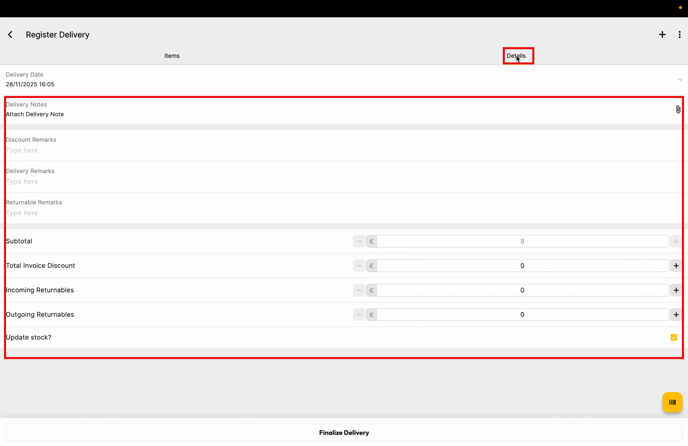
Step 10: If you need to add extra items, you can do so by scanning them or clicking on the plus sign at the top of the screen and manually registering them.
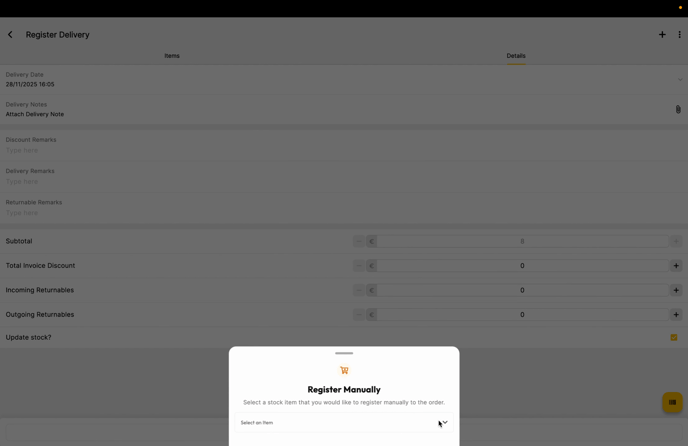
Step 11: When you are done registering all the items and relevant information, click on Finalize Delivery to save this partial delivery.
Finalizing your delivery will update your inventory already!
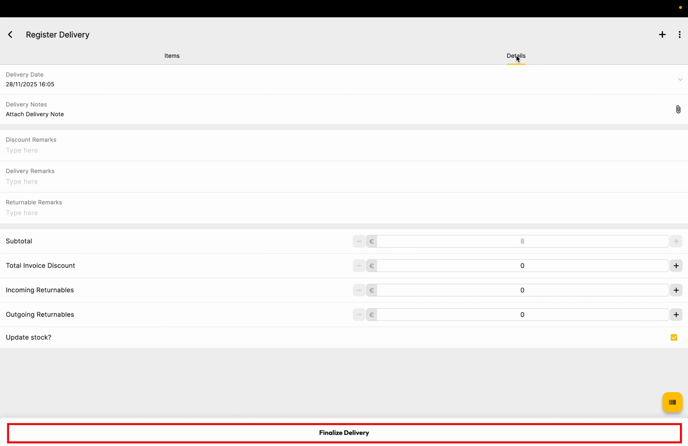
In case you changed your mind, you can cancel this draft before finalizing it by clicking on the three dots at the corner of the screen.
Once out of the delivery intake, you can see an Overview of the order with the different items and their status.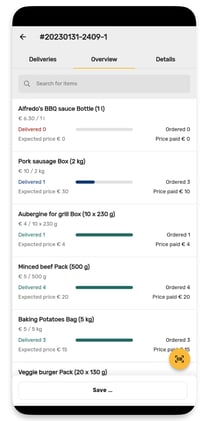
Once you have finalized your delivery, you can either:
- Save and Close the order, in case nothing else is expected from this order.
- Save and Keep Open, if you are still waiting for more items in another delivery. By selecting this, you will be able to set the expected date and time for the upcoming delivery (although it is not compulsory).
Do you want to learn more about the Barcode Scanner App read here.