![logo-mark-primary-color-4.png]](https://support.apicbase.com/hs-fs/hubfs/logo-mark-primary-color-4.png?height=40&name=logo-mark-primary-color-4.png)
Table of Contents
- Register a Sale based on a Menu Plan
-
Aggregate Quantities Across Multiple Menu Cycles for Efficient Planning
1. Generate Orders Based on Planned Menu Cycles
Once your menu cycles are scheduled and recipes have planned quantities (portions) for specific dates, you can generate supplier orders directly from the menu plan. This ensures you order ingredients based on what is planned to be served, instead of estimating demand manually.
1.1. Select the planning period and scope
-
Open Menu Planning and go to the planned Recipes overview (calendar or list view).
-
Select the date range you want to order for (for example, next week or the next two menu cycles).
-
Apply filters if needed, such as:
-
Outlet(s)
-
Menu cycle(s)
-
Course
-
Recipe category or type
-
This selection determines which scheduled recipes and quantities will be used as input for ordering.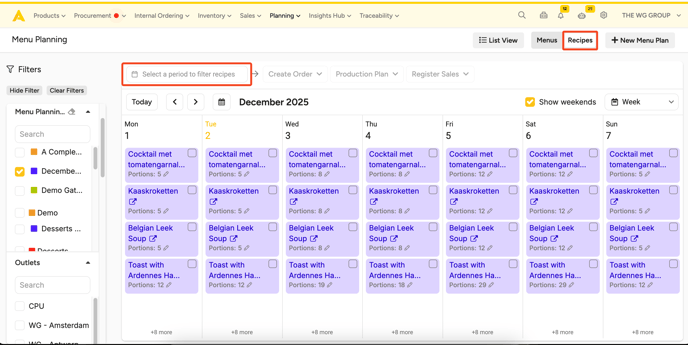
1.2. Generate the Bill of Materials (BoM) from the selection
-
Select the planned recipes you want to include.
-
Choose Create Orders from the available actions.
-
Apicbase calculates the required ingredient quantities based on the planned portions and converts them into a BoM.
1.3. Review order quantities and ordering options
Before creating supplier orders, Apicbase shows an aggregated overview of what will be ordered. Depending on your setup and configuration, the BoM calculation can include options such as:
-
Taking current stock into account
-
Taking outstanding orders into account
Review the suggested items and quantities, then confirm to create the supplier orders.
2. Create Production Plans From Scheduled Recipes
Menu planning can also be used to generate production plans based on scheduled recipes. This is useful for central kitchens or production teams who prepare food in advance based on the menu schedule.
2.1. Select the recipes and planning period
-
Open the Planned Recipes overview in Menu Planning.
-
Select a date range for the production plan (for example, meals scheduled for tomorrow, or a full weekend).
-
Filter the view to the relevant outlet(s), course(s), or menu cycle(s).
-
Select which scheduled recipes should be included in the production plan.
2.2. Create the production plan
-
Choose Create Production Plan from the actions menu.
-
Apicbase aggregates the planned portions per recipe across the selected period.
-
A production plan is created containing the total quantities to produce.
After creating the plan, you can proceed with your standard production workflow (starting, completing, and registering outputs).
3. Register a Sale based on a Menu Plan
It is also possible to register a sale for all the recipes planned for a certain period. This is useful for events or meal delivery companies, who need to deplete their stock easily from the planned recipes they prepared.
3.1. Select the recipes and planning period
-
Open the Planned Recipes overview in Menu Planning.
-
Select a date range for the production plan (for example, meals scheduled for tomorrow, or a full weekend).
-
Filter the view to the relevant outlet(s), course(s), or menu cycle(s).
-
Select which scheduled recipes should be included in the production plan.
3.2. Register a sale
-
Choose Register Sales from the actions menu.
-
Apicbase aggregates the planned portions per recipe across the selected period.
-
A sale is created containing the total quantities to deduct from the stock.
After register the sale, you can will see the overview in the Sales list under the Sales module.
4. Aggregate Quantities Across Multiple Menu Cycles for Efficient Planning
A key benefit of menu planning is the ability to aggregate scheduled quantities across multiple cycles or days. This allows you to plan efficiently when:
-
You want to order ingredients for several weeks at once
-
You want to batch-produce recipes for multiple upcoming days
-
You manage several outlets that follow the same cycle plan
4.1. How aggregation works
When you select a date range that spans multiple menu cycle instances, the same recipe may appear multiple times (on different dates or in different cycles). Apicbase automatically sums the planned portions across your selection.
Example:
-
Recipe A is planned on Monday (150 portions) and again on Thursday (200 portions)
-
If both days are included in your selection, the aggregated production quantity becomes 350 portions
4.2. Practical planning workflows
Aggregation supports workflows such as:
-
Ordering raw ingredients once for a full menu cycle (or multiple cycles)
-
Creating a single production plan for multiple outlets or multiple days
-
Planning production in a central kitchen while distributing outputs to serving outlets
By selecting the right date range and filters, you can use menu planning to generate consolidated orders and production plans that match your real operational planning horizon.