![logo-mark-primary-color-4.png]](https://support.apicbase.com/hs-fs/hubfs/logo-mark-primary-color-4.png?height=40&name=logo-mark-primary-color-4.png)
Table of Content
1. How to Connect
Following the instructions in the PoS Integrations article, you should navigate to the Integrations Tab in your outlet settings.
To begin, look for Mews in the list of PoS suppliers (1).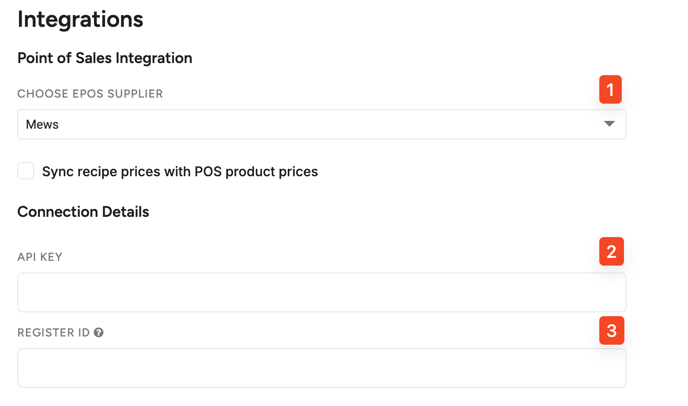
To complete the setup, you will need your Mews API Key and Register ID. If you don't know where to find these, please consult the Mews support team.
Enter the API Key and Register ID in the fields (2 & 3).
Do not forget to click Save in the top right corner of the screen.
Once your PoS is connected to your outlet, you can move on to the next steps, as explained in the PoS Integrations article.