![logo-mark-primary-color-4.png]](https://support.apicbase.com/hs-fs/hubfs/logo-mark-primary-color-4.png?height=40&name=logo-mark-primary-color-4.png)
Table of Contents
In Apicbase, barcodes are used to identify packages. They are not descriptions of ingredients or recipes, but you can still assign them to stockable recipes if you want to track those items the same way as packaged goods.
To add barcodes follow the steps below to learn how.
If your products do not have a barcode, then read about a simple solution in this article.
1. Add a barcode to an ingredient package
1.1. Add a barcode manually
-
Go to Products > Ingredients and select the ingredient you want to update. Click the pencil icon to switch directly to edit mode.
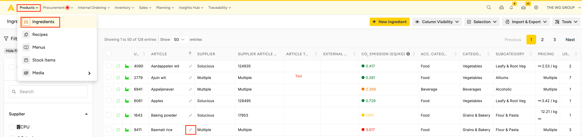
-
Then go to the Packages & Pricing tab. Click on the pencil icons next to a package.
-
Fill out the GTIN/EAN field in the pop-up that appears. Click 'update package' and save the ingredient.
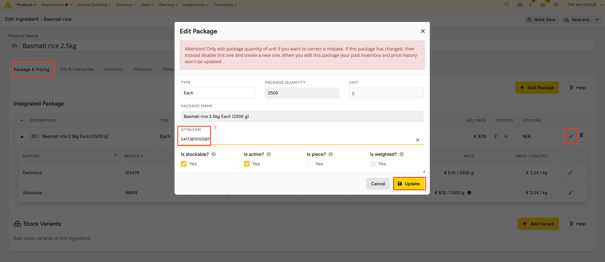
1.2. Add a barcode via the ingredient package import
- Go to Products > Ingredients and click on Export > Packages. You can choose to download the full list or only a selection of your ingredients

- The ingredient package template will be downloaded. Fill out column E (GTIN) for each package. And save the file on your computer.

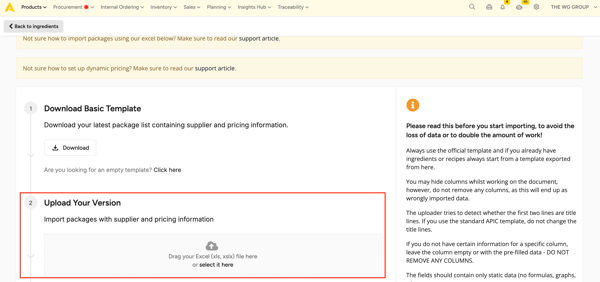
- Go back to Products > Ingredient > Import and select the ingredient package import option.

- Upload your file in step 2 of the import screen.
2. Add a barcode to stockable recipes
For the products that you make yourself (e.g. sauces, jams, batches of dough,...) you might have barcodes available. These will also come in handy once you want to use the barcode scanner app to count the preparations in stock. If you do not have barcodes in place, then read this article for a simple solution.
2.1. Add a barcode manually
-
Go to Products > Recipes. Click on the stockable recipe where you want to add a barcode. You can click on the pencil icon to go directly to edit mode.
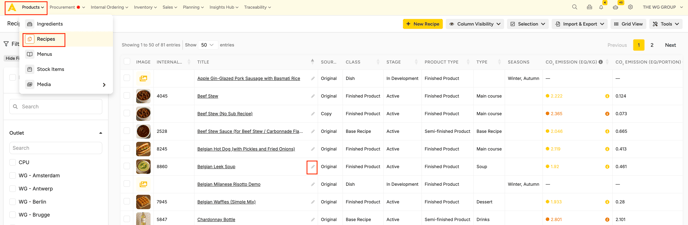
-
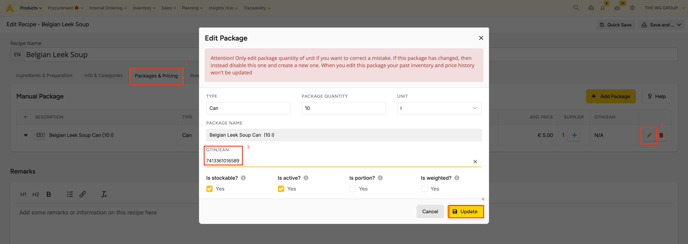
Go to the package & pricing tab. Click on the pencil next to a package.
- A pop-up now appears. Fill out the barcode in the GTIN/EAN field. Click on 'update package' and don't forget to save the recipe afterward.
2.2 Add a barcode via the recipe package import
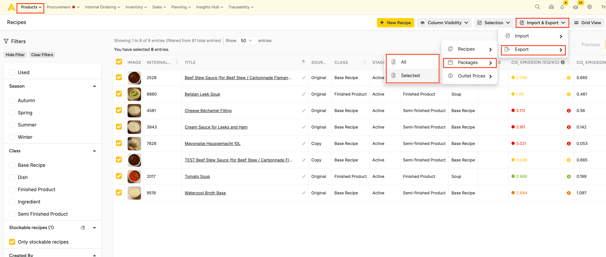
- Go to Products > Recipes and click on Export > Packages You can choose to download the full list or only a selection of your recipes.
- The recipe package template will be downloaded. Fill out column E (GTIN) for each package. And save the file on your computer.

-
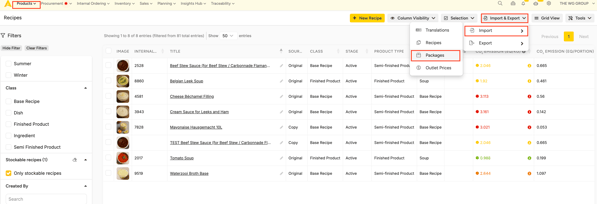
Go back to Products > Ingredients > Import and select the ingredient package import option.
-
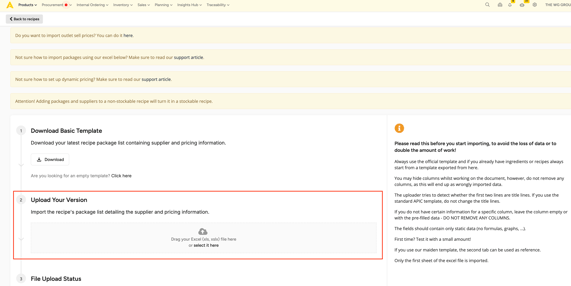
Upload your file in step 2 of the import screen.
3. Adding barcodes in the Apicbase App
You can scan and add barcodes directly using the Apicbase mobile App.
Where you can add barcodes in the App:
3.1 Add barcodes during stock counts
- Click on count in your App
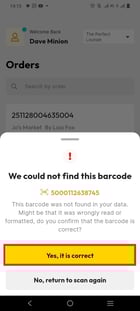
- Scan a product. If the barcode isn’t found in your library and you’re sure it was scanned correctly, tap Yes, it’s correct.
- You can then either look up the package in your library (if you click on the arrow)
or create a new package. The barcode will be added automatically to the selected or newly created package when you click on submit.
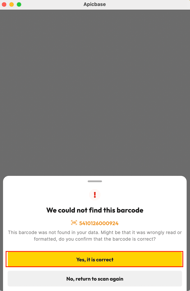
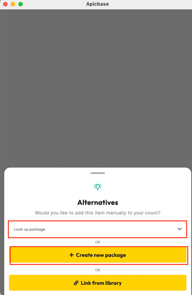

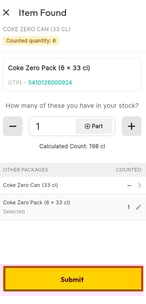
You can use create new package when:
-
The barcode is correct but not in your library.
-
The product or package is not yet created.
-
A supplier uses new packaging/barcodes.
-
You want to immediately add a package and save the barcode in one step.
3.2 Adding barcodes while receiving orders
- Click on receiving orders in your app.
- Click on the barcode sign on your screen.
- Scan a product. If the barcode isn’t found in your library and you’re sure it was scanned correctly, tap Yes, it’s correct.
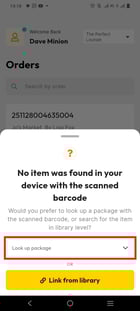
- Then select a package if you click on the arrow next Look up package.
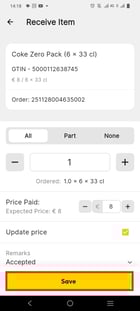
The barcode will be added automatically to the selected package when you click Save.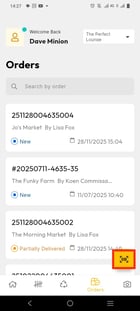
 .
. 
4. Using your own (DIY) barcodes
In certain cases, such as fresh products or internally produced stockable recipes, you may find yourself without a barcode for your products. However, there is a solution to address this issue.
Using self-invented barcodes will not work with Apicbase, as it requires GTIN codes in the correct format.
Here are the steps to create your own GTIN codes and generate scannable barcodes:
4.1 Creating GTIN Codes
To ensure your GTIN codes are in the correct format, you can utilize the following tool:
This tool allows you to create random-sequence barcodes to use in your non-barcode products.
4.2 Generating Scannable Barcodes
To generate scannable barcodes corresponding to your GTIN codes, you can use the following barcode generator:
Please select EAN-13 as the code type for a 13-digit barcode. Keep these barcodes readily accessible, either by saving them or printing them on a sheet or as stickers. Scanning these barcodes will enable the recognition of your products when using the barcode scanner app.
Important note:
Apicbase supports the following barcode formats: ISBN13, ISBN10, EAN13, EAN18, UPC-A, GTIN (EAN-14), and UPC-E. Hence, it is crucial to ensure that the barcodes you generate comply with these supported formats.
Additional Resources:
For other free barcode generators, you can explore the options below. However, please note that they may not offer bulk creation and export functionality:
If needed, you can get more information about different types of Barcodes on this website: https://www.activebarcode.com/
5. Traceability barcodes vs product barcodes
Do not confuse product barcodes with traceability labels:
| Product barcodes | Traceability barcodes |
|
|
|
|
|
|