![logo-mark-primary-color-4.png]](https://support.apicbase.com/hs-fs/hubfs/logo-mark-primary-color-4.png?height=40&name=logo-mark-primary-color-4.png)
When counting or recording waste, you may scan items that are not yet linked to your outlet, even though the barcode is already linked to a product in your library. In this case, you can easily link the item by assigning the barcode using the Barcode Scanner App.
To link items to outlets in the Barcode Scanner App you need to add barcodes to your items.
You don't know how to add barcodes to your product? Read our other article.
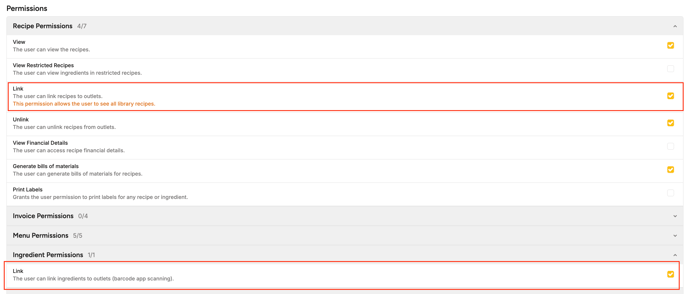
If you are an outlet user, you need the correct permissions to link ingredients and recipes to outlets. Without these permissions, you will not be able to link items. If you do not have access, ask your administrator to update your permissions.
-
Open the Barcode Scanner App and log in with your Apicbase credentials.
-
Go to Waste or Count and start the procedure.
-
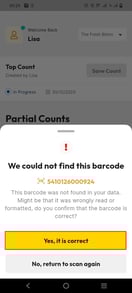
Scan the item. If the item is not linked to your outlet, a notification appears saying the barcode could not be found.
-
Click Yes, it’s correct, then select Link from library.
.jpg?width=132&height=293&name=Screenshot_20251230_095254%20(1).jpg)
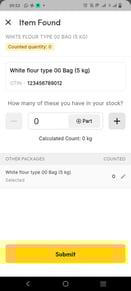
4. Then continue counting or recording waste.
5. After you submitted your count or waste event the item is automatically added to you library.
If you are a library user, the item is automatically linked to the outlet. No confirmation is required.