![logo-mark-primary-color-4.png]](https://support.apicbase.com/hs-fs/hubfs/logo-mark-primary-color-4.png?height=40&name=logo-mark-primary-color-4.png)
Table of contents
1.1. Download the App
1.2. About the App
1.3. App syncing and Working offline
1. Barcode Scanner App
Some actions, like counts, order reception, etc., can be more easily handled on a mobile device, especially if we can use the camera to scan barcodes to quickly reach a certain item. This is the goal of the Barcode Scanner App, to make some actions in Apicbase easier to manage thanks to this scanning process.
1.1. Download the App
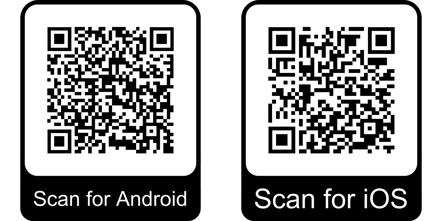
In order to be able to use the Barcode Scanner App, you will need to download it in your mobile device. You can click on the links here to download the app from the Play Store (Android) or the App Store (iOS). You can also scan these QR codes with your phone to be directed to the app store of your device.
1.2. About the App
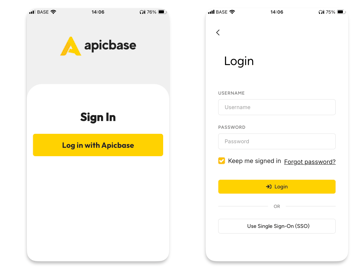
Launch the app and tap Login with Apic Base. Enter your Apicbase credentials to sign in.
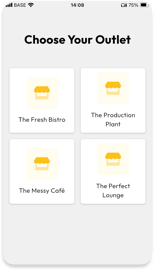
After logging in, choose your outlet from the list.
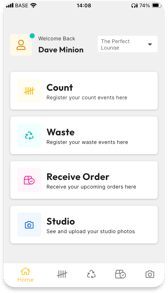
Once you’ve selected your outlet, you will access the main menu to see all available options. From here, you can count stock, record waste, receive orders, or use the app as a studio. Access each feature by tapping on each section or via the bottom bar of the app.
If your account has access to multiple libraries, the Barcode Scanner App syncs with the library connected in your browser. To change libraries, you should change library in the browser. This will automatically log you out of the app, so that you can log in again and appear in the new library.
1.3. App syncing and Working offline
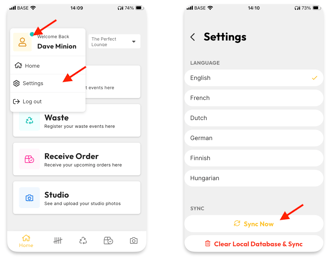
- Click on your profile and go to Settings.
- Once there, scroll to the bottom of the page and click on Sync Now.
Working Offline with the app
You can use the Apicbase app while being offline. This can be useful when counting of receiving orders in rooms where internet connection is unstable or not reachable at all.
To use the app this way, it's important to first having synced the app, that is, by starting the app on a location with internet connection. Once this has been done, we can enter the area without connection and keep on working (counting, wasting, etc.). Once we are done working, we should come back to the location with internet access and let the app sync again. This should happen automatically.
It might happen that we work on a location with weak internet connection, that is, the connection comes and goes. This can be disturbing, since the app will try to re-sync every time connection is recovered. To avoid this, we suggest you to switch your device to airplane mode during the time you work on the weak internet area, and turn it off only when you are ready to sync with a stable connection. This ensures that all data is transferred correctly.
2. Apicbase Mobile
It's important to bear in mind that the Barcode Scanner App is not the same as the Apicbase software. The app will only allow you to take a series of actions (counting, wasting, etc.) but will not let you do everything you can do in the software in your browser. Still, we might find handy to use the software from our mobile device. In that case we should use our browser on the phone or tablet to access the software, where all features are accessible.
Apicbase doesn’t have a native mobile app that covers the whole system, but you can add a shortcut to your device's home screen so it behaves like one. The steps differ slightly by device:
For iPhone / iOS
-
Open your mobile web browser and go to apicbase.com.
-
Log in to your Apicbase account.
-
Tap the Share button in your browser.
-
Tap Add to Home Screen.
-
Tap Add to confirm.
-
You now have a shortcut icon on your home screen that opens Apicbase directly.
For Android
-
Open your mobile browser and navigate to apicbase.com.
-
Log in with your Apicbase credentials.
-
Tap the browser’s menu button (shown in the screenshots).
-
Choose Add to Home screen.
-
Enter a name for the shortcut if prompted.
-
Tap Add.
-
You’ll now have a home-screen icon that opens Apicbase quickly.
That’s it! You now have quick access to your Apicbase dashboard from your phone, just like a regular app.
Note that this is the mobile web version, not a dedicated app, but it's fully compatible and gives you complete access.