![logo-mark-primary-color-4.png]](https://support.apicbase.com/hs-fs/hubfs/logo-mark-primary-color-4.png?height=40&name=logo-mark-primary-color-4.png)
Table of Content
1. How to Connect
Connecting 3S POS requires the setup of the API. Here are the steps to follow:
- Request a non-expiring token for use with 3S POS from Apicbase, emailing api_support@apicbase.com with your CS manager in cc. Indicate your library's name and ID number. The creation of this token is required to start the process on 3S POS's end and it can only be done by the specialised API support.
- Send the value of the token over to your account manager at 3S POS. Ask them to set up the integration on their side for your location/outlet. Ask them for the location's ID.
- Once this is confirmed, following the instructions in the PoS Integrations article, you should navigate to the Integrations Tab in your outlet settings, select ‘Generic PoS’ (1) and add the location ID provided by 3S POS (2).
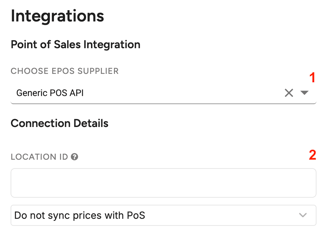
- When all the above is done, Apicbase can start syncing the PoS articles & sales data. Make sure you agree with 3SPOS about the syncing frequency.
- To add a new location, ask 3S POS to configure the integration using the same token and ask them for the new location's Location ID, repeating step 3 on Apicbase.
Note: To add new locations, you can repeat these steps from step 2 onwards. Ask 3S POS to reuse the same API token and provide a new Location ID.
If an error occurs when trying to connect, first ensure that you have the correct Client ID. If the issue persists, contact your 3S POS account manager, your Apicbase CSM or the support team.
Once your PoS is connected to your outlet, you can move on to the next steps, as explained in the PoS Integrations article.
2. Relevant Details
- No manual fetching of sales data: Note that the sync pos button won’t do anything (as that’s not used for these type of pos integrations). The syncing of Sales data and PoS items will depend on 3S POS side to have triggered the API calls, and therefore it cannot be triggered manually from Apicbase.
- PoS-hosted integration: This integration is built and triggered by 3S POS and the APicbase team has a limited capacity to respond to issues about the integration. It is important to always get the 3S POS support involved when an issue rises.
- Syncing frequency: the frequency with which sales data will be sent to Apicbase depends on 3S POS. It is key to agree on this directly with their team.
3. Contact Information
-
For connection setup and syncing behaviour, contact your 3S POS account manager or support@3s-pos.com.
-
For API token creation, contact api_support@apicbase.com.